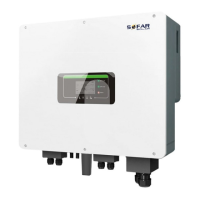
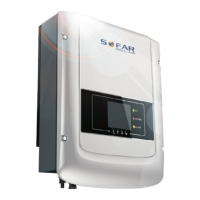
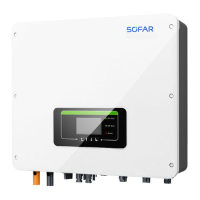
SOFAR 7.5KTLM User manual
Copyright © Shenzhen SOFARSOLAR Co., Ltd
User can update software by SD card , Sofarsolar will provide the new update
software called firmware for user if it is necessary,The user needs to copy the
upgrade file to the SD card.
6.4. Update Software online
SOFAR 7.5KTLM inverters offer software upgrade via SD card to maximize
inverter performance and avoid inverter operation error caused by software bugs.
Step 1 First,turn off the DC and AC breaker,and then remove the
communication waterproof cover as the following picture.If the RS485 line has
been connected,Be sure to release the waterproof nut,Make sure the communication
line is no longer the force. Then remove the waterproof cover,In order to avoid
loosening the communication plug which has been connected.
Step 2 Insert the SD card into the compute.
Step 3 SOFAR SOLAR will send the Software code to the user who needs to
update. After user receive the file,please decompressing file and cover the original
file in SD card.
Step 4 Insert the SD card into the SD card interface.
Step 5 Then turn on DC switch and enter into the online upgrade to the main
menu"5.Software Update"in the LCD display program[6.3(E)].The method to enter
the menu can refer to operation interface of LCD.
Step 6 Input the password, if password is correct,and then begin the update
process,the original password is 0715.
Step 7 System update main DSP, slave DSP and ARM in turns.If main DSP
update success,the LCD will display"Update DSP1 Success", otherwise display
"Update DSP1 Fail"; If slave DSP update success,the LCD will display"Update
DSP2 Success",otherwise display "UpdateDSP2 Fail".
Step 8 If Fail,please turn off the DC breaker,wait for the LCD screen
extinguish,then turn on the DC breaker again,then Continue to update from step 5.



 To Next Page