12
MediaShower TV
How to Set Up or Change your PIN
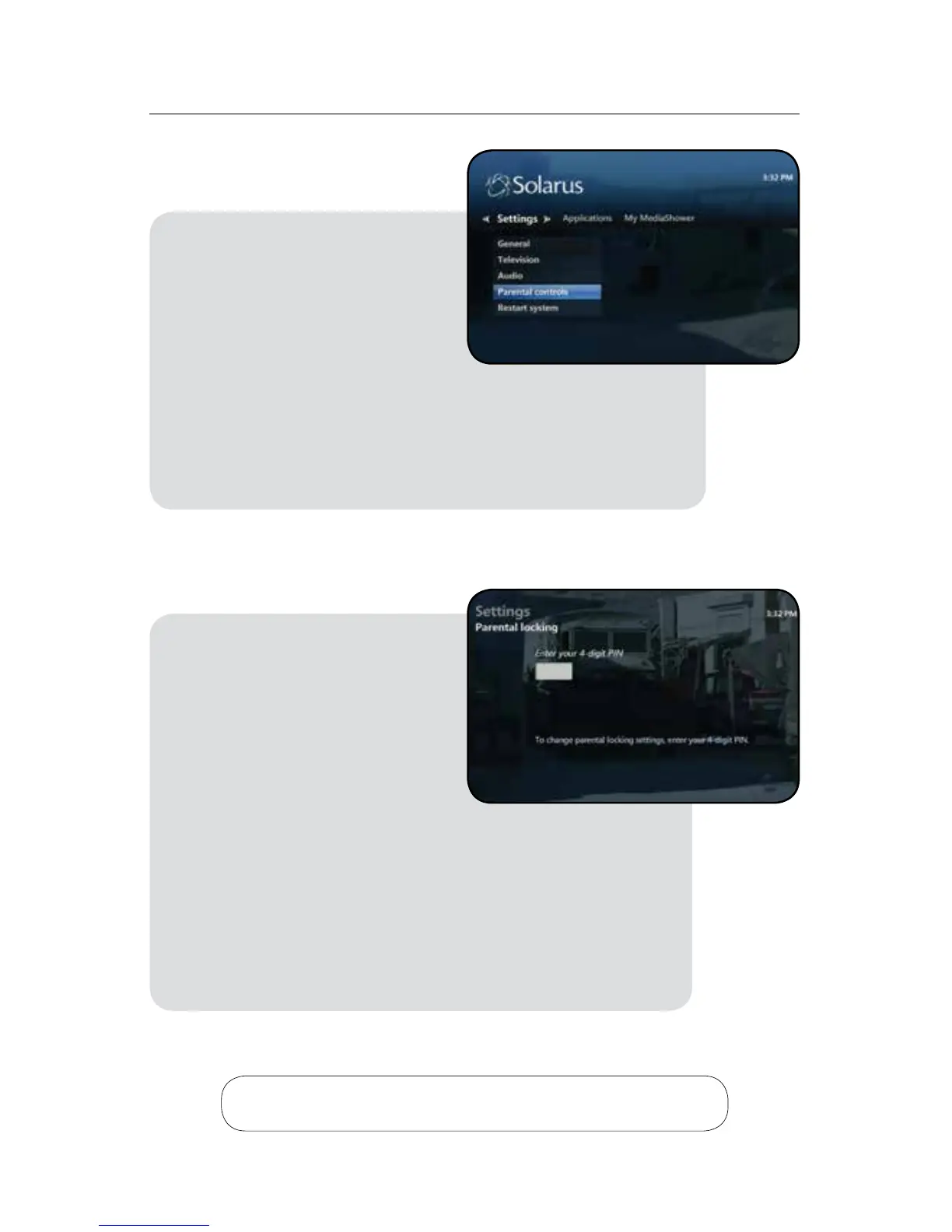
To set up your PIN follow the steps below:
Your PIN has now been activated.
To change your PIN follow the steps below:
Your PIN has now been changed.
1. Press the Menu button on
your remote control
2. Scroll to Settings
3. Scroll to the Parental Controls
option and press OK on your
remote control
4. Press OK on the Parental Locking option
5. You will be prompted to choose a 4-digit PIN,
enter your choice of a 4-digit PIN and press OK
6. You will now be prompted to confirm your PIN,
re-enter your new PIN and press OK
1. Press the Menu button on your
remote control
2. Scroll to the Settings menu
3. Scroll to the Parental Controls
option and press OK on your
remote control
4. Enter your 4-digit PIN when
prompted
5. Press OK on the Parental Locking option
6. Scroll to Change Pin option and press OK on your
remote control
7. You will be prompted to enter a new 4-digit PIN,
enter your new PIN
8. You will now be prompted to confirm your new
4-digit PIN, re-enter your new PIN
Reminder: the Save button must be selected after each
change in order to save your new PIN.



 To Next Page