18
MediaShower TV
You will also have additional options such as searching titles only, video on
demand only or to search people only. To access these options, while in the search
detail screen scroll to the Options button and press OK on your remote control.
NowselectthesearchoptionyouwouldlikeandpressOK on your remote control.
Video On Demand
Solarus On Demand provides access to thousands of hours of video titles,
concerts, movies, free programs and special events. Ordering is simple and you
canpause,fast-forward,rewindandstoptheselection(justlikeusingyourDVD
player).Selectrentalsareavailableforupto72hours.Rentalwindowandpriceis
based upon individual title and movie studio.
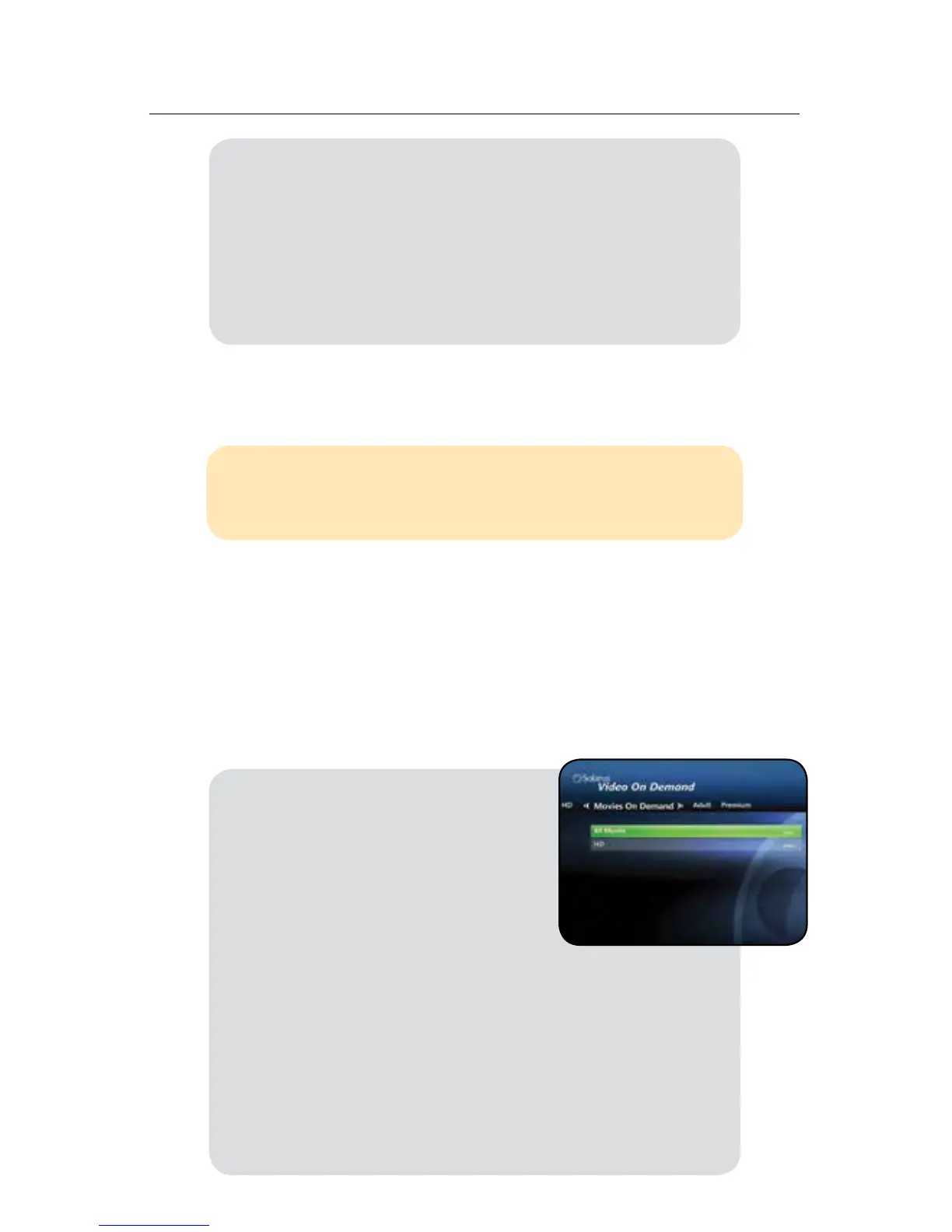
To access VOD press the Video On Demand button on your remote control to
choose from the available tabs.
Order VOD Titles
7. You can now choose to Watch, Record episode, Record
series or View more show times
8. After choosing to record your program you will now
be given additional recording options where you can
choose how long to keep the recording or to change the
schedules end time for the recording
9. Once all options are selected your program will be
recorded on your DVR
MediaShower Shortcuts:
To quickly activate or deactivate your “Search” feature without
going through the menu, press the yellow A button on your
remote control.
1. Press the Video On Demand
button on your remote control
2. Scroll to Movies On Demand press the
OK button on your remote control
3. Use the navigation buttons to view
the VOD library by category, title
or page
4. Scroll to the title you want to rent and press OK on your
remote control. Select the rent option and press OK on
your remote control. A confirmation option will appear,
choose the rent or don’t rent option. Once you confirm
the rental the movie will begin to play. If the PIN required
option has been enabled through the parental controls
menu you will be required to enter your PIN when
selecting the rent option.
5. Use the fast-forward, play, rewind, stop and pause
buttons to view your selection.



 To Next Page