19
MediaShower TV
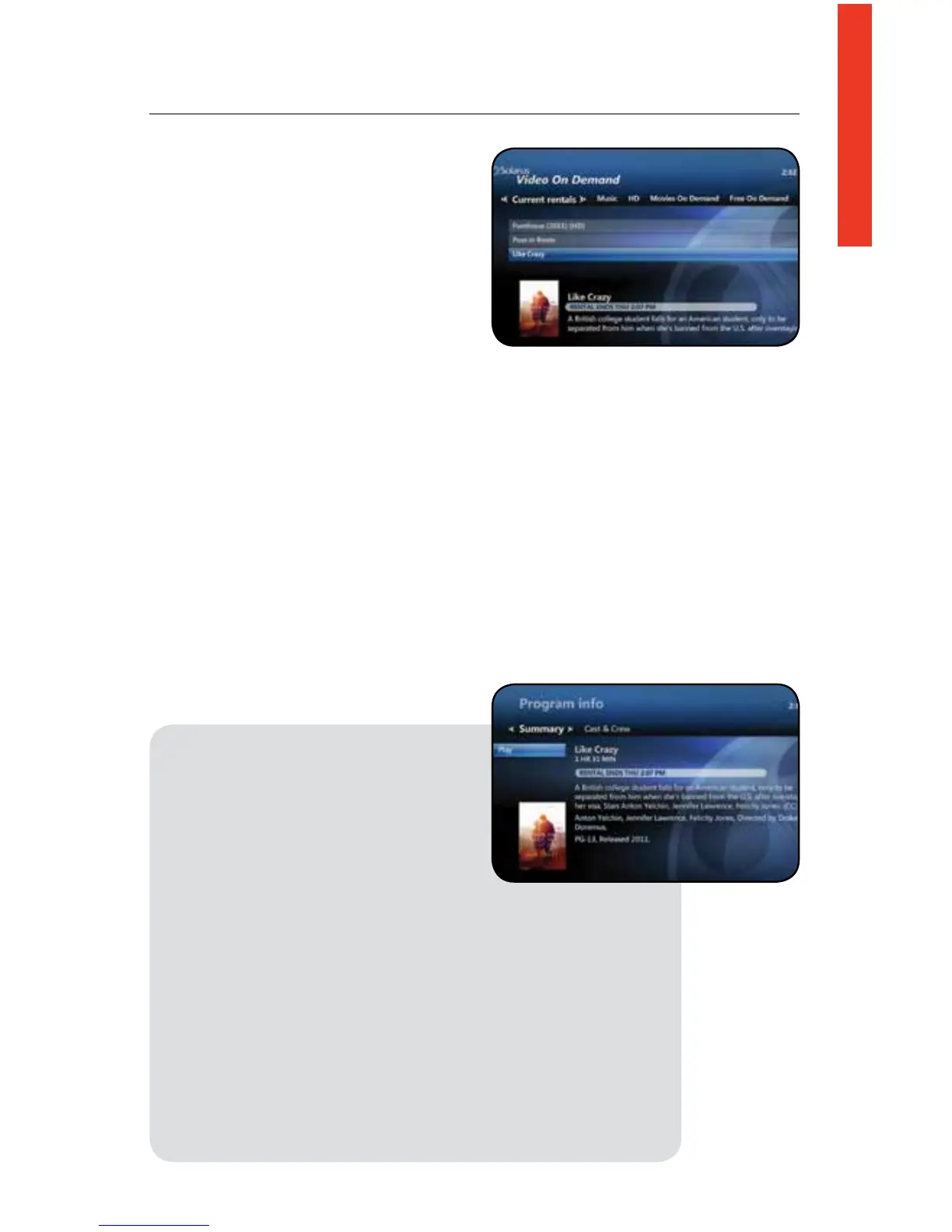
To verify a VOD purchase; press the On
Demand button on your remote control.
All available VOD titles will be listed on
the Current rentals tab.
Additional VOD Information
Some movie titles will have a preview option; this option is available after selecting
a title from the VOD menu. To watch the preview, scroll to the preview option and
press OK on your remote control. The preview will begin playing; at the bottom of
thescreenyouwillseeamessageoeringrentalinformation.PressOK to rent or
decline the rental.
Once you have chosen a movie to rent, press OK on your remote control, you will
nowbeaskedtocontinuewiththerentalprocessbychoosingtheRent for $X.XX
or Don’t Rent option. Once you have selected the Rent for $X.XX you will be able
to view the title for the available rental period and you will be charged on your
nextmonthlystatement.IfyouchoosetheDon’t Rentoptionyouwillgobackto
the rental information screen.
Play or Restart VOD
1. Press the Video On Demand
button on your remote control
2. Scroll to Current Rentals
3. Choose the title that you want to
restart or replay and press OK on
your remote control
4. Scroll to Play and press OK on your remote control. The
title will now begin to play from where you last left o.
To start from the beginning, press Stop and choose the
Start Over option.
5. Use the fast-forward, rewind, stop and pause buttons to
view your selection.
Note. Ifwatchingarentedtitlefromadditionalset-topboxes
in your home the movie will only be viewable from the
beginningoftheprogramormovie.Toskipaheadtowhere
youpreviouslylefto,usethefast-forward or skip ahead
buttons on your remote control.



 To Next Page