6
Get to know your Solarus whole-home DVR/Set-top box
YourSolaruswhole-homeDVR/Set-topboxsupportsallofSolarus’sMediaShower
TV services including Pay Per View, Video on Demand and HD.
YourDVRandset-topboxmustbehandledmuchinthesamewayasacomputer
to reduce potential for damage.
• PositionitinanopenspacetoallowairowaroundtheDVR/Set-topbox
• DonotplacetheDVR/Set-topboxinanenclosedentertainmentunitorcabinet
• DonotplacetheDVR/Set-topboxonasoftsurfacesuchasarug,sofa,bedor
other similar surface
• TheDVR/Set-topboxshouldnotbenexttoanexternalheatsourcethatcould
raise the temperature of the unit
• Connectionintoasurgeprotectoralongwithyourotheraudio/video
equipment is highly recommended
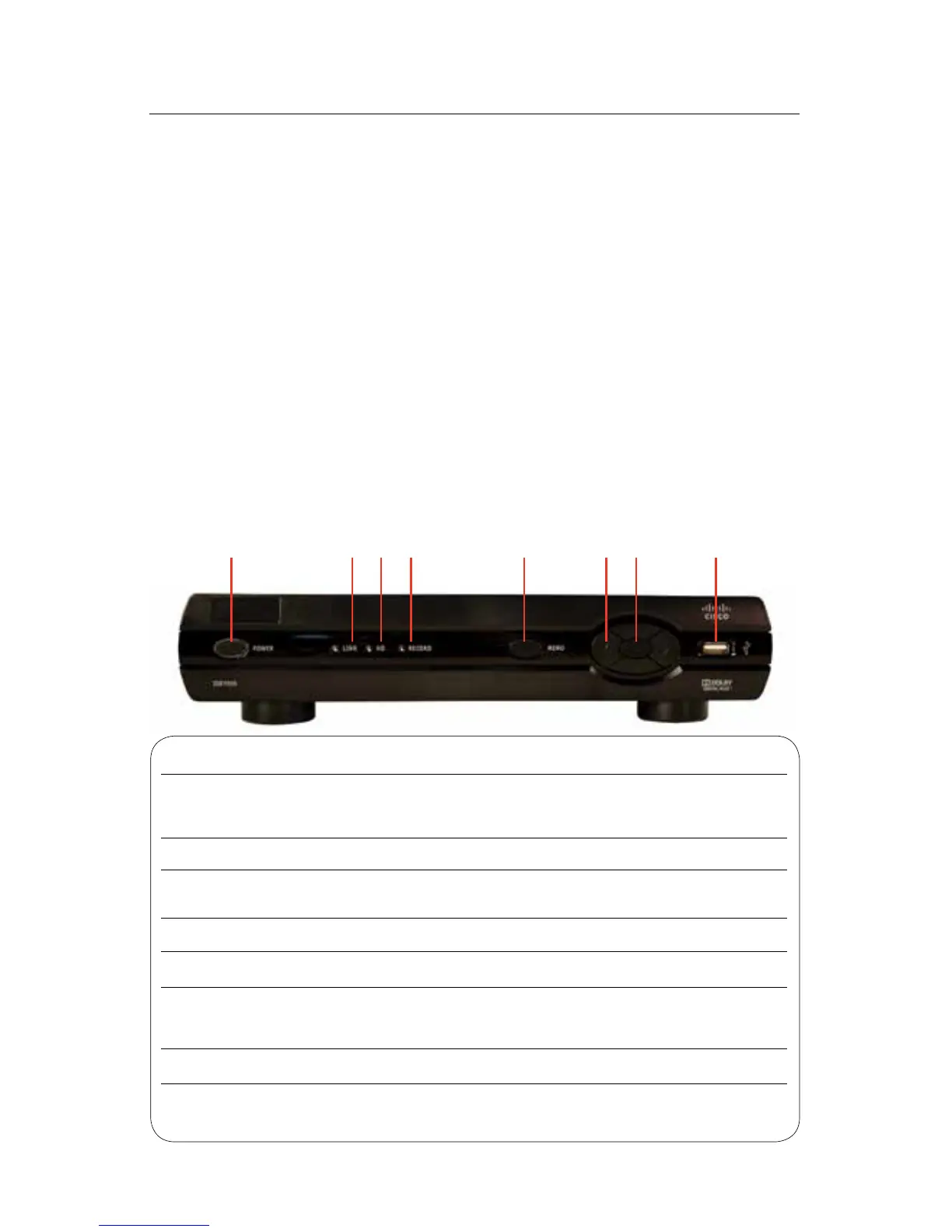
Front Panel
MediaShower TV
Item Description Function
ThepowerbuttonwillturntheDVR/Set-topboxonando.
1 Power Whenheldformorethan5secondstheDVR/Set-topboxisrestarted.
Greenlightingindicatesthepowerison
2 LinkLED Greenlightingindicatesdataorprogrammingstreamisbeingreceived
3 HDLED BluelightingindicatestheDVR/Set-topboxisinHDmode
(720p or 1080i setting mode)
4 Record Redlightingindicatesprogramrecording
5 Menu PresstheMenubuttontoactivatetheon-screenmenu
Up,down, Upanddownarrowkeysallowyoutochangechannels.Leftandright
6 leftandright arrowkeysallowyoutonavigatethroughtheguideandmenu
arrowkeys
7 OK Confirms channels or menu options
8 USBPort USB2.0Connector,notsupportedatthistime,reservedforfutureuse
1 82 3 4 5 6 7



 To Next Page