14
MediaShower TV
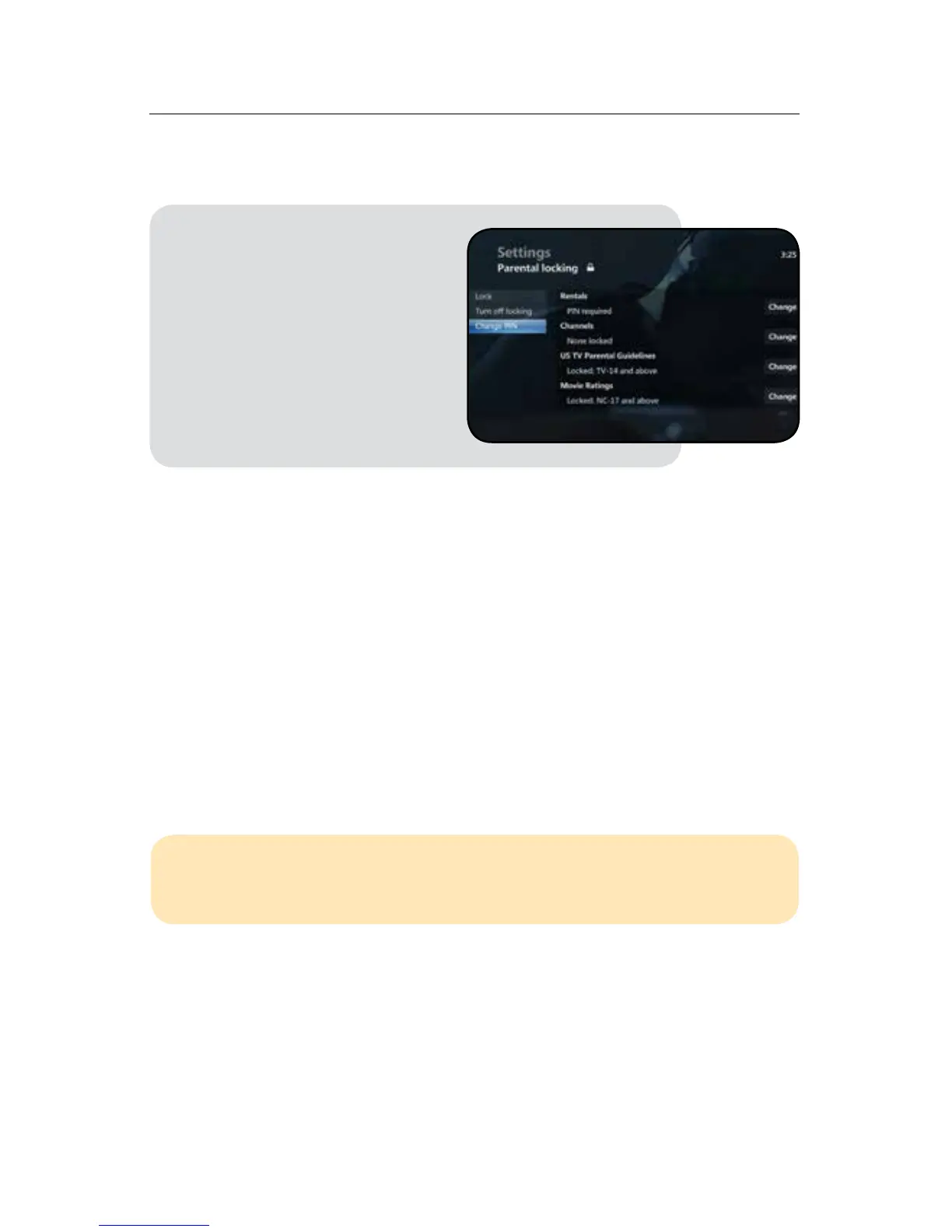
On the Adult Locking screen you will also have the option to change your PIN. To
change your PIN follow the steps below:
YourAdultLockingPINhasnowbeenchanged.
Note:Parentalcontrolsareautomaticallyre-enteredwhenserviceisturnedon/o.
Reminder:ForadditionalParentalControlinformationpleaseseetheParental
Controls section on page 11.
Guide
Youcanchoosetoviewyouron-screenprogramguideinoneoftwodierent
formats, the grid style, which is the default setting, or a channel line up style. The
gridstyleshowsthecurrenttimeblockwithalistofchannelswiththerespective
program information. If you select the channel line up style you will see the
channel you are on with the current and upcoming program information. With
both options you can scroll through the guide channel by channel to view the
current and upcoming programming.
1. While on the Adult Locking
screen scroll to Change PIN
and press OK on your remote
control
2. Enter a new PIN when
prompted
3. Confirm your new PIN by
re-entering your selection
when prompted
MediaShower Quick Tip:
To view what’s on in future days (up to 14 days), press the FF button on your
remote while you’re in the guide.



 To Next Page