This document is a programming and pairing guide for Unitron Blu hearing instruments, a product of Sonova. It outlines best practices for fitting, connecting, and daily use of these hearing aids with various devices and applications.
Function Description
The Unitron Blu hearing instruments are designed to enhance hearing and provide a seamless listening experience. They can be programmed and paired with smartphones (Android and iPhone), the Remote Plus app, PartnerMic, Remote Control, and TV Connector. The instruments offer features such as volume control, environmental balance adjustment, comfort/clarity settings, a 3-band equalizer for fine-tuning, and the ability to create additional optional app programs. They also include a "Coach" feature to assist users in reaching their full potential with their new hearing aids, and a "Ratings" system for users to provide feedback on their listening experience.
Important Technical Specifications
- Pairing Modes:
- Disposable Batteries: Open and close the hearing instrument battery doors to place the hearing instruments in pairing mode for 3 minutes.
- Lithium-ion Rechargeable Batteries: Press and hold the lower part of the button until a red light flashes (3 seconds), then press and hold again until a green light flashes to start the pairing mode. For all models, the hearing instruments remain in pairing mode for 3 minutes.
- Bluetooth® Connectivity: The hearing instruments utilize Bluetooth® for connecting to smartphones and other compatible devices, enabling hands-free phone calls and listening.
- PartnerMic:
- Battery: Built-in, non-removable, rechargeable battery.
- Charging Time: Approximately 2 hours for a full charge. The indicator light turns solid green when charging is complete.
- Range: Optimal performance when the PartnerMic is 20 cm (8") below the wearer's mouth. A distance of 50 cm (20") should not be exceeded.
- Clothing: Avoid tilting the PartnerMic beyond 45° and avoid covering it with clothing during use.
- TV Connector:
- Range: The hearing instruments will automatically connect to the TV broadcast program once a signal is detected. A high-quality audio signal is guaranteed within a 45-foot range.
- Pairing: The LED indicator light will blink blue when connecting new hearing instruments.
- Placement: Ensure the hearing instrument(s) are within a range of 3 feet from the TV Connector for pairing.
Usage Features
- Smartphone Connection:
- Android: Open "Settings," click on the Bluetooth® icon, and move the slider to activate Bluetooth®. The name of the hearing instrument will appear, and the user can select it to connect.
- iPhone: Open "Settings," click on the Bluetooth® icon, and move the slider to activate Bluetooth®. The name of the hearing instrument will appear, and the user can select it to connect. Click "Pair" if a pairing request pops up.
- Answering Bluetooth® Phone Calls:
- Answer: Short press (< 2 seconds) on either the upper or lower part of the button on either hearing aid.
- Reject/Send to Voicemail/End Call: Long press (> 2 seconds) on either the upper or lower part of the button on either hearing aid.
- Double Tap (Moxi B-R and Moxi B-RT): Double tap for both answering and ending calls.
- Phone Calls on a Mobile Phone: Discover Next and Blu hearing instruments allow direct communications with Bluetooth® compatible phones. When paired and connected, the client will hear the voice of their caller in both ears directly from the hearing instruments, and the hearing instruments will pick up the client's voice using their own microphones.
- Adjusting Balance between Mobile Phone Calls and Surrounding Environment:
- Call Volume Up: Push the upper part of the hearing aid button to increase the call volume and decrease the volume of sounds in your environment.
- Call Volume Down: Push the lower part of the hearing aid button to decrease the call volume and increase the volume of sounds in your environment.
- Remote Plus App:
- Connection: Open the app, click "Continue," and follow the pairing instructions for disposable or rechargeable hearing aids. The app will search for the client's hearing instruments. Select the device(s) name(s) that appear. Click "Pair" to connect.
- Daily Use:
- Change programs.
- Control volume (personalize volume adjustments for each ear independently).
- Watch how-to videos (e.g., connecting to TV Connector, putting on hearing aid, replacing dome, changing hearing instruments, turning hearing aid off and on).
- Adjust the balance between the media audio and the environment (slide to the left for more surrounding environment volume, slide to the right to increase TV or streamed signal volume).
- Adjust tinnitus masker.
- Provide additional comfort/clarity (select either Comfort or Clarity button, activating a pre-set combination of adjustments to directionality, speech enhancement, noise reduction, and frequency shaping).
- Fine-tune hearing instruments using the 3-band equalizer (adjust bass, mid, and treble frequencies).
- Create additional optional manual programs (select from 6 pre-set manual programs, adjust 3-band equalizer, speech enhancement, noise reduction, and focus the directional microphone).
- Remote adjust (receive notifications on smartphone, apply adjustments from hearing healthcare professional).
- Coach (analyse performance, usage/ratings/overall satisfaction, instruct in relevant skills, insertion/removal/charging/batteries/care/maintenance, provide encouragement, consistent usage tips for hearing in noise).
- Submit ratings on their hearing experience.
- PartnerMic Usage:
- Wearing: PartnerMic is worn by the speaking partner, attached with the clip or hanging in a lanyard.
- Adjusting Volume: The volume of the PartnerMic can be adjusted with the multi-function button on your hearing aid or from the Remote Control functions within the app, available for both Android and iOS.
- Adjusting Balance between PartnerMic and Surrounding Environment:
- Push the upper part of the hearing aid button to increase the PartnerMic streamed signal and decrease the volume of sounds in your environment.
- Push the lower part of the hearing aid button to decrease the PartnerMic streamed signal and increase the volume of sounds in your environment.
- Remote Control Usage:
- Activation: Pull out the battery protective tab to activate the Remote Control.
- Pairing: Set the hearing aids into pairing mode. Press and hold the volume up "+" button. Switch on the Remote Control while still pressing the volume up "+" button. Release the volume up "+" button when the light indicator starts to blink blue. The Remote Control and your hearing aids will now pair automatically. After successful pairing, the light indicator is solid green for 5 seconds, and you may hear a notification beep in your hearing aid.
- Changing Hearing Aid Volume: Press "+" to increase volume, press "–" to decrease volume.
- TV Connector Usage:
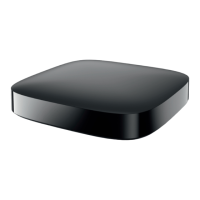
- Setup: Plug the micro USB into the back of the TV Connector, plug the USB into the power plug, and connect the power supply to the electrical outlet. Plug the end of the audio cable (3.5mm analog jack or Digital Optical cable) into the audio output on the TV.
- Connection: The TV Connector is connected to a power source. Connection to the hearing instrument(s) is automatic. Hearing instrument(s) must be within a range of 3 feet of the TV Connector when pairing. Once it is paired, the client will hear a confirmation melody in their hearing instrument(s).
- Adjusting Balance between TV Connector and Surrounding Environment:
- TV Volume Up: Push the upper part of the hearing aid button to increase the TV volume and decrease the volume of sounds in your environment.
- TV Volume Down: Push the lower part of the hearing aid button to decrease the TV volume and increase the volume of sounds in your environment.
Maintenance Features
- Best Practices for Successful Fittings:
- Blu hearing instruments must be fit using Noahlink Wireless to program.
- Check phone compatibility prior to fitting a Blu hearing instrument. Unitron TrueFit fitting software provides a tool to check compatibility.
- Detect and save the hearing instruments in the Unitron TrueFit fitting software before pairing with a phone.
- Close the Unitron TrueFit fitting software before pairing to the phone or Remote Plus app.
- Coach Feature: Provides guidance on insertion/removal, charging/batteries, and general care and maintenance of the hearing aids.
- Tutorial Videos (Remote Plus App): The app offers tutorial videos specific to hearing instrument care, maintenance, insertion, and removal.

 Need help?
 General


 To Next Page