11
GB
Operating the TV
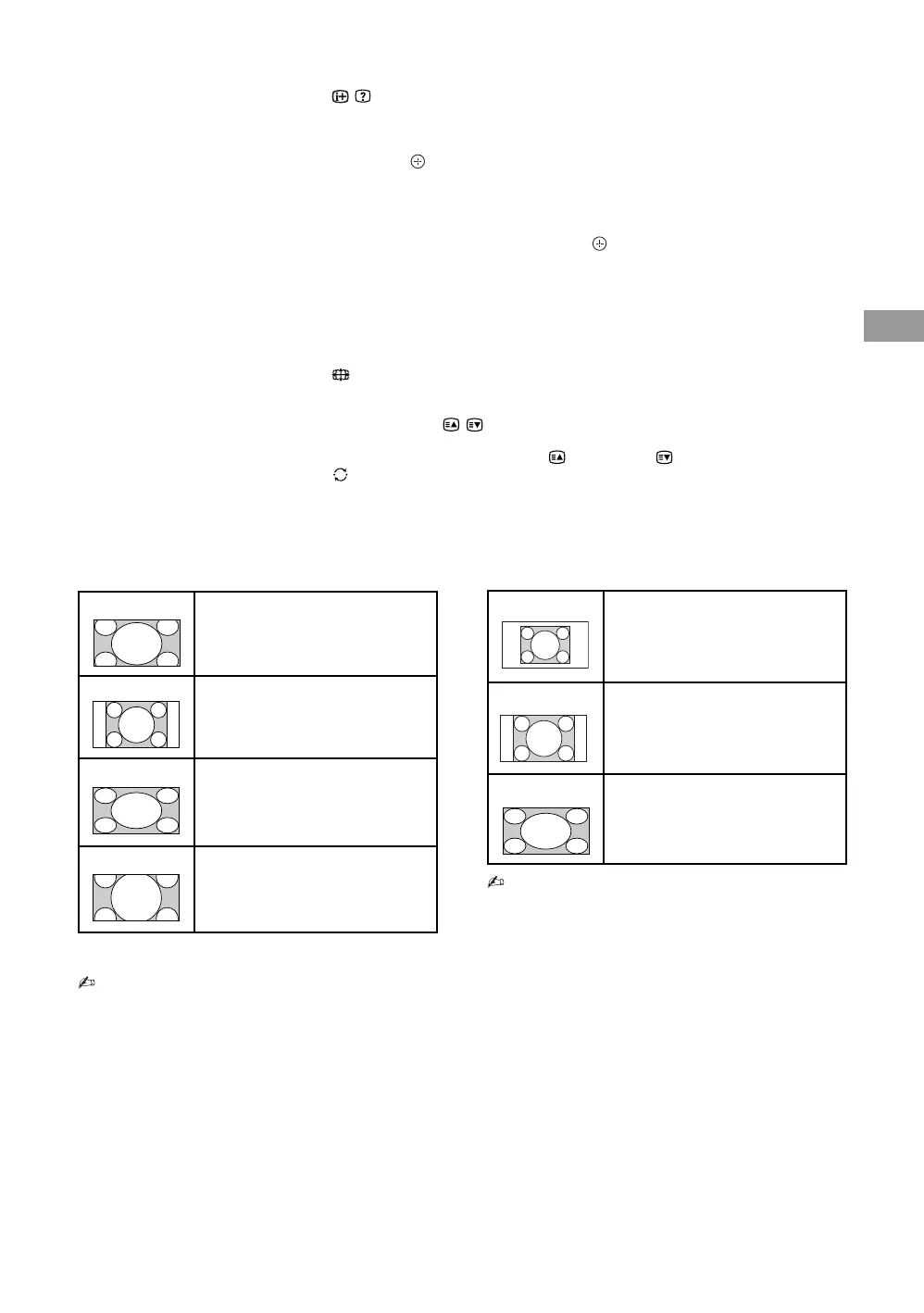
To change the Wide Mode
For TV, Video, Component or HDMI (except
PC input)
* Parts of the top and bottom of the picture may be cut
off.
• You cannot select “Normal” for HD signal source
pictures.
PC or HDMI PC Input (PC timing)
• Some options may not be available depending on the
PC input signal.
qg / – Info / Text reveal
• Displays information. Press once to display information about the programme/
input you are viewing. Press again to remove the display from the screen.
• In Text mode: Reveals hidden information (e.g. answers to a quiz).
qh F/f/G/g/ – Item select / Enter
• Selects or adjusts items.
• Confirms selected items.
• When playing a photo file: Press G to select the previous file. Press g to select
the next file.
When playing a music/video file: Press to pause/start the playback. Press and
hold G/g to fast forward/fast reverse, then release the button at the point where
you want to resume playback.
qj OPTIONS
Press to display a list that contains shortcuts to some setting menus.
The listed options vary depending on the current input and content.
qk Coloured buttons
When the coloured buttons are available, an operation guide appears on the screen.
ql – Wide Mode
Changes the picture size. Press repeatedly to select the desired wide mode
(page 11).
w; PROG/CH +/–/ /
• Selects the next (+) or previous (–) channel.
• In Text mode: Selects the next ( ) or previous ( ) page.
wa – Previous channel
Returns to the previous channel or input watched (for more than 15 seconds).
Wide Zoom* Enlarges the centre portion of the
picture. The left and right edges of
the picture are stretched to fill the
16:9 screen.
Normal Displays the 4:3 picture in its original
size. Side bars are shown to fill the
16:9 screen.
Full Stretches the 4:3 picture horizontally
to fill the 16:9 screen.
Zoom* Displays cinemascopic (letter box
format) broadcasts in the correct
proportions.
Normal Displays the picture in its original
pixel size. Bars are shown at the top,
bottom, and both sides for small
picture.
Full 1 Stretches the original picture to fill
the screen vertically, keeping its
original horizontal-to-vertical aspect
ratio.
Full 2 Stretches the Full 1 picture
horizontally to fill the 16:9 screen.



 To Next Page