13
Quick Start Guide
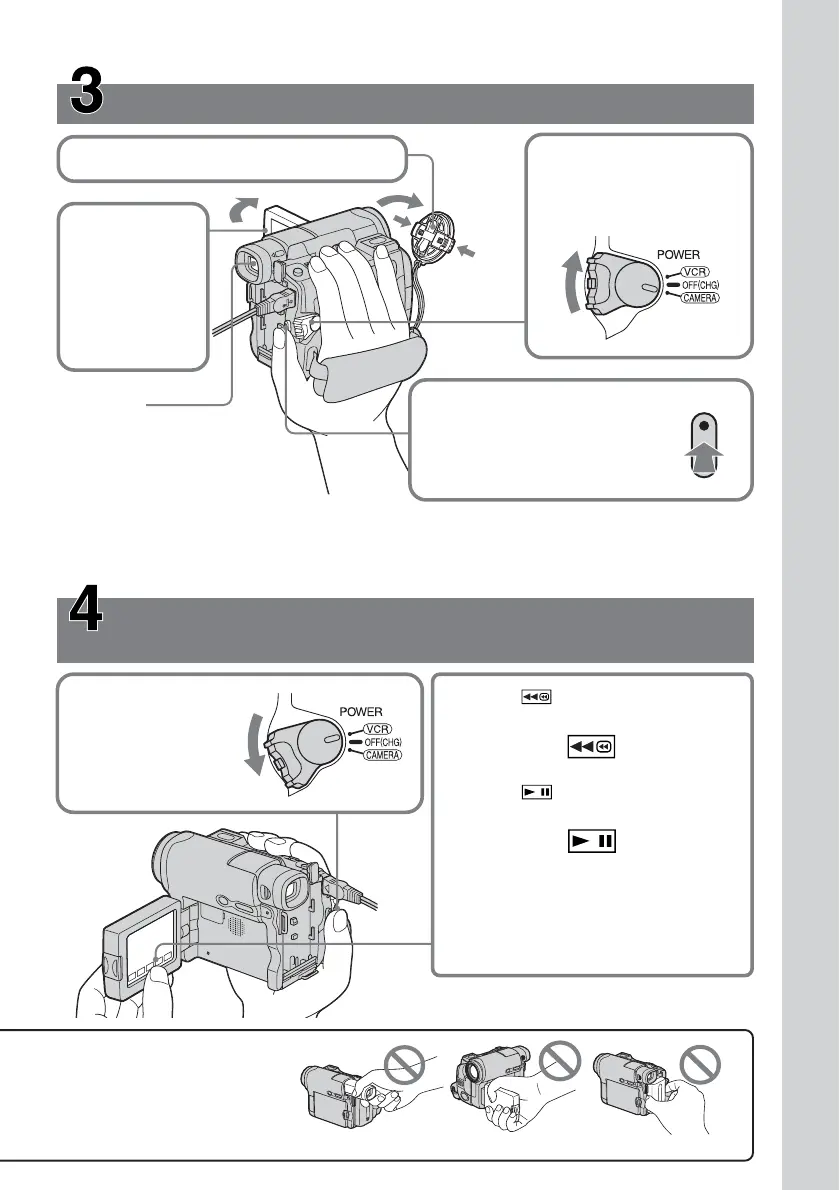
Recording a picture on the tape (p. 31)
Monitoring the playback picture on the LCD
screen (p. 46)
When you purchase your camcorder, the clock setting is set to off. If you want to record the date
and time for a picture, set the clock setting before recording (p. 26).
2Set the POWER switch
to CAMERA while
pressing the small
green button.
4Press REC START/STOP. Your
camcorder starts recording.
To stop recording, press REC
START/STOP again.
1Remove the lens cap (p. 31, 186).
3Press OPEN
to open the
LCD panel.
The picture
appears on
the screen.
Viewfinder
When the LCD panel is closed,
pull out the viewfinder and
look at the picture in it.
Adjust the viewfinder lens to
your eyesight (p. 38).
1Set the POWER
switch to
PLAYER*/VCR**
while pressing the
small green button.
3Press of the touch panel to
start playback.
Note
When using the touch panel, press
operation buttons lightly with your
finger supporting the LCD panel from
the back side of it. Do not press the
LCD screen with sharp objects.
2Press of the touch panel to
rewind the tape.
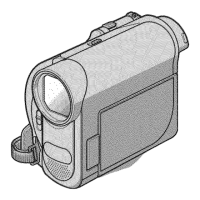
Do not pick up your camcorder
by holding parts as illustrated.
Viewfinder LCD panel Battery pack
* DCR-HC14E
** DCR-HC15E


 To Next Page