32
Using the [Workspace]
Application
You can name and save an image of the currently
opened documents. By preserving the current tab
status and page location, a registered Workspace
allows you to resume your work from the preserved
tab status.
Registering a Workspace
You can save the currently open document as a
Workspace.
1 Press the (Home) button and tap [Documents]
simultaneously to open multiple documents.
2 Press the (Menu) button in the currently open
document and tap [Save Workspace].
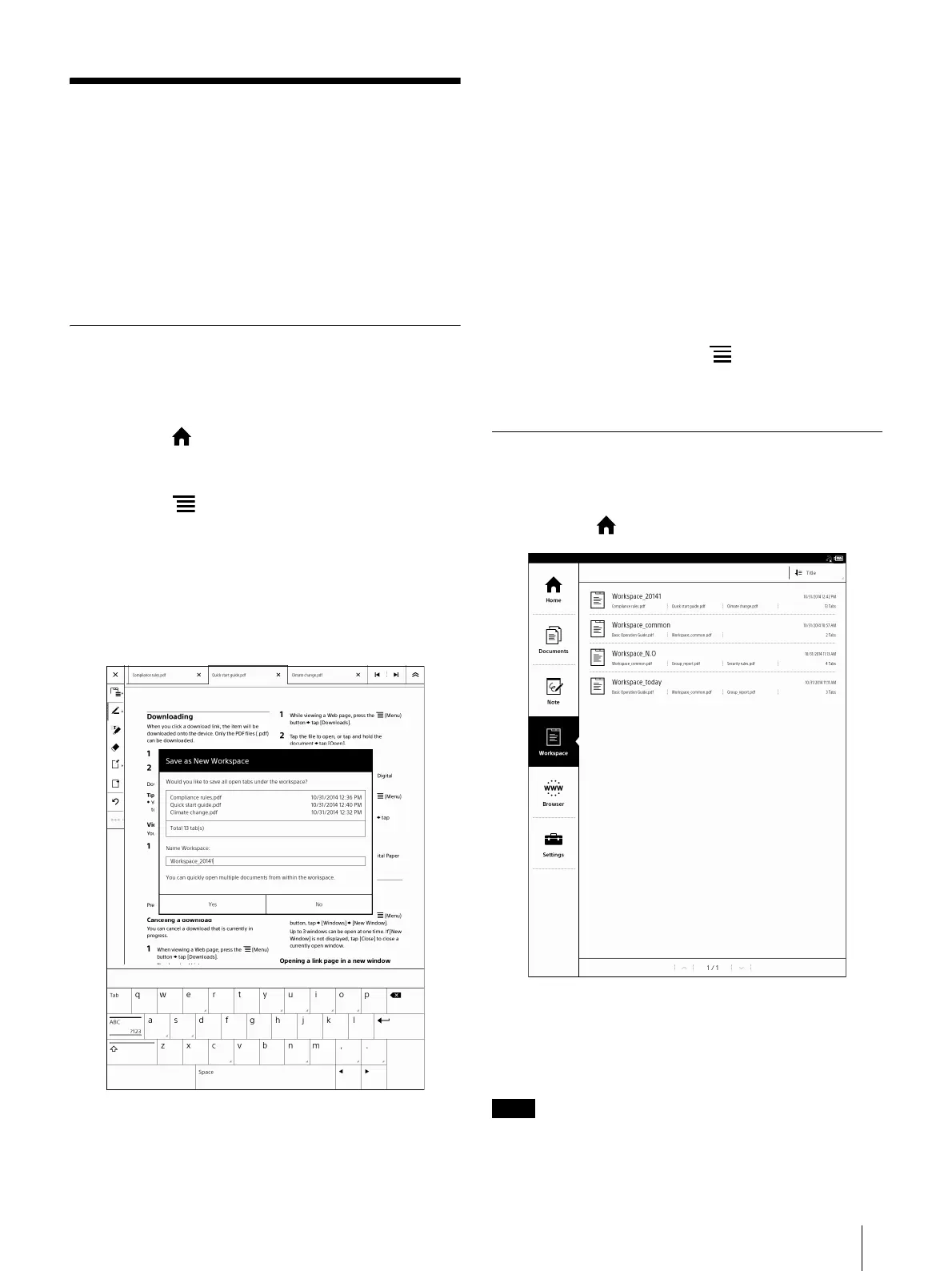
The dialog box for saving as a new workspace
opens.
If there is already a saved Workspace, the [Save
as New]/[Overwrite] pop-up window will be
displayed. Select the saving method.
3 Tap an input area and enter the Workspace name
using the on-screen keyboard, then tap [Yes].
The current tab status of all currently open
documents are preserved as a Workspace.
Tip
To change the registered Workspace name, tap and
hold the Workspace on the [Workspace] list in the
[Home] screen, and then tap [Rename] from the
option menu.
When adding, deleting, etc., a document while the
Workspace is opened, you can overwrite the current
Workspace by pressing the (Menu) button and
tapping [Save Workspace] [Overwrite].
Opening/Deleting/Renaming a
Workspace
1 Press the (Home) button tap [Workspace].
2 Tap and hold the Workspace you want to edit,
then tap the [Open]/[Delete]/[Rename] from the
option menu.
If you open another Workspace, the current
Workspace will be closed.





 To Next Page