50
Folder names and file names are not case-sensitive
for the synchronization.
(Example: "aaa.pdf" and "AAA.pdf" are considered
to be the same file)
Do not create folders or files with names that are
case-sensitive.
If you use punctuation below for the folder name or
file name, it may fail to synchronize.
“:”(colon), “;”(semicolon), “/” (slash), “\”(backslash),
“|” (pipe), “,”(comma), “*” (asterisk), “?”(question
mark),” “ “(quotation mark), “<”,”>”(angle brackets)
If you use special characters for a folder or file
name, synchronization may fail.
Cancel the synchronization
1 Tap (Cancel Sync) during the synchronization.
To cancel auto synchronization, press the
(Home) button tap [Documents] (Cancel
Sync).
Opening a Synchronized Document
in the Digital Paper Device
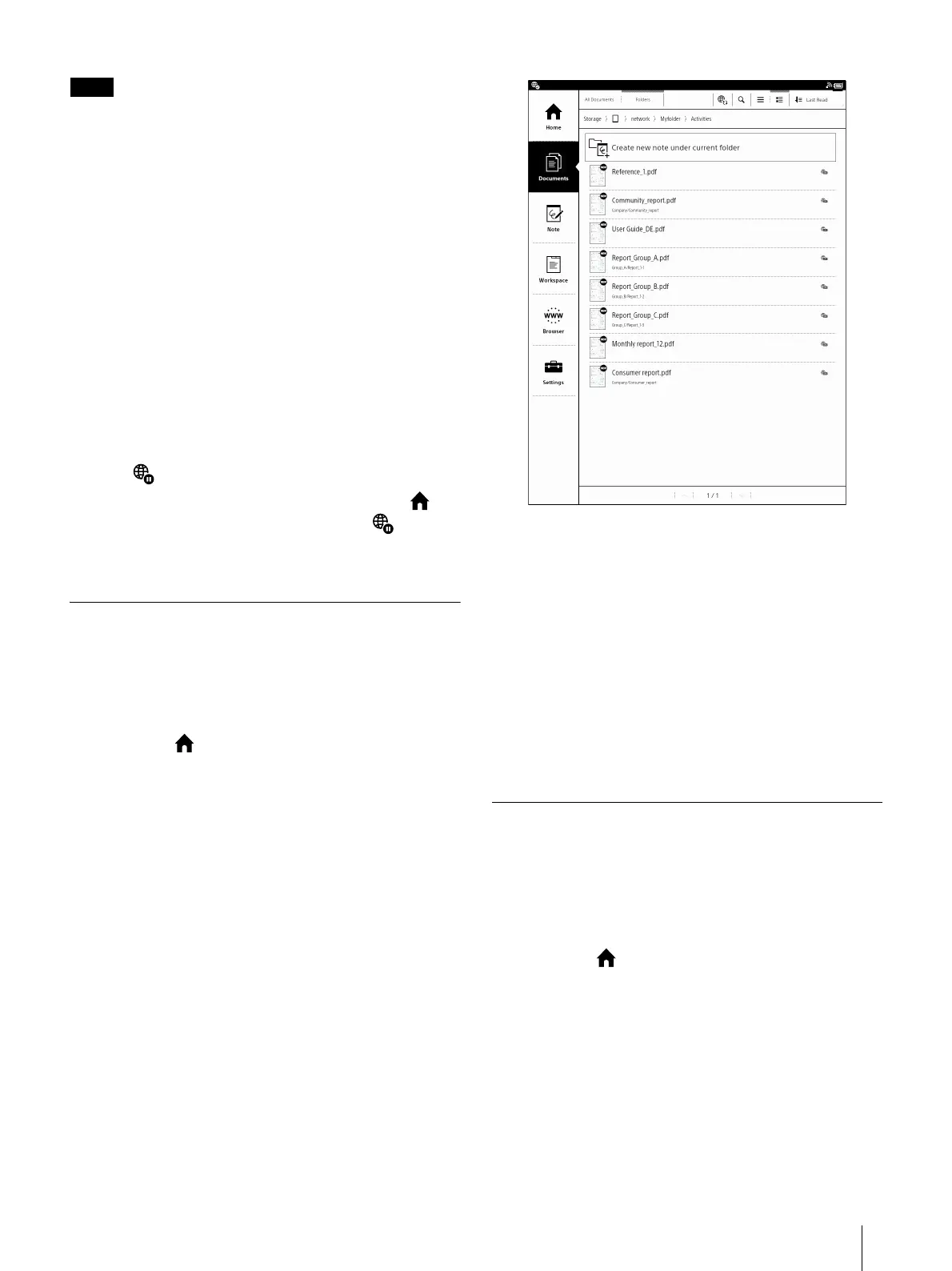
You can open a synchronized document from
[Documents] in the Digital Paper device.
1 Press the (Home) button tap [Documents].
2 Tap the document you want to open.
The document opens.
For more details on opening a document, see
page 26.
Tip
You can open the document from [All Documents]
and [Folders].
For details on document lists, see page 22. For
details on the page control, see page 27.
Deleting a Synchronized Document
When a synchronized document is deleted in the
Digital Paper device, the document is deleted from
the network drive the next time synchronization is
performed.
1 Press the (Home) button tap [Documents].
2 Tap and hold the document you want to delete
tap [Delete] from the option menu.
The confirmation screen is displayed.
3 Tap [Yes].



 To Next Page