Basic Operations 43
Basic Operations
POWER
CAMERA SELECT
12
3
AUTO
POSITION
HOME
RM-EV100
PRESET
STD
REV
BACK LIGHT
MANUAL
FAR
FOCUS
NEAR
W
T
W
T
3
456
PAN-TILT
SLOW
FAST
ZOOM
L/R
DIRECTION SET
PAN-TILT
RESET
DATA SCREEN
1
2
STD
REV
HOME
PAN-TILT
RESET
L/R DIRECTION
SET
CAMERA SELECT
RESET
21
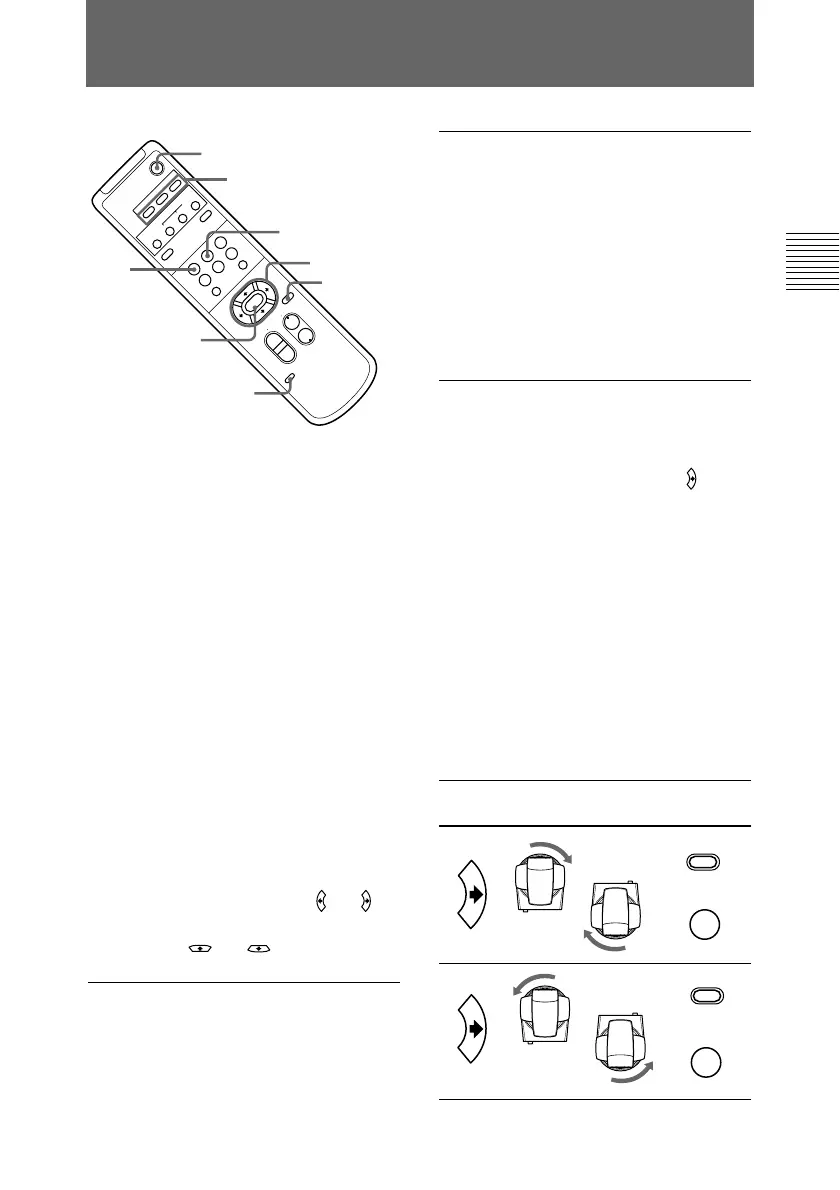
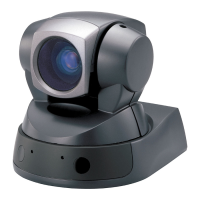
1 Press the POWER switch.
The camera will turn on,
performing the pan/tilt reset
action automatically.
2 Press the arrow button to change
the directions of the camera head.
While checking the picture on the
screen, press the desired arrow
button.
To move the camera little by
little, press the button just for a
moment.
To move the camera in a wide
range, press and hold down the
button.
To move the camera diagonally,
press the arrow button ( or )
while holding down the arrow
button ( or ).
To face the camera back to
the front
Press the HOME button.
If you accidentally move the
camera head with your hand
Release the camera head immediately
to let it return to the previous position
automatically. If you move the camera
head and hold it over a prolonged
period, the camera’s power turns off.
To turn it back on, press the POWER
switch on the Remote Commander.
When the camera is facing in
the wrong direction
The camera is preset to face toward
the right whenever the arrow ( )
button is pressed. You might wish to
face the camera toward the opposite
direction from that of the button you
pressed. In such a case, you can
change the direction of the camera
while checking the picture on the
screen. To do so, press the REV
button while holding down the L/R
DIRECTION SET button.
To reset that setting, press the STD
button while holding down the L/R
DIRECTION SET button.
Arrow Movement of Setting
button the camera
Pan/Tilt Operation
L/R
DIRECTION SET
STD
1
L/R
DIRECTION SET
REV
2
While holding down
Press
While holding down
Press


 To Next Page