Certain conditions in the usage environment, including certain wall materials, radio wave
reception conditions, or obstructions between the HDD AUDIO PLAYER and the wireless
LAN router/access point, may shorten the possible communication distance. Move the HDD
AUDIO PLAYER and the wireless LAN router/access point closer to each other.
Devices that use a 2.4 GHz frequency band, such as microwaves, Bluetooth, and digital
cordless devices, may interrupt communication. Move the HDD AUDIO PLAYER away from
such devices, or turn off such devices.
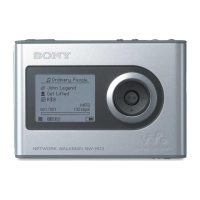
The HDD AUDIO PLAYER is equipped with a built-in antenna for wireless LAN. Make sure to
keep a distance between the HDD AUDIO PLAYER and speakers or other devices to
maintain good wireless communication.
The wireless router you want to connect to is not shown in
the wireless network list.
Press the BACK button to return to the previous screen, and try [Select access point] again.
If the wireless LAN router/access point you want is still not detected, select [Add a new
access point.] from the network list to add a new wireless LAN router/access point.
The wireless LAN router/access point may be set to “stealth mode.” Confirm the setting of
the wireless LAN router/access point and if the “stealth mode” is set to on, release the
setting.
It takes a long time to transfer and register music files to
the HDD AUDIO PLAYER.
We recommend using a wired LAN when you transfer music files stored on your computer to
the HDD AUDIO PLAYER.
When the HDD AUDIO PLAYER is connected to a computer through a wired LAN, file
transfers will take the following time (as a rough guide):
10 FLAC (44.1 kHz/16 bits) files: approximately 5 minutes
3,000 FLAC (44.1 kHz/16 bits) files: approximately one day
Transfer of music files via the network may be severely affected by conditions such as the
router or other devices you are using, signal conditions in the area or the status of the HDD
AUDIO PLAYER.
Transfer and analysis of the music files are done in parallel by the HDD AUDIO PLAYER.



 To Next Page