On-Screen Indications
16
Overview
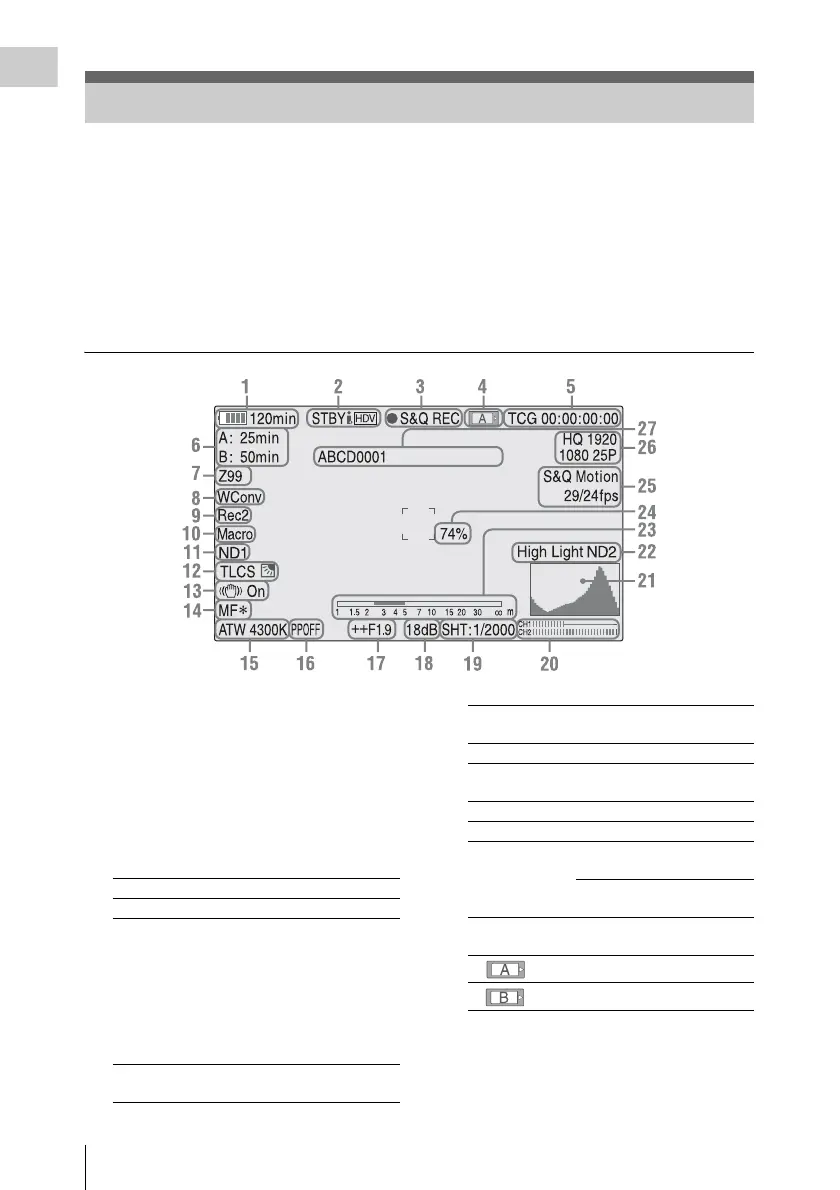
While recording (or standing by to record), pressing the DISPLAY button displays the statuses and
settings of this unit on the LCD monitor/viewfinder screen.
Remarks
[M]: The indication of the items named with this suffix can be independently turned on/off with “Display
On/Off” in the LCD/VF SET menu (page 85).
[A]: The indication of items named with this suffix can be turned on/off using the assignable buttons to
which the corresponding on/off functions have been assigned (page 45).
[D]: The settings of the items named with this suffix can be changed using the Direct menu on the screen
(page 17).
1. Battery remaining/DC IN voltage
indication [M] (page 18)
2. i.LINK status indication (page 99)
Only when an external device is connected to
the i.LINK connector, the status of the device is
displayed.
3. Special recording/operation status
indication
4.Media status indication
5.Time data indication [M] (page 41)
6.Media remaining indication [M] (page 23)
7.Zoom position indication [M] (page 39)
On-Screen Indications
zREC Recording in progress
STBY Standby for recording
CONT Standby for recording
When using Clip Continuous
Recording, indicates that a
clip is being continued.
“CONT” flashing: When
using Clip Continuous
Recording, indicates that there
is no continuing clip.
zS&Q REC Slow & Quick Motion
recording in progress
S&Q STBY Standby for Slow & Quick
Motion recording
zINT REC Interval Recording in progress
INT STBY Standby for Interval
Recording
zFRM REC Frame Recording in progress
FRM STBY Standby for Frame Recording
zCACHE z in green: Standby for
Cache Recording
z in red: Cache Recording in
progress
Memory card in slot A is active.
Memory card in slot B is active.


 To Next Page