Using a Wi-Fi Adapter
32
Preparations
Example (when the IP address is
“192.168.1.10”): Type “http://
192.168.1.10/” in the address bar.
If the connection is complete, a dialog
appears asking you to enter the user name
and password.
2 Enter the user name and password, and
click [OK].
User name: admin
Password: pmw-150 (Lower-case the model
name.)
To upload a planning metadata file
1 Insert a media such as an SxS memory
card.
2 Click “Upload” in the Web menu.
The Planning Metadata screen appears.
3 Click “Select” to show Choose File
dialog.
4 Select the planning metadata file you
want to upload, and then click “Open”.
The path of the selected file appears.
5 Click “Execute”.
The planning metadata file is loaded into the
camcorder’s memory and stored in the
media.
“OK” appears in the Status field when the
transfer is complete.
When a Wi-Fi connection is established between
a device such as smartphone, tablet, PC, etc., and
the camcorder, the Wi-Fi remote commander
appears on the device screen and the device can
be used as a remote commander.
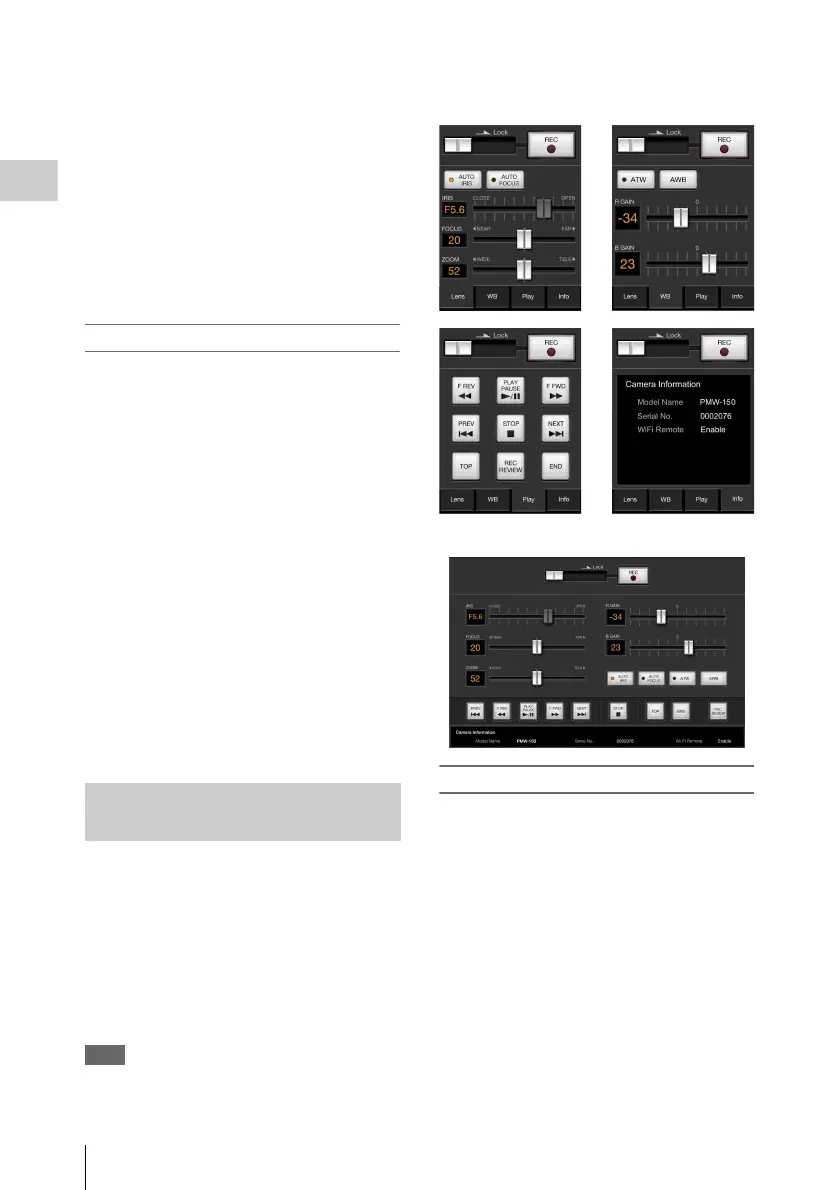
You can start/stop recording, adjust iris/focus/
zoom, etc., with a Wi-Fi connected device. This
function is useful for setting the camcorder in a
remote place, such as the top of a crane, etc.
Note
When iris is not set to auto, “IRIS” slider operation and
ON/OFF setting of “Auto IRIS” are not available.
The displays of Wi-Fi remote commander
For smartphone
For Tablet
To display the Wi-Fi remote commander
To display the Wi-Fi remote commander on a
device screen, settings are required on both the
device and camcorder.
Camcorder settings
1 Set OTHERS > Wi-Fi > Wi-Fi to
[Enable] in the setup menu.
2 Set OTHERS > Wi-Fi > Wi-Fi Remote
to [On] in the setup menu.
Device settings
Set the smartphone, tablet, PC, etc., to be used as
the Wi-Fi remote commander.
Using the Wi-Fi Remote
Commander


 To Next Page