Chapter 2: Sonoma Editor
Chapter 2: Sonoma Editor 55
marks with respect to moving, trimming and copying ingredients. Error marks cannot be moved, but
they can be deleted. Multiple error marks can appear at the same location.
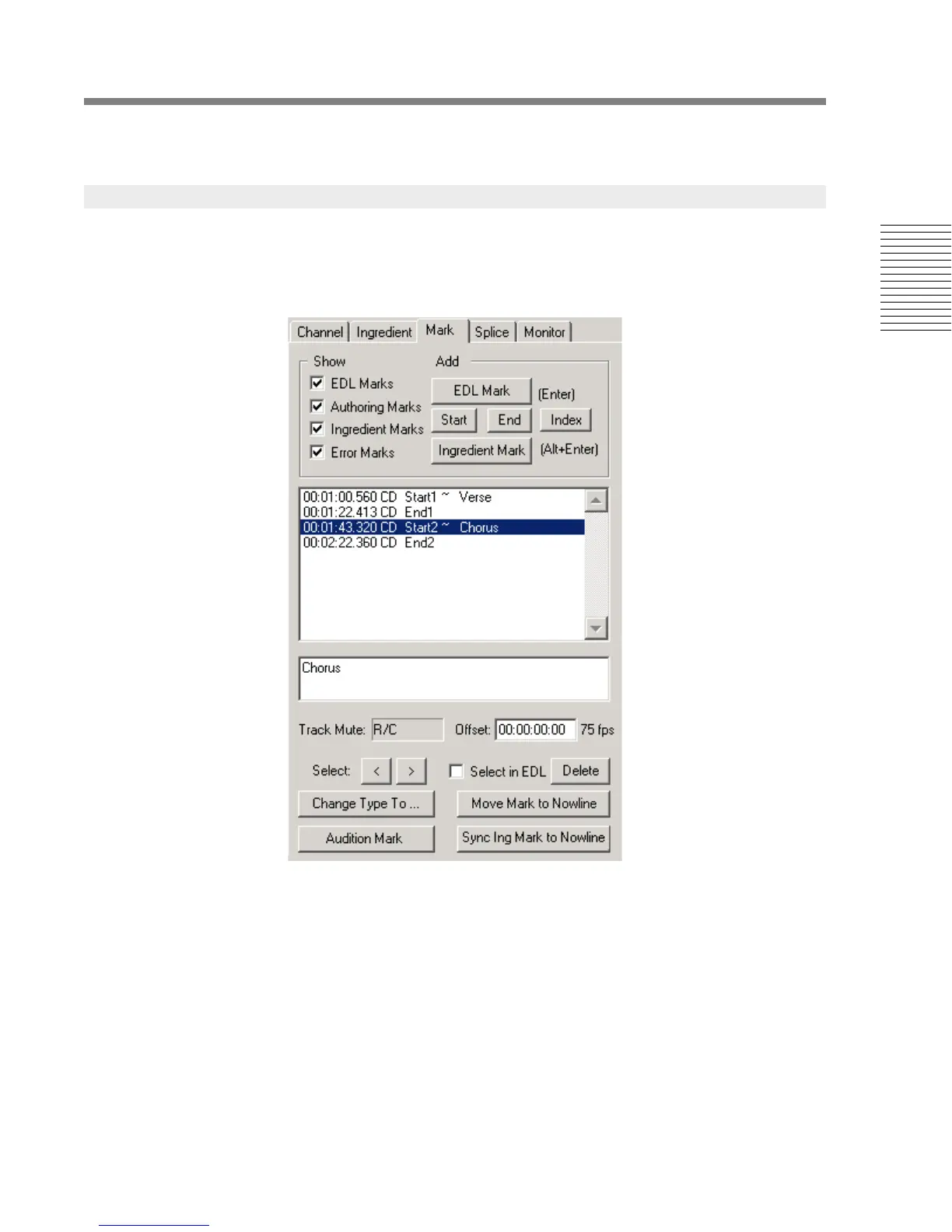
The mark control panel can be opened by clicking on its tab or pressing Ctrl+Alt+M. This window
allows you to view a list of all the marks in an EDL and its ingredients, and to edit them. It contains
a scrolling list of marks, groups of checkboxes, command buttons, and an editable text area.
2.15.5.1 Mark List Filter
The four check boxes labeled “show” determine which types of marks are visible in the EDL and in
the editor.
2.15.5.2 Add Mark Commands
Five buttons provide on-screen access to the add mark commands. These are the same commands
that are in the marks menu. When you perform these commands, and the control panel is open, you
can press the Insert-key and immediately enter information about the mark in its text info. field. To
complete your entry, press the ENTER-key.
When you use the ENTER-key or mark menu add mark command to add a new mark, and the mark
editor control panel is not visible, you can still press the Insert-key after creating the mark. This will
automatically open the mark editor and allow you to type in your comments. When you complete
2.15.5 The Mark Control Panel






 To Next Page