23
GB
Using Other Functions
Changing the network
settings
You can change the network settings of the
receiver using the Network settings menu.
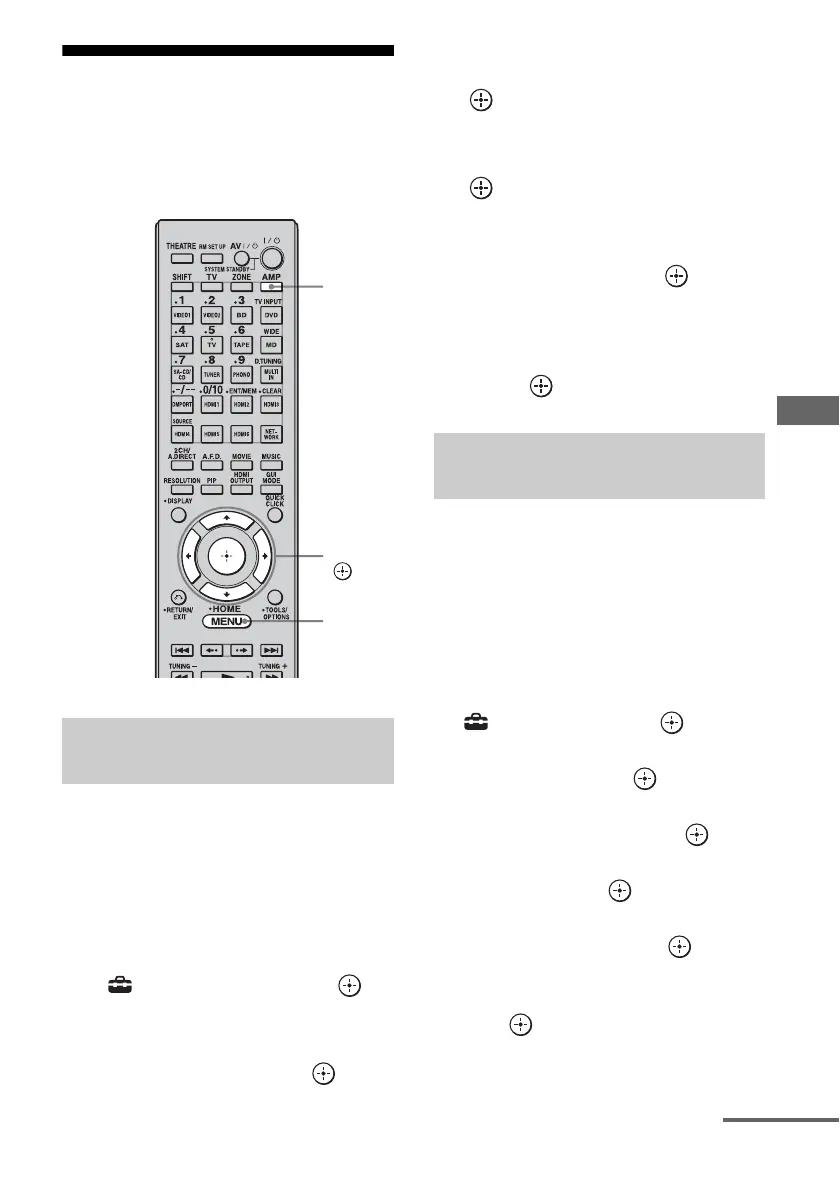
1 Press AMP.
The receiver can be operated using the
remote.
2 Press MENU.
The menu is displayed on the TV screen.
3 Press V/v repeatedly to select
“ Settings,” then press or
b.
4 Press V/v repeatedly to select
“Network,” then press or b.
5 Press V/v repeatedly to select
“Network Setup,” then press
.
6 Press V/v repeatedly to select
“Internet Setup,” then press
.
7 Press V/v repeatedly to select
“Connect Automatically
(DHCP),” then press .
“Success! Your device is now connected
to your network.” appears on the TV
screen.
8 Press to select “Finish.”
To set the IP address manually
1
Press AMP.
The receiver can be operated using the
remote.
2 Press MENU.
The menu is displayed on the TV screen.
3 Press V/v repeatedly to select
“ Settings,” then press or b.
4 Press V/v repeatedly to select
“Network,” then press or b.
5 Press V/v repeatedly to select
“Network Setup,” then press .
6 Press V/v repeatedly to select “Internet
Setup,” then press .
7 Press V/v repeatedly to select “Manual
Configuration,” then press .
The setting screen for the IP address
appears on the TV screen.
8 Press to select the IP address.
The soft keyboard appears on the TV
screen.
Configuring network settings
automatically
AMP
V/v/b,
MENU
Configuring network settings
manually
continued


 To Next Page