EasyManua.ls Logo

Sony TRINITRON KV-21V5A - Step 5 - Setting the Clock; Watching the TV; Adjusting the Volume

Sony TRINITRON KV-21V5A
62 pages
Print Icon
To Next Page IconTo Next Page
To Previous Page IconTo Previous Page
Loading...
antic
Qpecations:
Step
5
Setting
the
Clock
Watching
the
TV
‘This
section
explains
the
basic
functions
you use
while
watching,
the
TV.
‘You
need
to
set
the
clock
in
order
to
use
timer
recording
and
quick-timer
“Moot
of
the
operations
can
be
done
using
the
remote
control.
recording
functions.
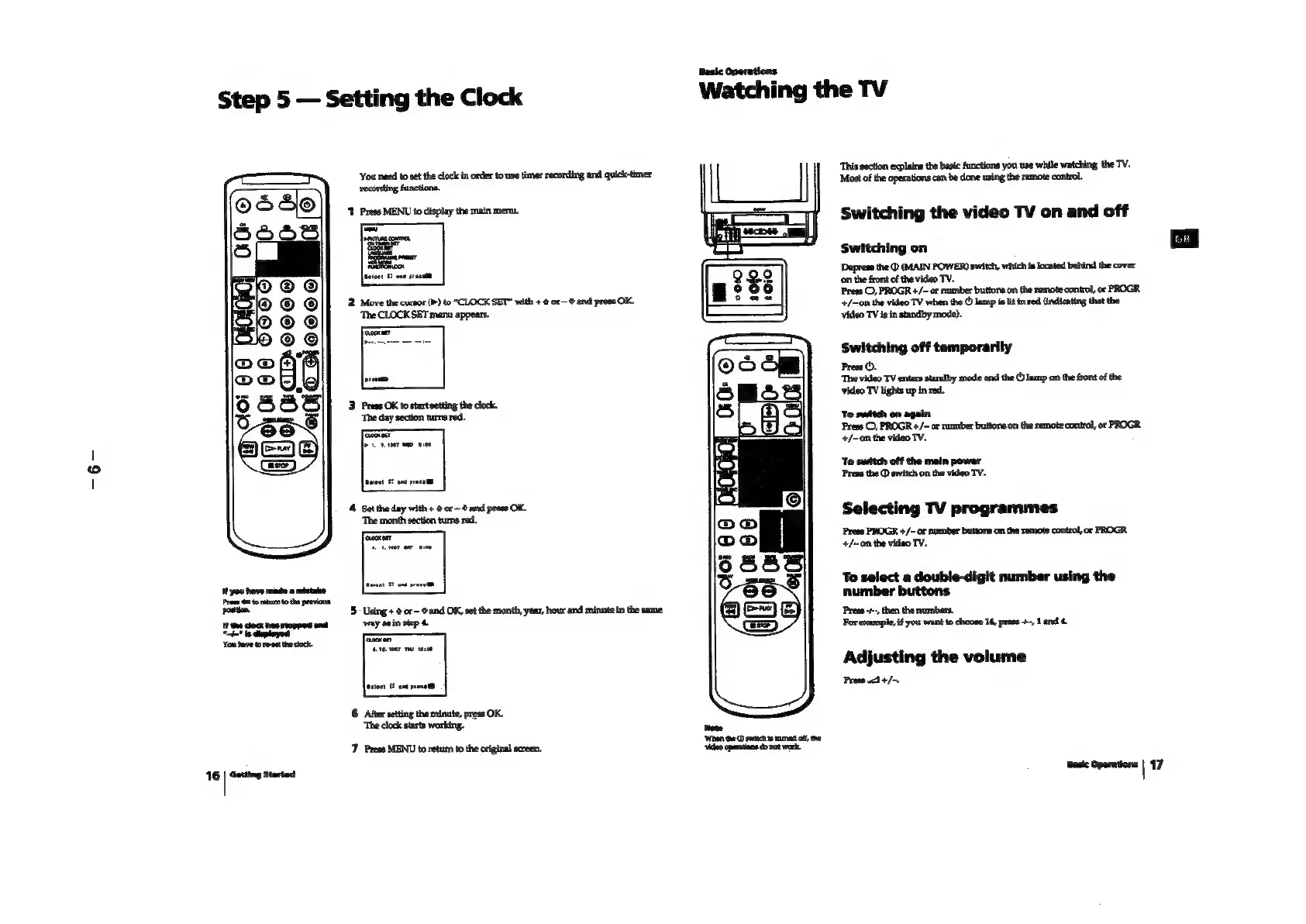
1
Press
MENU
to
display
the
main
menu,
Switching
the
video
TV
on
and
off
‘Switching
on
[ce
|
‘Deprese
the
(MAIN
POWER)
switch,
which
is
located
behind
the
cover
‘on the
front
ofthe video
TV.
rese
©,
PROGR
+/~
of
mumber
buttons
on
the
remote
control,
or
PROGR
+/-on
the
video
TV
when
the
©
lamp
is
lit
in
red
(indicating
that
the
‘Video
TV
is in
standby
mode).
=
2.
Move
the
cursor
(D)
to
“CLOCK
SET” with
+
©
or-
©
and
press
OK.
Switching
off
temporarily
Press
©.
‘The
video
TV
enters
standby
mode
and the
©
lamp
on
the
front
of
the
video
TV
lights
up
in
red.
To
switch
on
again
Press
©,
PROGR
+/-
or
number
buttons
on
the
remote
control,
or
PROGR
+/~on
the
video
TV.
‘To
switch
off
the
main
power
Press
the
©
switch
on
the
video
TV.
Selecting
TV
programmes
Press
PROGR
+/~
or
pummber buttons
on
the
remote
control,
or
PROGR
+/~0n
the
video
TV.
4
Set
the day
with
+
@
or
0
and
press
OK.
‘The
month
section
turns
red.
To
select
a
double-digit
number
using
the
number
buttons
tt
you
have
minde
a
mistaice
Pre
oot
toh
pevone
postion
5
Using
+
¢
or-
0
and OK,
set
the
month,
year,
hour
and
minute
in
the
same
‘Press
~--, then
the
numbers.
«
way
sein
step
4
.
{tthe
dock
hes
stopped
and
ry
as
in
step
For
example,
if
you
want
to
choose
14,
press
#--,
1
and
4.
Yateweorentede
Adjusting
the
volume
‘Press
3
+/-.
6
After
setting
the
minute,
press
OK.
“The
clock
starts
working.
Nowe
‘When
dhe
switch
stared
of,
he
‘vdeo
operons
donot
work.
7
Press
MENU
to
return
to
the
original
screen.
1G
|
Getting
started
Basie
Operations
|
17