EasyManua.ls Logo

Sony Trinitron KV-29F3A - EXTERNAL CONNECTIONS AND INPUTS; Input;Output Signal Selection

Sony Trinitron KV-29F3A
58 pages
Print Icon
To Next Page IconTo Next Page
To Previous Page IconTo Previous Page
Loading...
—oz—
30
a
A
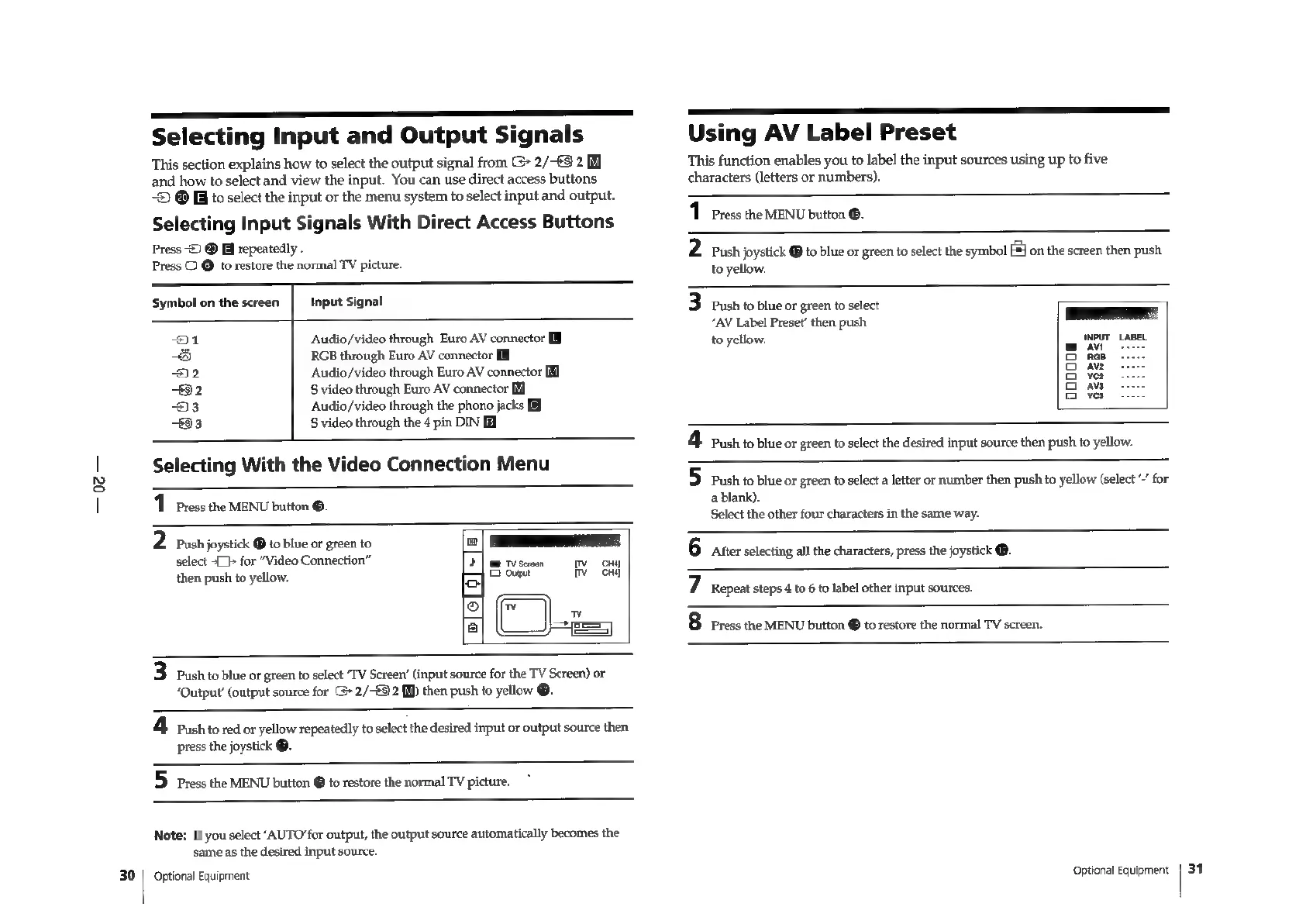
Selecting
Input
and
Output
Signals
This
section
explains
how
to
select
the
output
signal
from
>
2/-89
2
and
how
to
select
and
view
the
input.
You
can
use
direct
access
buttons
-
@
BG
to
select
the
input
or
the
menu
system
to
select
input
and
output.
Selecting
Input
Signals
With
Direct
Access
Buttons
Press
©)
@
Hi
repeatedly
.
Press
C
@
to
restore
the
normal
TV
picture.
Symbol
on
the
screen
Input
Signal
1
Audio/video
through
Euro
AV
connector
ao)
RGB
through
Euro
AV
connector
22
Audio/video
through
Euro
AV
connector
32
S
video
through
Euro
AV
connector
[M]
53
Audio/video
through
the
phono
jacks
33
S
video
through
the
4
pin
DIN
Selecting
With
the
Video
Connection
Menu
1
Press
the
MENU
button
®.
2
Pash
joystick
@
to
blue
or
green
to
Cd
select
+}
for
“Video
Connection”
Ele
avehees,
O
then
push
to
yellow.
fe}
Out
Tye
onal
2
Ww
a
[|
3
Push
to
blue
or
green
to
select
“TV
Screen’
(input
source
for
the
TV
Screen)
or
‘Output’
(output
source
for
>
2/-€3
2
[¥)
then
push
to
yellow
®.
4.
Push
to
red
or
yellow
repeatedly
to
select
the
desired
input
or
output
source
then
press
the
joystick
®.
55
Press
the
MENU
button
@
to
restore
the
normal
TV
picture.
Note:
If
you
select
‘AUTO’for
output,
the
output
source
automatically
becomes
the
same
as
the
desired
input
source.
Optional
Equipment
Using
AV
Label
Preset
This
function
enables
you
to
label
the
input
sources
using
up
to
five
characters
(letters
or
numbers).
1
Press
the
MENU
button
®.
2
Push
joystick
®
to
blue
or
green
to
select
the
symbol
[J
on
the
screen
then
push
to
yellow.
3
Push
to
blue
or
green
to
select
“AV
Label
Preset’
then
push
to
yellow.
ooooo8
4.
Pashto
blue
or
green
to
select
the
desired
input
source
then
push
to
yellow.
5
push
to
blue
or
green
to
select
a
letter
or
number
then
push
to
yellow
(select
~’
for
a
blank).
Select
the
other
four
characters
in
the
same
way.
6
after
selecting
all
the
characters,
press
the
joystick
@.
7
Repeat
steps
4
to
6
to
label
other
input
sources.
8
Press
the
MENU
button
©
to
restore
the
normal
TV
screen.
Optional
Equipment
31

Related product manuals