Connecting Your TV
19
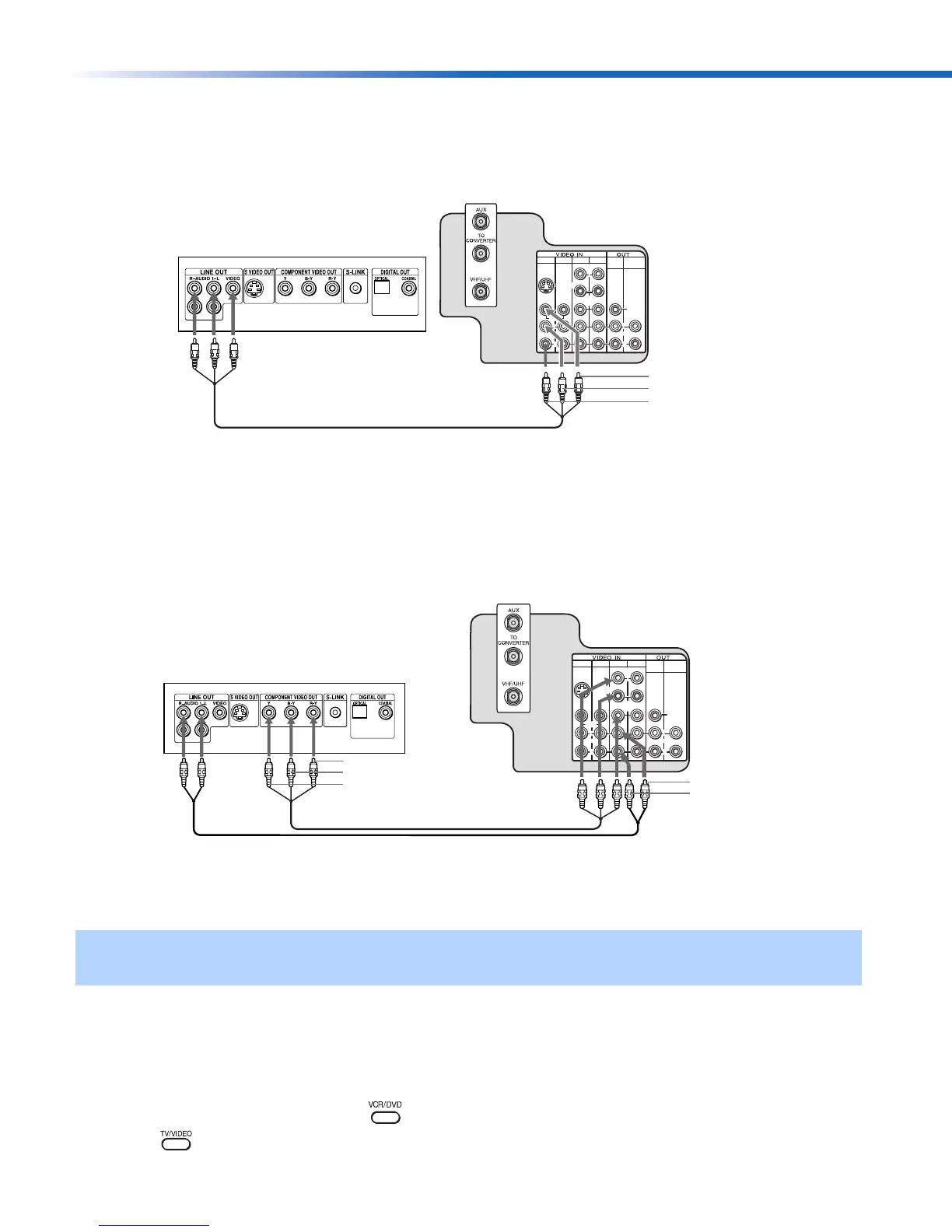
Connecting a DVD Player
Using audio/video cables (not supplied), connect AUDIO/VIDEO OUT on your DVD player
to AUDIO/VIDEO IN on your TV.
Optional connection
❏ For better picture quality, use S VIDEO instead of the yellow video cable. S VIDEO does
not provide sound, so you still must connect the audio cables.
❏ If your DVD player is equipped with component video outputs (Y, PB, PR), you can
improve the picture quality by using component video cables (480i only). This connection
can be done on VIDEO 4 or 5 (both Y, P
B, PR).
1 Using component video cables (not supplied), connect the Y, PB, PR OUT on your DVD
player to Y, P
B, PR IN on your TV.
2 Connect AUDIO OUT on your DVD player to AUDIO IN on your TV.
Using your TV with this connection
This connection allows you to do the following:
❏ Program your Sony remote control to operate your DVD (see page 7).
❏ To activate your remote, press to operate your DVD.
❏ Press repeatedly to switch to the DVD player's input (VIDEO input).
✍ The Y, PB, PR outputs on your DVD player are sometimes labeled Y, CB, and CR or Y, B-Y, and R-Y. If so,
connect the cables to like colors.
1
3
4
5
MONITOR
AUDIO OUT
(VAR/FIX)
VIDEO
L
(MONO)
R
L
R
(MONO)
VIDEO
S VIDEO
Y
PB
PR
Rear of TV
Rear of DVD Player
Video (yellow)
Audio L (white)
Audio R (red)
1
3
4
5
MONITOR
AUDIO OUT
(VAR/FIX)
VIDEO
L
(MONO)
R
L
R
(MONO)
VIDEO
S VIDEO
Y
PB
PR
Rear of DVD Player
2
1
Rear of TV
Audio L (white)
Audio R (red)
Y (green)
P
B
(blue)
P
R
(red)
01US01COV-BR2.book Page 19 Tuesday, February 4, 2003 11:51 AM



 To Next Page