— 8 —
KV-32FS10/32FV15/32XBR250/34FV10/34FV15/34FV15C/34FX250C/34FV15K
34FV15T/36FS10/36FV15/36XBR250/38FX250/38FX250C/38FX250T/38FV15K
14
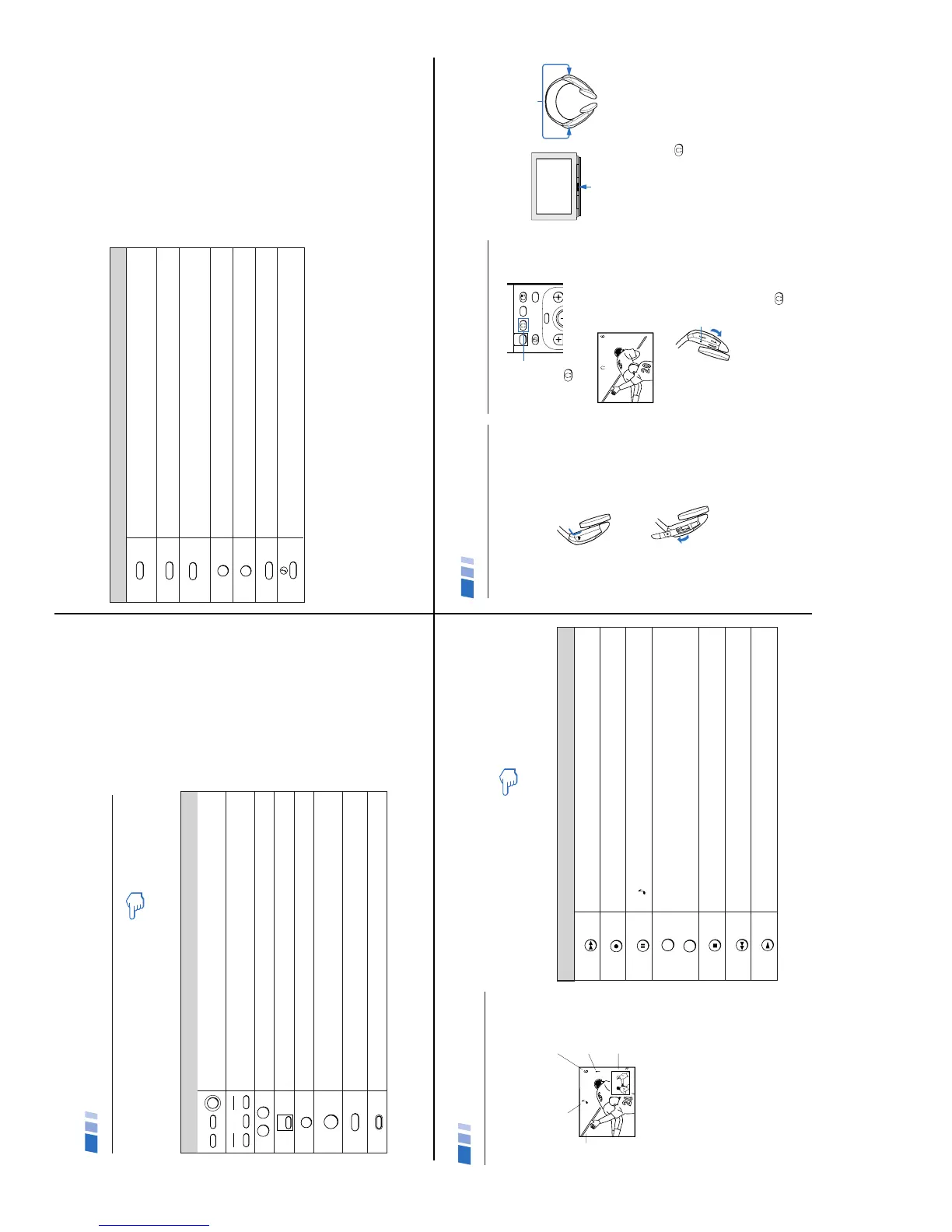
Press when you want to turn connected equipment on and off.
Press when you want to control connected equipment with your remote control, (see
pages 29-31 for instructions on programming your remote control).
Use for direct channel selection. Press 0-9 to select a channel, the channel will
change after 2 seconds, or you can press ENTER for immediate selection.
Cycles through the VIDEO MODE settings: VIVID, SPORTS, MOVIE, STANDARD
.
Alternates back and forth between the last two channels selected with the 0-9 keys.
Instantly turns off the sound. Press again or press VOL + to restore sound.
Turns the TV off in approximately 30, 60, or 90 minutes. Cancel by pressing until
SLEEP OFF appears.
Press to return to factory settings while in the on-screen menus.
Watching the TV
The following chart explains more advanced buttons
on your remote control.
Using the White Labeled Buttons for TV Operations
VTR/DVD
POWER
SAT/CABLE
TV
VTR/DVD
TVSAT/CABLE
FUNCTION
0 9
-
JUMP
MUTING
SLEEP
REFER TO THE
ILLUSTRATION OF THE
REMOTE CONTROL ON THE
INSIDE FRONT COVER OF
THIS MANUAL AS YOU
REVIEW THIS CHART
PICTURE
MODE
RESET
Using Your New TV (continued)
15
SYSTEM OFF
Press once to display current time (if set) and channel number.
Press again to activate current CAPTION VISION setting.
To cancel, press DISPLAY until DISPLAY OFF appears.
Press repeatedly to cycle through available video inputs:
TV, VIDEO 1, VIDEO 2, VIDEO 3 and VIDEO 4
Press to change the VHF/UHF input to the AUX input.
Press when you are finished using a VCR and you want to switch to the TV input.
Your VCR power will remain on.
Cycles through the Multi-channel TV Sound (MTS) options: STEREO, SAP (Second
Audio Program), MONO (see page 20).
Powers off all Sony equipment at once.
This feature may not work with older Sony equipment.
Cycles through the available audio settings.
Using the White Labeled Buttons for TV Operations
DISPLAY
TV/VIDEO
ANT
+
TV/VTR
MTS/SAP
TV/SAT
(AUX input)
16
Displays the window picture. Press again to decrease the size. To cancel, press
until the window picture turns off.
Cycles through available video inputs: TV, VIDEO 1, VIDEO 2, VIDEO 3, VIDEO 4
Alternates sound between the main picture and the window picture.
A
will appear to indicate which picture is receiving sound.
Changes the channel in the window picture.
Moves the location of the window picture.
Press to freeze the window picture. Press again to restore the picture.
Switches the position of the main picture with the window picture.
Use the Yellow Labeled Buttons for PIP Operations
Using Picture-in-Picture – PIP
KV-27FV15, 32FV15, 36FV15 only
These models are equipped with dual tuners.
This means that PIP is “ready to use”.
Notes
• You must press TV (FUNCTION) before
you can control PIP with the yellow labeled
buttons.
• The AUX input cannot be viewed in the
window picture.
PIP
TV/VIDEO
AUDIO
+
TV/VTR
-
CH
POSITION
REFER TO THE ILLUSTRATION
OF THE REMOTE CONTROL ON
THE INSIDE FRONT COVER OF
THIS MANUAL AS YOU REVIEW
THIS CHART
Main
picture
Indicates which channel is
currently receiving sound
Channel number
of the main
picture
Channel number
of the window
picture
Window
picture
FREEZE
SWAP
Using Your New TV (continued)
18
Setting Up the Headphones
Install the supplied size AA (R6) battery into
the headphones.
1
Open the battery compartment lid by
pressing and sliding the lid as illustrated.
2
Lift the cover and insert the battery into
the compartment with the positive side up
and then close the lid.
Notes
• When used continuously, the battery will last:
— up to 40 hours with alkaline batteries.
— up to 20 hours with manganese batteries.
• Replace the battery with a new one when the
sound becomes weak.
Using the Headphones
1
Press .
The 2 icon and channel number are
displayed.
2
Turn the power on by placing the
headphones securely on your head.
If you only want to listen to the sound from
the cordless headphones, turn down the TV
speaker volume, or press MUTING.
3
To turn off the headphones, remove them
from your head and press
.
Tip z
For optimal sound reception, do not cover the infrared
transmitter on the TV or the infrared sensors on the
headphones.
Notes
• To help prevent possible hearing damage
due to sudden or prolonged excessive
volume, do not set the headphone
volume too high while using them.
• To prevent possible damage to the
infrared transmitter in the television,
please press the
to turn off the
headphone feature when the headphones
are not in use.
Using the Wireless Headphones
MENU
GUIDE
VOL
TV/SAT
CH
SWAP
MODE
PICTURE
MODE
Infrared sensors
Infrared transmitter
Power indicator
Volume control



 To Next Page