Operations
-EN
27
To restore the normal picture and sound
modes
Press TV, VIDEO/HOLD, or PROGR +/–.
Notes
• If you press the GAME button when the TV is in the standby
mode, the TV turns on automatically and the picture and
sound change to the mode that is suitable for a video game.
• To display a video game screen, connect the video game
equipment to the VIDEO 3 INPUT jacks at the front of the TV
or the VIDEO IN 3 jacks at the rear of the TV.
The GAME MODE feature enables you to view a video
game screen in the optimum mode that gives soft
picture and dynamic sound effect.
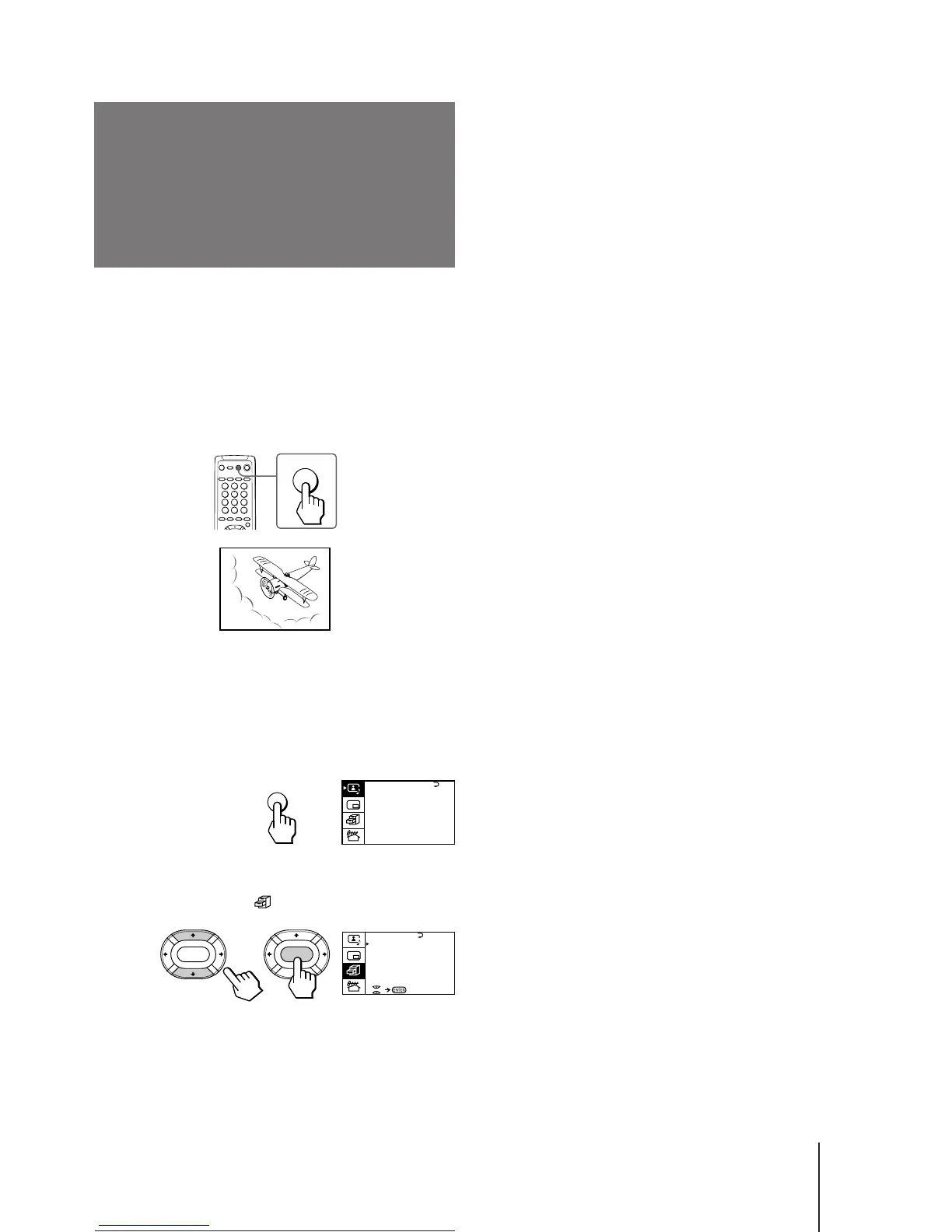
You can display a video game screen using the button
on the remote commander or the menu.
Press GAME.
The picture and sound change to the mode that is
suitable for a video game.
To view a video game screen using the menu
1 Press MENU.
2 Press V or v to move the cursor (z) to the
FEATURES menu ( ), and press ENTER.
3 Make sure the cursor (z) appears beside
GAME MODE, and press ENTER.
Viewing a video
game screen
(GAME MODE)
GAME
GAME
A / V CONTROL
DYNAMIC
SOFT
STANDARD
PERSONAL
V I DEO ADJUST
AUD I O ADJUST
T I LT CORRECT: 0
MENU
GAME MODE
HYPER SURROUND :
OF F
MONITOR
AV OUT :
FEATURES
ENTER ENTER



 To Next Page