Operations
22
-EN
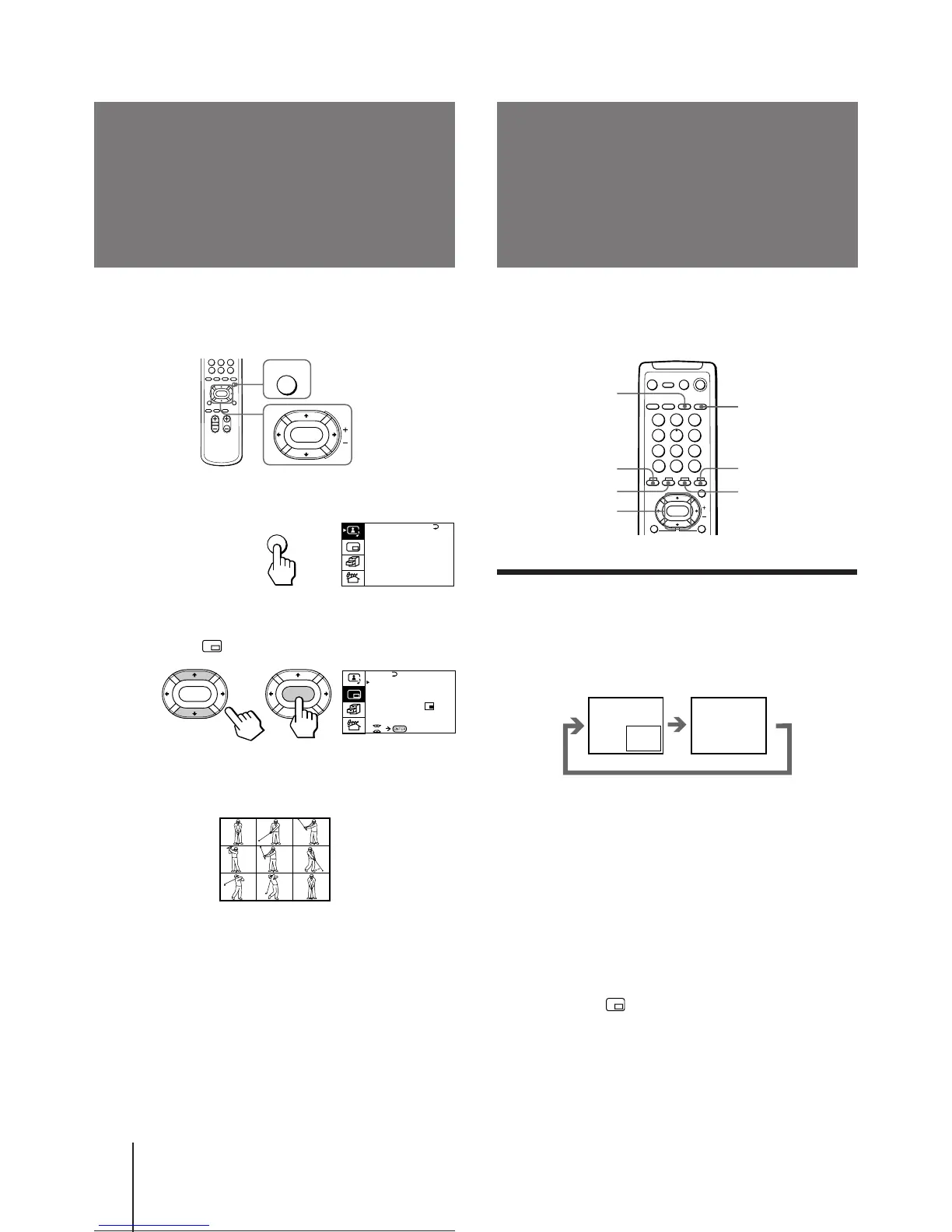
With the Picture-in-Picture (PIP) feature, you can
display a sub screen within the main picture of
different TV programs or video inputs.
Displaying the PIP screen
You can display the PIP screen using the button on the
remote commander or the menu.
Press PIP.
Selecting a TV program or video input in the
PIP screen
To select a TV program, press V or v, and press
ENTER.
To select a video input, press TV/VIDEO.
To display the PIP screen using the menu
1 Press MENU.
2 Press V or v to move the cursor (”) to the
PIP menu ( ), and press ENTER.
3 Press V or v to move the cursor (”) to PIP,
and press ENTER.
4 Press V/b/v/B to select ON, and press ENTER.
5 Press MENU to return to the normal screen.
Using the Picture-in-
Picture (PIP)
features
Displaying frame-
by-frame pictures
(STROBE)
You can watch a slow motion movement of the main
screen picture which is displayed frame-by-frame on
the nine sub screens within the main screen.
1 Press MENU.
2 Press V or v to move the cursor (z) to the
PIP menu ( ), and press ENTER.
3 Press V or v to move the cursor (z) to
STROBE, and press ENTER.
To restore the normal screen
Select STROBE again or PIP : OFF from the PIP menu,
and press ENTER.
You can also press TV, VIDEO/HOLD, PROGR +/–, or
PIP to restore the normal screen.
Notes
• You can change the position of the nine sub screens using the
PIP menu (as described in "Changing the position of the PIP
screen" on page 23).
• You can hear the normal sound when using the STROBE
feature.
MENU
ENTER
PIP
PIP: OFF
PIP TEXT
STROBE
POS I T ION:
PROGR I NDEX
ENTER ENTER
TV
PIP
SWAP
VIDEO/HOLD
TV/VIDEO
FREEZE
V/v/ENTER
A / V CONTROL
DYNAMIC
SOFT
STANDARD
PERSONAL
V I DEO ADJUST
AUD I O ADJUST
T I LT CORRECT: 0
MENU
1
2
3
4
5
6
7
8
0
9



 To Next Page