EasyManua.ls Logo

Sony TRINITRON KV-S3411A - Step 3 Tuning in to TV Stations ++Rr+R+Rrrrrserrereeees

Sony TRINITRON KV-S3411A
104 pages
Print Icon
To Next Page IconTo Next Page
To Previous Page IconTo Previous Page
Loading...
To
go
back
to
main
menu
Keep
pressing
—
To
go
back
to
the
normal
TV
picture
Press
MENU.
Note
on
the
DEMO
function
it
you
choose
»Oemo-=
on
the
main
menu,
you
can
see
a
sequential
demon-
Stration
on
the
menu
functions.
1-2.
STEP
3
—
TUNING
IN
TO
TV
STATIONS
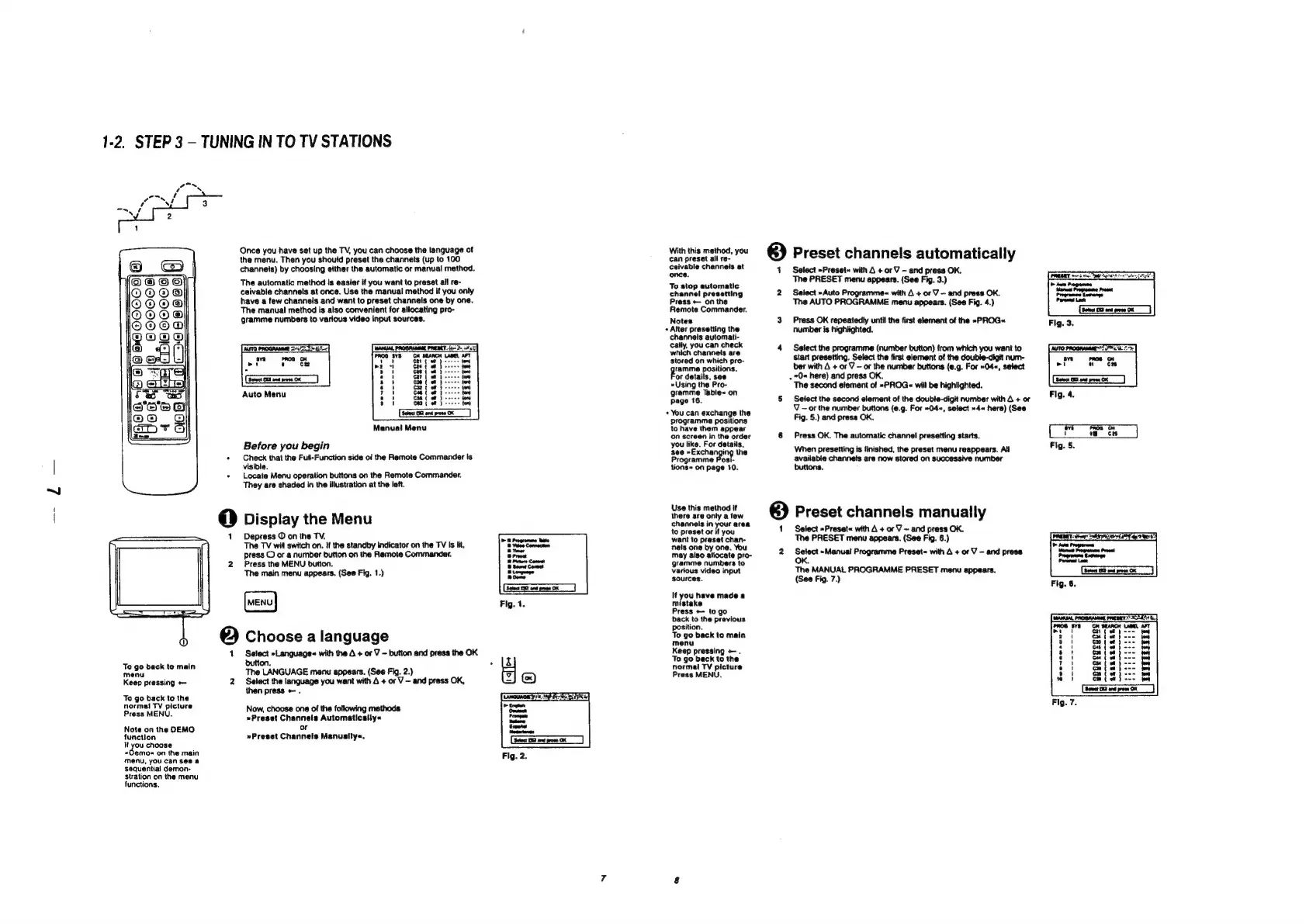
Once
you
have
set
up
the
TV,
you
can
choose
the
language
of
the
menu.
Then
you
should
preset
the
channels
(up
to
100
channeis)
by
choosing
either
the
automatic
or
manual
method.
The
automatic
method
is
easier
if
you
want
to
preset
ail
re-
caivable
channels
at
once.
Use
the
manual
method
if
you
only
have
a
few
channels
and
want
to
preset
channels
one
by
one.
The
manual
method
is
also
convenient
for
allocating
pro-
gramme
numbers
to
various
video
input
sources.
Auto
Menu
tory
fom
fom
fon
ow
joy
fon
tony
tom
Manual
Menu
Before
you
begin
Check
that
the
Full-Function
side
o/
the
Remote
Commander
is
visible.
Locate
Menu
operation
buttons
on
the
Remote
Commander.
They
are
shaded
in
the
illustration
at
the
left.
Display
the
Menu
Depress
©
on
the
TV.
The
TV
will
switch
on.
If
the
standby
indicator
on
the
TV
Is
lit,
press
©
or
a
number
button
on
the
Remote
Commander.
Press
the
MENU
button.
The
main
menu
appears.
(See
Fig.
1.)
[vens}
Choose
a
language
Select
»Language-
with
the
4
+
or
V
—
button
and
press
the
OK
button.
The
LANGUAGE
menu
appears.
(See
Fig.
2.)
Select
the
language
you
want
with
A
+
or
V
—
and
press
OK,
then
press
+.
Now,
choose
one
of
the
following
methods
»Preset
Channels
Automatically«
or
»Preset
Channels
Manualty«.
With
this
method,
you
can
preset
all
re-
ceivable
channels
at
once.
To
stop
automatic
channel
presetting
Press
—
onthe
Remote
Commander.
Notes
+
After
presetting
the
channels
automati-
cally,
you
can
check
which
channels
are
stored
on
which
pro-
ramme
positions.
‘or
details,
see
»Using
the
Pro-
gramme
Table<
on
page
16.
+
You
can
exchange
the
programme
positions
to
have
them
appear
on
screen
in
the
order
you
like.
For
details,
see
=
Exchangi
the
Programme
Posi-
tions«
on
page
10.
Use
this
method
it
there
are
only
a
few
channels
in
your
area
to
preset
or
if
you
want
to
preset
chan-
nels
one
by
one.
You
may
also
aiiocate
pro-
gramme
numbers
to
various
video
input
sources.
It
you
have
made
a
mistake
Press
—
togo
back
to
the
previous
position.
To
go
back
to
main
menu
Keep
pressing
—.
To
go
back
to
the
normai
TV
picture
Press
MENU,
3)
Preset
channels
automatically
1
2
Select
»Preset«
with
A
+
or
V
-
and
press
OK.
The
PRESET
menu
appears.
(See
Fig.
3.)
Select
»Auto
Programmes
with
4
+
or
V
—
and
press
OK.
The
AUTO
PROGRAMME
menu
appears.
(See
Fig.
4.)
Press
OK
repeatedly
until
the
first
element
of
the
~PROG«
number
is
highlighted.
Select
the
programme
(number
button)
from
which
you
want
to
Start
presetting.
Select
the
first
element
of
the
double-digit
num-
ber
with
A
+
or
V
—
or
the
number
buttons
(e.g.
For
»04«,
select
.»O«
here)
and
press
OK.
The
second
element
of
»PROG«
will
be
highlighted.
Select
the
second
element
of
the
double-digit
number
with
4
+
or
V
—
or
the
number
buttons
(¢.9.
For
»04«,
select
»4«
here)
(See
Fig.
5.)
and
press
OK.
Press
OK.
The
automatic
channel
presetting
starts,
When
presetting
is
finished,
the
preset
menu
reappears.
Ail
available
channels
are
now
stored
on
successive
number
buttons.
Preset
channels
manually
Select
»Preset«
with
A
+
or
V
~
and
press
OK.
The
PRESET
menu
appears.
(See
Fig.
6.)
Select
»Manual
Programme
Preset=
with
A
+
or
V
-
and
press
OK.
The
MANUAL
PROGRAMME
PRESET
menu
appears.
(See
Fig.
7.)
2
3
ry
s
4
?
e
»
”
Fig.
7.
i
spgorusaee7
Waaaatenas

Table of Contents