EasyManua.ls Logo

Sony TRINITRON KV-S3411A - Page 9

Sony TRINITRON KV-S3411A
104 pages
Print Icon
To Next Page IconTo Next Page
To Previous Page IconTo Previous Page
Loading...
PROGRAMME
If
you
have
made
a
mistake
Press
+
to
go
back
to
the
previous
position.
To
go
back
to
main
menu
Keep
pressing
-.
To
go
back
to
the
normal
TV
picture
Press
MENU.
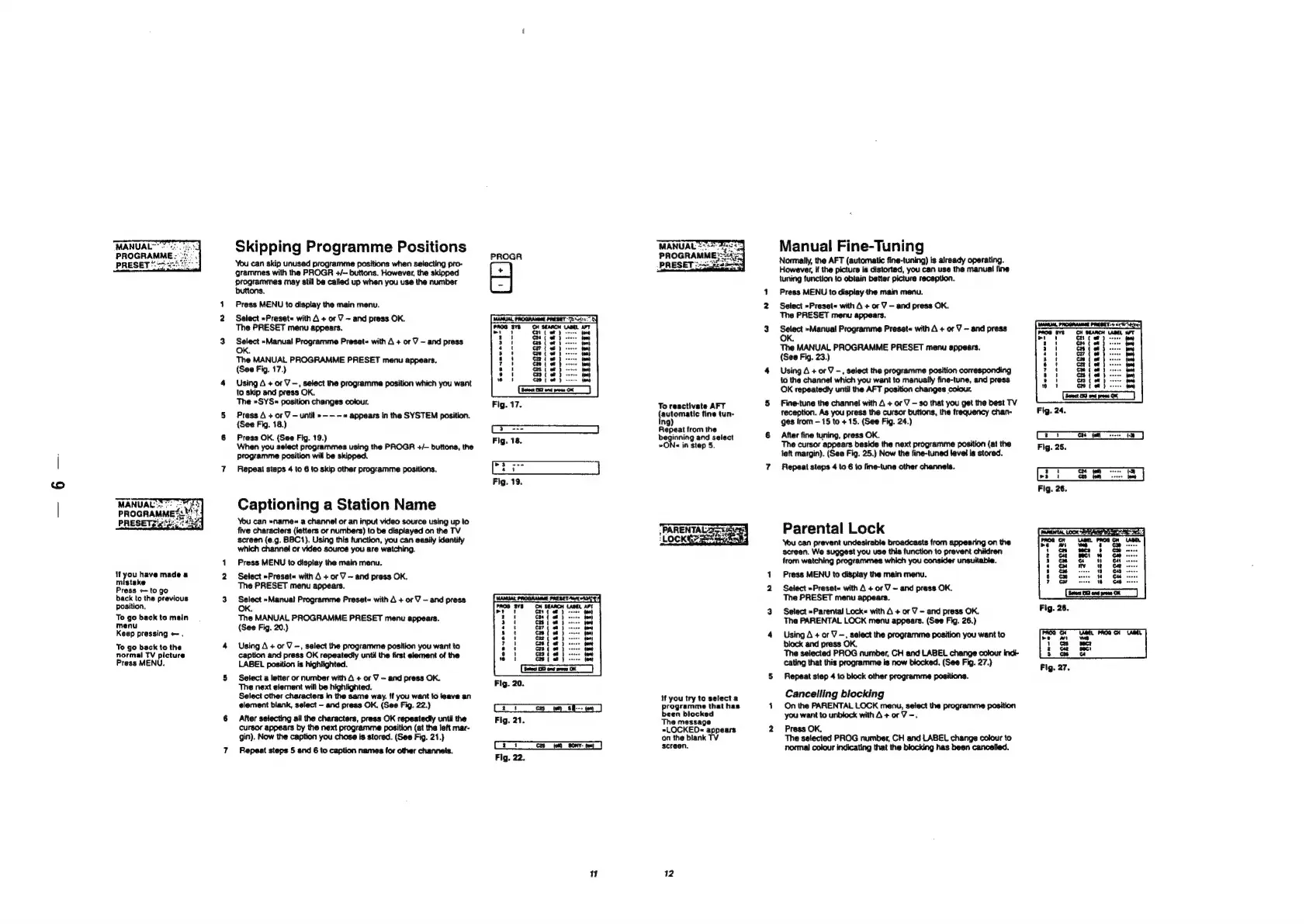
Skipping
Programme
Positions
You
can
skip
unused
programme
positions
when
selecting
pro-
grammes
with
the
PROGR
+/—
buttons.
However,
the
skipped
programmes
may
still
be
called
up
when
you
use
the
number
buttons.
Press
MENU
to
display
the
main
menu.
Select
»Preset«
with
A
+
or
V
~
and
press
OK.
The
PRESET
menu
appears.
Select
»Manual
Programme
Preset«
with
A
+
or
J
-
and
press
OK.
The
MANUAL
PROGRAMME
PRESET
menu
appears,
(See
Fig.
17.)
Using
A
+
or
V
—,
select
the
programme
position
which
you
want
to
skip
and
press
OK.
The
»SYS«
position
changes
colour.
Press
A
+
or
V
—
until
»-——«
appears
in
the
SYSTEM
position.
(See
Fig.
18.)
Press
OK.
(See
Fig.
19.)
When
you
select
programmes
using
the
PROGR
+/—
buttons,
the
Programme
position
will
be
skipped.
Repeat
steps
4
to
6
to
skip
other
programme
positions.
Captioning
a
Station
Name
You
can
»name«
a
channel
or
an
input
video
source
using
up
to
five
characters
(letters
or
numbers)
to
be
displayed
on
the
TV
screen
(e.g.
BBC1).
Using
this
function,
you
can
easily
identify
which
channel
or
video
source
you
are
watching.
Press
MENU
to
display
the
main
menu.
Select
»Preset«
with
A
+
or
V
—
and
press
OK.
The
PRESET
menu
appears.
Select
»Manual
Programme
Preset«
with
A
+
or
J
—
and
press
OK.
The
MANUAL
PROGRAMME
PRESET
menu
appears.
(See
Fig.
20.)
Using
A
+
or
V
—,
select
the
programme
position
you
want
to
caption
and
press
OK
repeatedly
until
the
first
element
of
the
LABEL
position
is
highlighted.
Select
a
letter
or
number
with
A
+
or
V
—
and
press
OK.
The
next
element
will
be
highlighted.
Select
other
characters
in
the
same
way.
{f
you
want
to
leave
an
element
blank,
select
~
and
press
OK.
(See
Fig.
22.)
After
selecting
ail
the
characters,
press
OK
repeatedly
until
the
cursor
appears
by
the
next
programme
position
(at
the
left
mar-
gin).
Now
the
caption
you
chose
is
stored.
(See
Fig.
21.)
Repeat
steps
5
and
6
to
caption
names
for
other
channels.
PROGR
‘SEARCH
om
en
oe
cs
an
om
cz
cn
os
i=]
ce
RRLALERRRE
"
To
reactivate
AFT
{automatic
tine
tun-
ing)
Repeat
from
the
beginning
and
select
»ON«
in
step
5.
"PARENTALS
aE
ae
LOCK!
aes
if
you
try
to
select
a
programme
that
has
been
blocked
The
message
»LOCKED«
appears
on
the
blank
TV
screen.
12
Manual
Fine-Tuning
Normally,
the
AFT
(automatic
fine-tuning)
is
already
operating.
However,
if
the
picture
is
distorted,
you
can
use
the
manual
fine
tuning
function
to
obtain
better
picture
reception.
Press
MENU
to
display
the
main
menu.
Select
»Preset~
with
A
+
or
V
—
and
press
OK.
The
PRESET
menu
appears.
Select
»Manual
Programme
Preset«
with
A
+
or
J
—
and
press
OK.
The
MANUAL
PROGRAMME
PRESET
menu
appears.
(See
Fig.
23.)
Using
A
+
or
9
-,
select
the
programme
position
corresponding
to
the
channel
which
you
want
to
manually
fine-tune,
and
press
OK
repeatedly
until
the
AFT
position
changes
colour.
Fine-tune
the
channel
with
A
+
or
Y
—
so
that
you get
the
best
TV
reception.
As
you
press
the
cursor
buttons,
the
frequency
chan-
ges
from
—
15
to
+
15.
(See
Fig.
24.)
After
fine
tuning,
press
OK.
The
cursor
appears
beside
the
next
programme
position
(at
the
left
margin).
(See
Fig.
25.)
Now
the
fine-tuned
level
is
stored.
Repeat
steps
4
to
6
to
fine-tune
other
channels.
Parental
Lock
You
can
prevent
undesirable
broadcasts
from
appearing
on
the
screen.
We
suggest
you
use
this
function
to
prevent
children
from
watching
programmes
which
you
consider
unsuitable.
Press
MENU
to
display
the
main
menu.
Select
»Preset«
with
A
+
or
V
~
and
press
OK.
The
PRESET
menu
appears.
Select
»Parental
Lock«
with
A
+
or
7
-
and
press
OK.
The
PARENTAL
LOCK
menu
appears.
(See
Fig.
26.)
Using
A
+
or
V
—,
select
the
programme
position
you
want
to
block
and
press
OK.
The
selected
PROG
number,
CH
and
LABEL
change
colour
indi-
cating
that
this
programme
is
now
blocked.
(See
Fig.
27.)
Repeat
step
4
to
block
other
programme
positions.
Cancelling
blocking
On
the
PARENTAL
LOCK
menu,
select
the
programme
position
you
want
to
unblock
with
A
+
or
V-.
Press
OK,
The
selected
PROG
number,
CH
and
LABEL
change
colour
to
normal
colour
indicating
that
the
blocking
has
been
cancelled.
FUTTULISIIS
»
'
2
a
ry
s
‘
?
a
®
10
auagasesez2
Reacancana.
Hi
a
1
2

Table of Contents