14
Before Printing
Operation
Loading the Paper
Follow the steps below to load paper into the paper feed
tray and to insert the tray into the printer.
When using the printer for the first time, begin with step 2.
Notes
• Be careful not to touch the print side of the paper.
• Use only the recommended paper for this printer. Other
types of paper may cause printer malfunctions, such as
paper jams. For details about compatible ink ribbons and
paper, see “Ink Ribbon and Paper” on page 23.
• When the message “CHANGE RBN” appears on the
LCD display, the ink ribbon is used up. Replace the
ribbon and load the printer with new paper.
• Be careful when inserting and removing the paper feed
tray, because it may cause the printer to shift position and
fall.
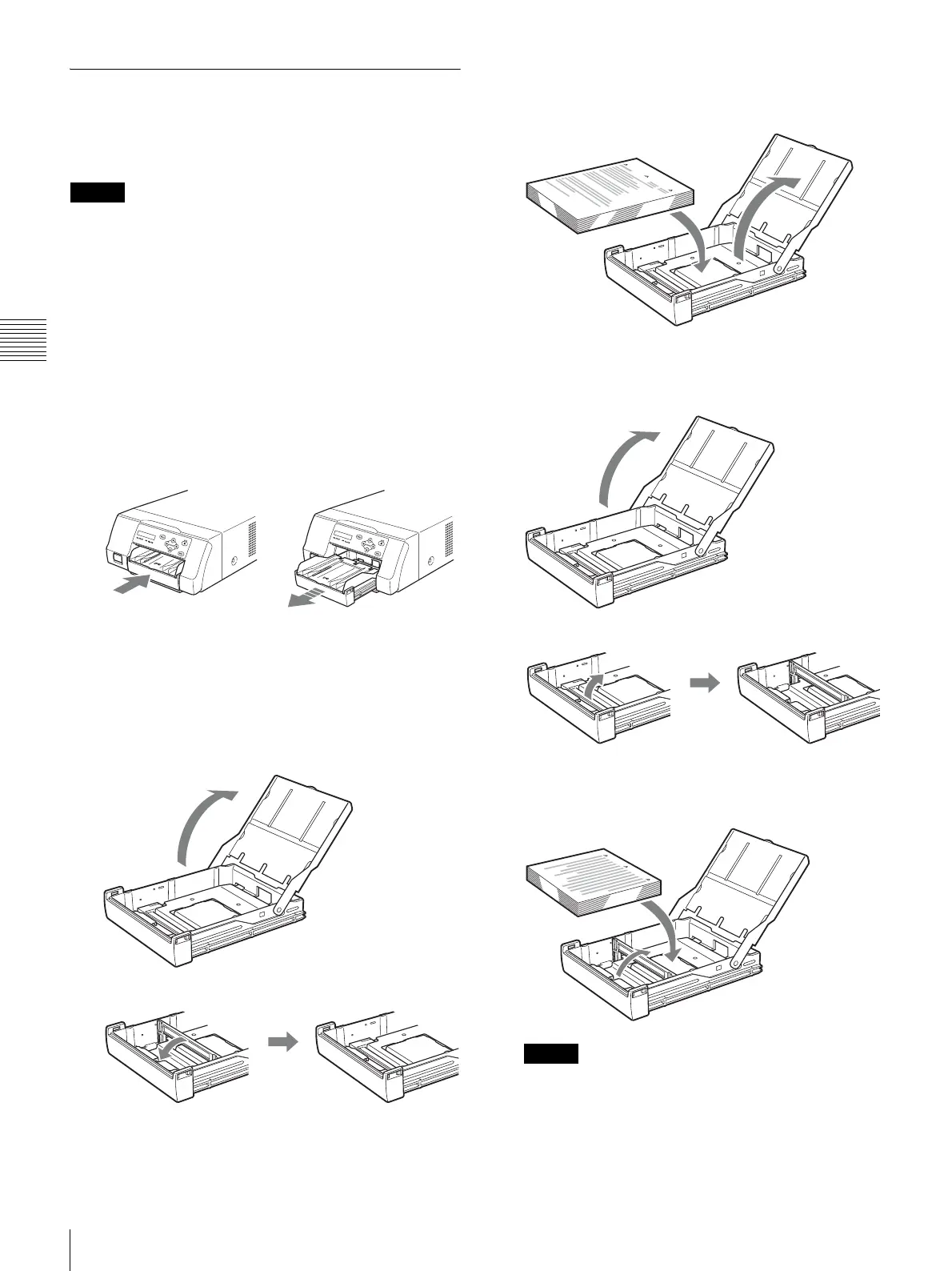
1
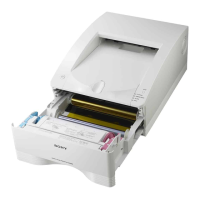
Press the Z mark on the paper feed tray to eject the
tray.
2
Open the lid of the paper feed tray, and load the paper
and protective sheet together with the print side facing
up.
When using printing packs UPC-21L or UPC-
24LA
1 Open the paper feed tray.
2 If the paper feed tray partition is raised, lower it.
3 Neatly stack and load the paper in the paper feed
tray, aligning the “v” mark on the protective sheet
with the “f” mark inside the tray.
When using printing packs UPC-21S or UPC-
24SA
1 Open the feed tray.
2 If the paper feed tray partition is lowered, raise it.
3 Neatly stack and load the paper in the paper feed
tray, aligning the “v” mark on the protective sheet
with the “f” mark inside the tray.
Notes
• When the paper runs out, do not just add more
paper. Replace both the paper and the ink ribbon.
Replenishing the paper midway may cause a paper
jam.


 To Next Page