19
Printing
Operation
2
Press < or , to select [COLOR].
3
Press M or m to select [LOAD COL].
4
Press < or , to select a configuration number.
5
Press the MENU button to return to the ready screen.
Printing a List of Printer Settings
Follow the steps below to print a list of the current printer
settings.
1
Press the MENU button.
2
Press < or , to select [SETUP].
3
Press M or m to select [PARAM PRINT].
4
Press ,, and then press the EXEC button.
A list of the current printer settings is printed.
Printing
Before printing
• Is the printer connected to a computer? (page 10)
• Have the ink ribbon and paper been properly loaded?
(page 12)
• Has the printer driver been installed? (page 11)
1
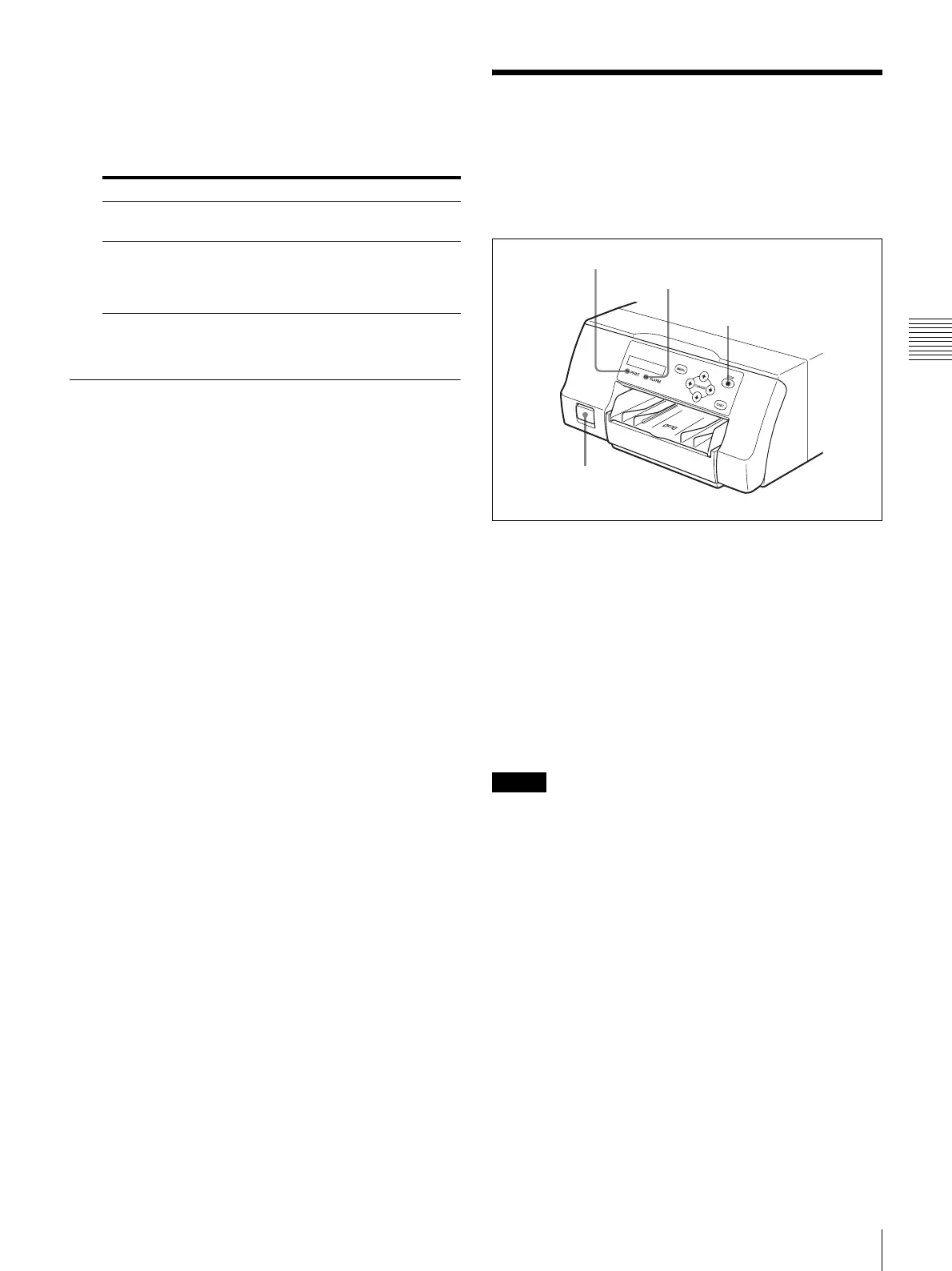
Press the ! POWER switch to turn on the printer.
The backlight on the LCD display lights green, and
the PRINT and ALARM indicators and tray light light
simultaneously before turning off.
2
Turn the computer on.
3
Using the computer, initiate a printing operation.
The PRINT indicator flashes while the image data is
being received from the computer, and then remains
steadily lit while printing is in progress.
Notes
• Although the paper being printed may come into view
while printing is in progress, do not attempt to remove it
until printing is complete.
• Do not turn off the printer while printing is in progress.
Doing so may cause a paper jam.
• Do not open the ribbon door panel while printing is in
progress. If the panel is opened, printing stops, and when
the panel is closed again, the printer ejects the page that
was printing and returns to the ready state.
• Do not open the ribbon door panel if “WAIT” appears on
the LCD display. Internal printer processing is in
progress.
• Although the printer can be set for continuous printing,
if the printouts stack up and begin to bend, printing stops
and the ALARM indicator lights. When this happens,
remove the printouts from the output tray. The printing
operation automatically resumes and the remaining
images are printed.
Number Description
0 The printer driver color settings are
applied when printing.
1 or 2 The user-defined color adjustment settings
saved under each configuration number
are converted to internal printer settings
for printing.
1
ALARM indicator
STOP button
PRINT indicator


 To Next Page