33
nN
Using Your VAIO Computer
Using the Touch Pad
You can point to, select, drag, and scroll objects on the screen using the touch pad.
✍
You can disable/enable the touch pad to suit your preference for using the mouse. See Setting Up Your Computer with VAIO Control Center (page 108)
to launch VAIO Control Center. Once launched, select the topic on the pointing device and click Help to see the detailed instructions.
Action Description
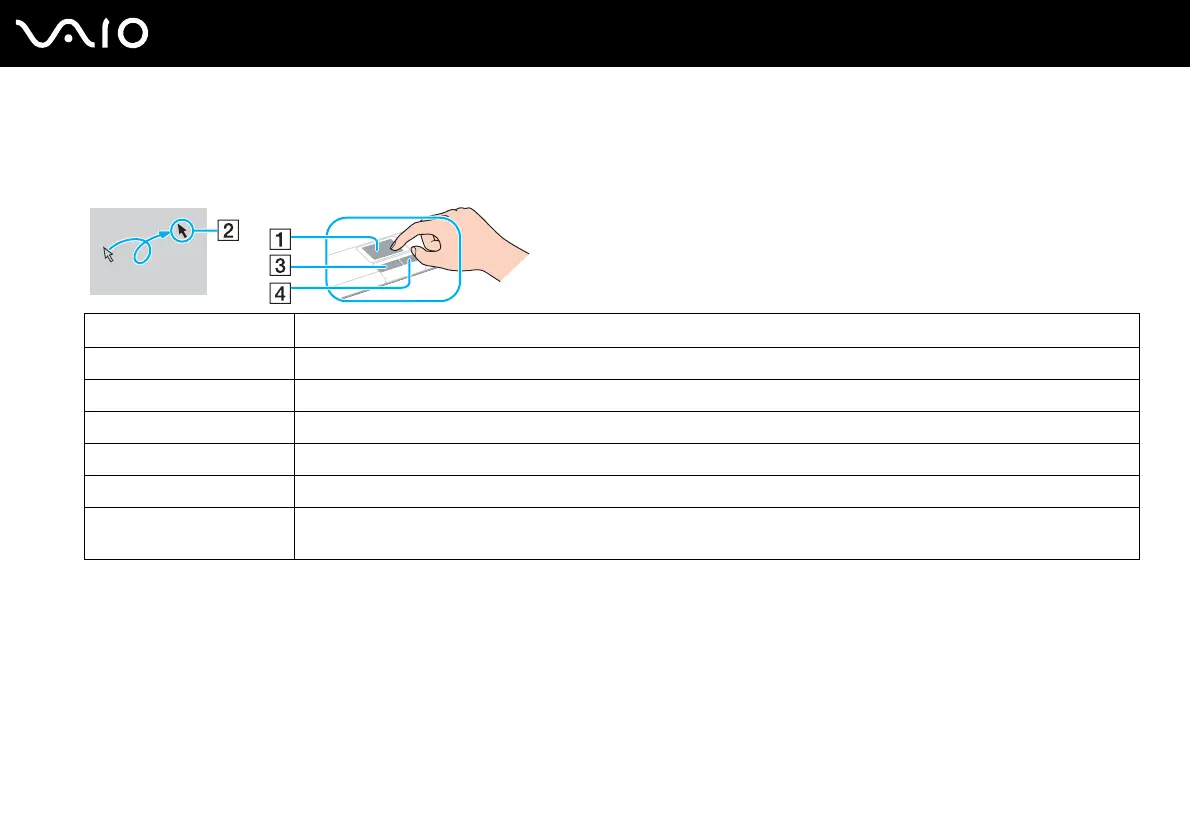
Point Slide your finger on the touch pad (1) to place the pointer (2) on an item or object.
Click Press the left button (3) once.
Double-click Press the left button twice.
Right-click Press the right button (4) once. In many applications, this action displays a shortcut menu.
Drag Slide your finger on the touch pad while pressing the left button.
Scroll Slide your finger along the right edge of the touch pad to scroll vertically. Slide your finger along the bottom edge to scroll
horizontally (the scroll function is available only with applications that support a touch pad scroll feature).



 To Next Page