40
For Windows
For Mac
Projector Station for Network Presentation allows
you to create a shortcut that registers the
connection setting.
By starting the application with the shortcut, you
can project the image to the registered projector.
1 Create a file.
For Windows
Create a shortcut to the NetworkPresentation.exe. Copy
the shortcut to the Projector Station for Network
Presentation, or right-click the NetworkPresentation.exe
in the installed folder to select “Create shortcut” from
the pop up menu.
For Mac
Create a text file with any name with a text editor. Set the
format to “Plain Text.”
Connection Settings
Item Item descriptions
IP Address Input the IP Address.
List the IP addresses of the
projectors on the network and IP
addresses of projectors connected
so far, as candidates.
SSID Input SSID.
List the peripheral SSIDs and SSIDs of
p
rojectors connected to the
computer so far, as candidates.
Update button Search the network again and
up
date the candidate list of the
projectors.
Wireless Password Input the wireless password of the
S
SID. If open system authentication
is used, input of the wireless
password is unnecessary.
CODE Input the Connection CODE
d
isplayed on the screen of the
projector.
Connect Connect to the projector that is set in
th
e items above and start to project
an image.
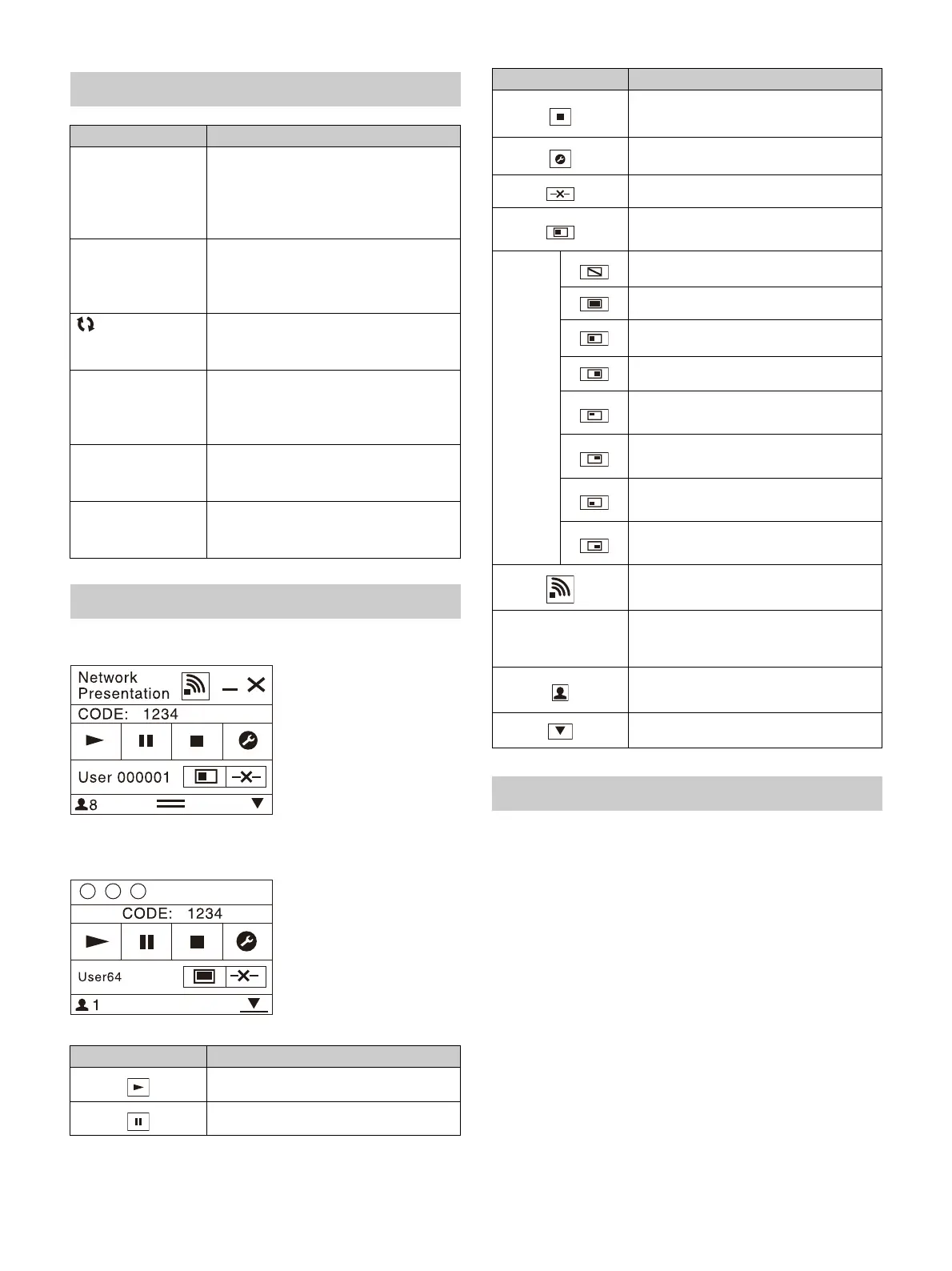
Using the Controller
Items Functions
Start projecting an image.
Pause projecting an image.
Stop projecting an image (screen
turns black).
Change the application settings.
Disconnect from the projector.
Select a projection method then start
p
rojecting an image.
Projection
method
Not projecting an image.
Project in full screen.
Project in the left half of the screen.
Project in the right half of the screen.
Project in the upper left quadrant of
the screen.
Project in the upper right quadrant
o
f the screen.
Project in the lower left quadrant of
th
e screen.
Project in the lower right quadrant of
th
e screen.
Display the strength of the wireless
signal.
CODE
Display the Connection CODE of the
p
rojector that is connected to the
computer.
Display the number of users
c
onnected to the projector.
Display the users’ status.
One-Click projecting function
Items Functions



 To Next Page