Sony KV-SW21M80 Group O29 (GB, FR, AR)_2-653-742-11 (1)
15
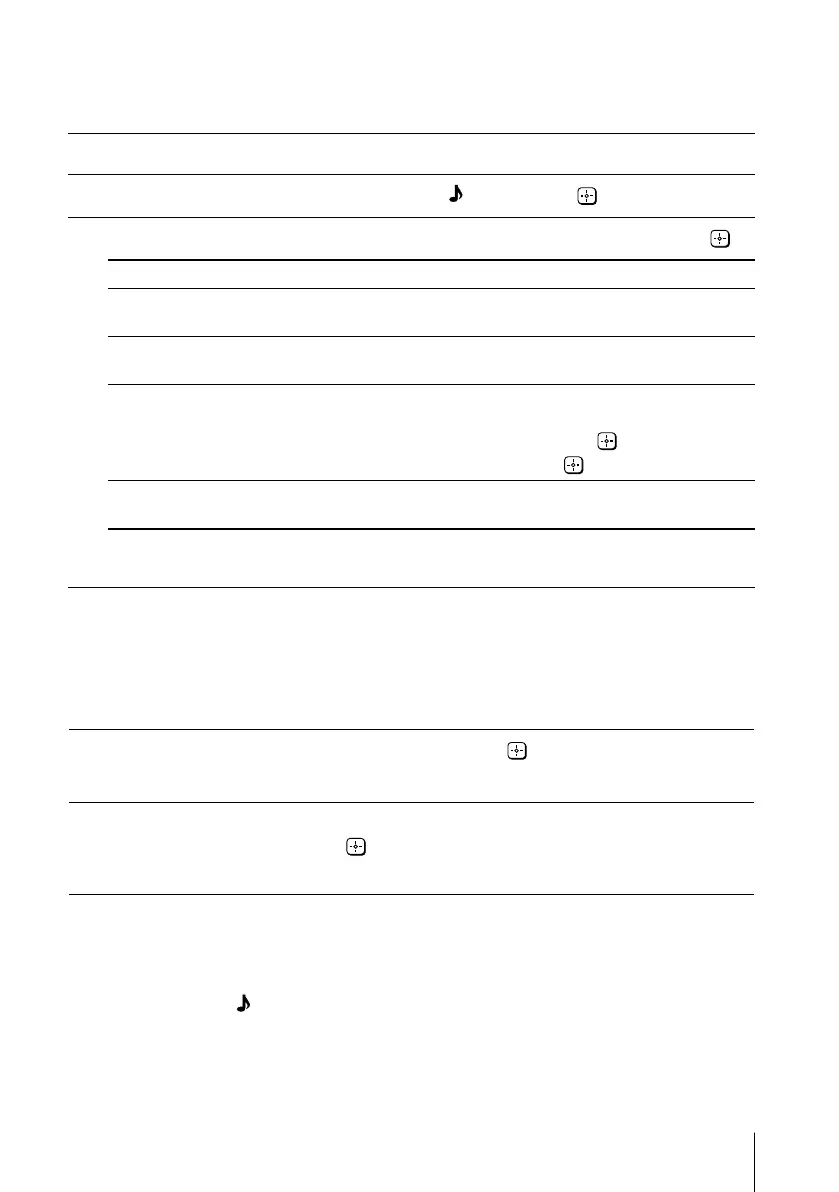
x Changing the “Sound” setting
The “Sound” menu allows you to adjust the sound settings.
1
Press WEGA GATE and select “Settings”.
2
Press V or v to select the “Sound” icon ( ), then press .
3
Press V or v to select the desired item (e.g., “Sound Mode”), then press .
Select To
“Sound Mode” choose either “Dynamic” (low and high tones), “Standard”
(voice and high tones) or “Custom”*.
“Balance” Press v or B to emphasize the left speaker.
Press V or b to emphasize the right speaker.
“Intelligent Volume” adjust the volume of all program numbers and video inputs
automatically.
Press V or v to select “On”, then press .
To cancel, select “Off”, then press .
“Surround” choose either “On” (surround), “Simulated” (stereo-like
monaural sound) or “Off”.
* You can adjust the setting to your personal preference in the “Sound Adjustment”
option only when the “Custom” mode is selected.
Adjusting the “Sound Adjustment” items under “Custom”
mode
The 5-Band Graphic Equalizer feature allows you to adjust sound frequency settings
of “Custom” mode in the menu.
1
Make sure that “Adjust” is selected, then press .
Selecting “Reset” will set your TV to the factory settings.
2
Press B or b to select the desired sound frequency, then press V or v to
adjust the setting and press
.
The adjusted settings will be received when you select “Custom”.
Notes
• Adjusting higher frequency will affect higher pitched sound and adjusting lower frequency
will affect lower pitched sound.
• You may display the settings directly using the SOUND MODE button on the top control
panel (see page 7) or button on the remote control (see page 10).
01GB06AVD-AFRTun.p65 8/11/05, 4:29 AM15
Black





 To Next Page