Help Guide
Wireless Stereo Headset
WF-C510
Using the voice assist function (Siri)
By using Siri that comes with iPhone, you can speak to the headset’s microphone to operate the iPhone.
Note
Siri cannot be activated when you say “Hey Siri” even when the iPhone’s “Hey Siri” setting is on.
When using the voice assist function, your voice will be heard from the headset through the headset’s microphone (Sidetone
function). In this case, ambient sounds or the sounds of the headset operation may be heard through the headset, but this is not a
malfunction.
Turn Siri on.
On iPhone, select [Settings] - [Siri & Search] to turn [Press Home for Siri] and [Allow Siri When Locked] on.
The operation above is an example. For details, refer to the operating instructions for the iPhone.
Note: For details on Siri, refer to the operating instructions or support website of the iPhone.
1
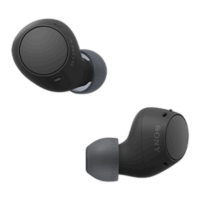
Put the headset units into your ears and connect the headset to the iPhone via a Bluetooth connection.
2
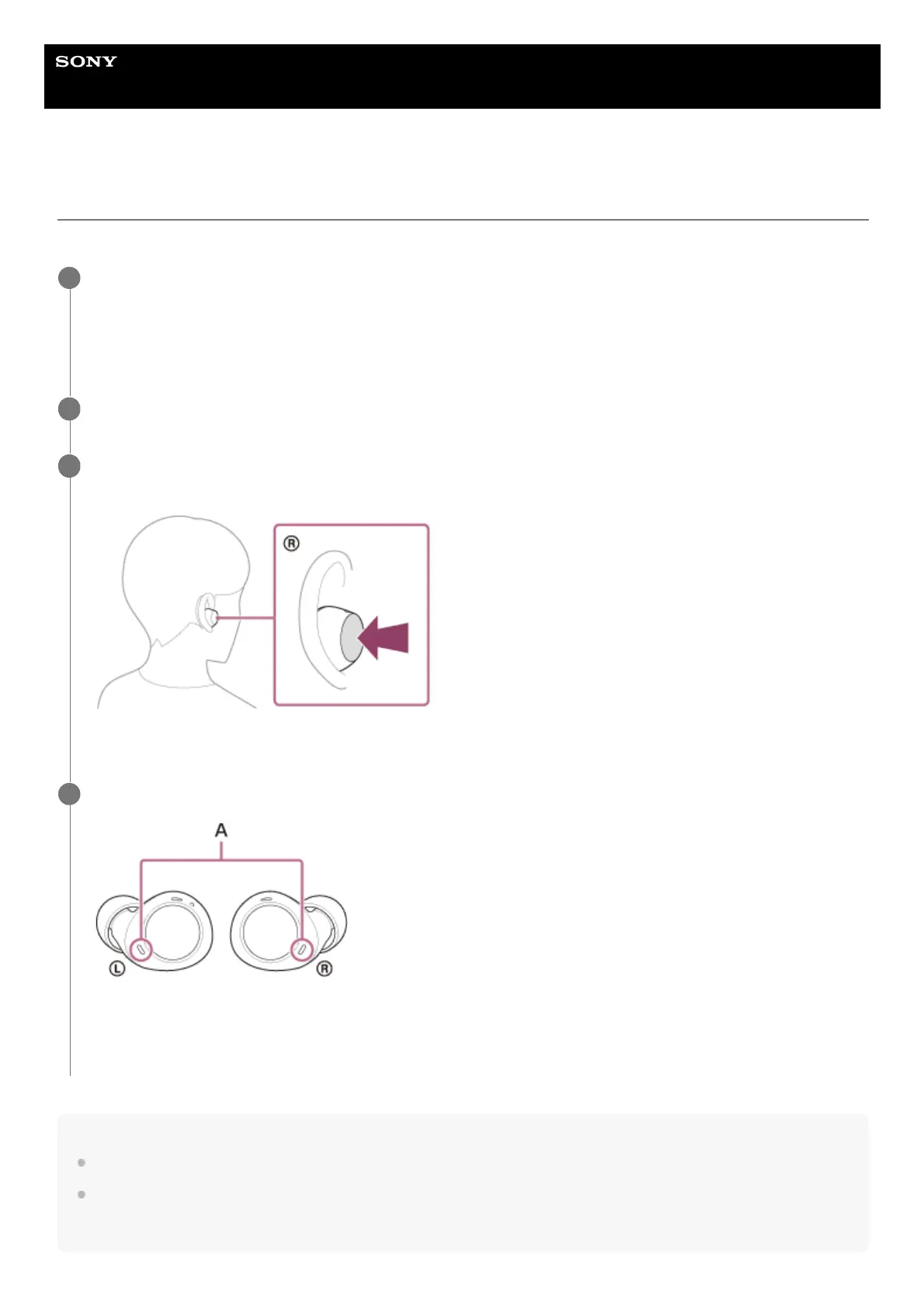
When the iPhone is in standby or playing music, press and hold the button on the right headset unit until
Siri is activated.
The Siri is activated.
3
Make a request to the Siri through the headset’s microphone (A).
For details on the apps which work with Siri, refer to the operating instructions for the iPhone.
After activating Siri, Siri will be deactivated when a certain time has passed without requests.
4


 To Next Page