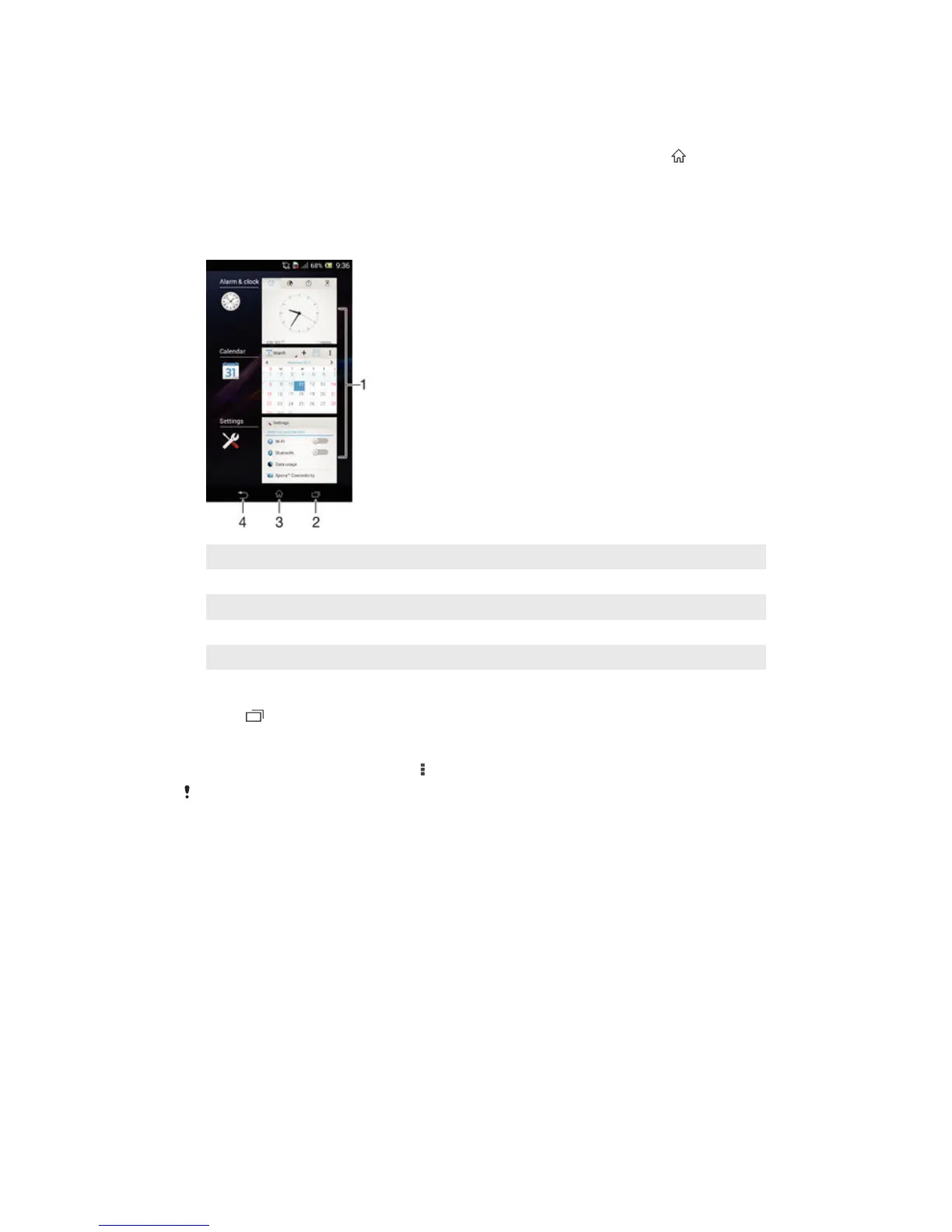
Navigating applications
You can navigate between applications using the navigation keys, the small apps bar,
and the recently used applications window, which lets you switch easily between all
recently used applications. Some applications are closed when you press
to exit while
others continue to run in the background or pause. If the application is paused or runs in
the background, you can continue where you left off the next time you open the
application.
Navigating applications overview
1 Recently used applications window – Open a recently used application
2 Small apps bar – Open a small app
3 Task navigation key – Open the recently used applications window and the small apps bar
4 Home navigation key – Exit an application and go back to the Home screen
5 Back navigation key – Go back to the previous screen within an application or close the application
To open the recently used applications window
•
Press .
To open a menu in an application
•
While using the application, press .
A menu is not available in all applications.
Widgets
Widgets are small applications that you can use directly on your Homescreen. They also
function as shortcuts. For example, the Weather widget allows you to see basic weather
information directly on your Homescreen. But when you tap the widget, the full Weather
application opens. You can download additional widgets from Google Play™.
16
This is an Internet version of this publication. © Print only for private use.










 To Next Page