Internet and networks
Browsing the web
The Google Chrome™ web browser for Android™ devices comes pre-installed in most
markets. Go to http://support.google.com/chrome and click the "Chrome for Mobile" link
to get more detailed information about how to use this web browser.
To browse with Google Chrome™
1
From your Homescreen, tap
.
2
Find and tap .
3
If you are using Google Chrome™ for the first time, select to either sign in to a
Google™ account or browse with Google Chrome™ anonymously.
4
Enter a search term or web address in the search and address field, then tap Go
on the keyboard.
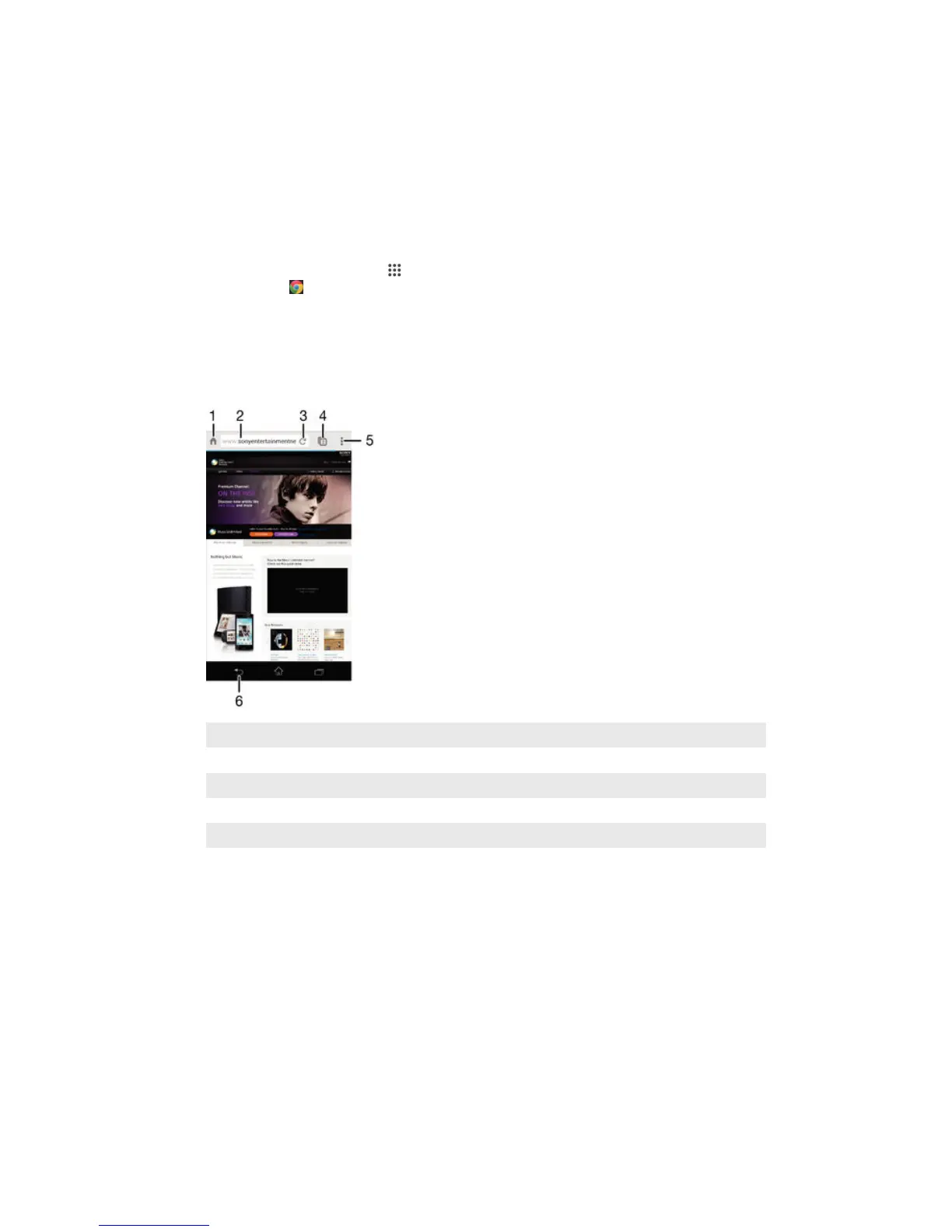
Web browser overview
1 Go to the homepage
2 Search and address field
3 Refresh the page
4 Access browser tabs
5 View help and options
6 Go back a page in the browser history
Internet and MMS settings
To send multimedia messages, or to access the Internet when there is no available Wi-
Fi® network, you must have a working mobile data connection with the correct Internet
and MMS (Multimedia Messaging Service) settings. Here are some tips:
•
For most mobile networks and operators, Internet and MMS settings come pre-installed
on your device. You can then start using the Internet and send multimedia messages
right away.
•
In some cases, you get the option to download Internet and MMS settings the first time
you turn on your device when a SIM card is inserted. It is also possible to download
these settings later from the Settings menu.
•
You can manually add, change or delete Internet and MMS settings on your device at
any time. Contact your network operator for detailed information.
24
This is an Internet version of this publication. © Print only for private use.








 To Next Page