Music
Transferring Music to Your Device
There are different ways to transfer music from a computer to your device:
•
For Windows
®
only: Connect the device and computer using a USB cable, and then
drag and drop the music files directly into the file manager application on the computer.
See
Managing files using a computer
on the 87 page.
•
You can use the Xperia™ Companion software to transfer your media files between the
computer and your device. Learn more and download Xperia™ Companion for Windows
at http://support.sonymobile.com/tools/xperia-companion or Xperia™ Companion for
Mac at http://support.sonymobile.com/tools/xperia-companion-mac .
The Music application may not support all music file formats. For more information about
supported file formats and the use of multimedia (audio, image, and video) files, download the
White Paper for your device at
www.sonymobile.com/support
.
Listening to music
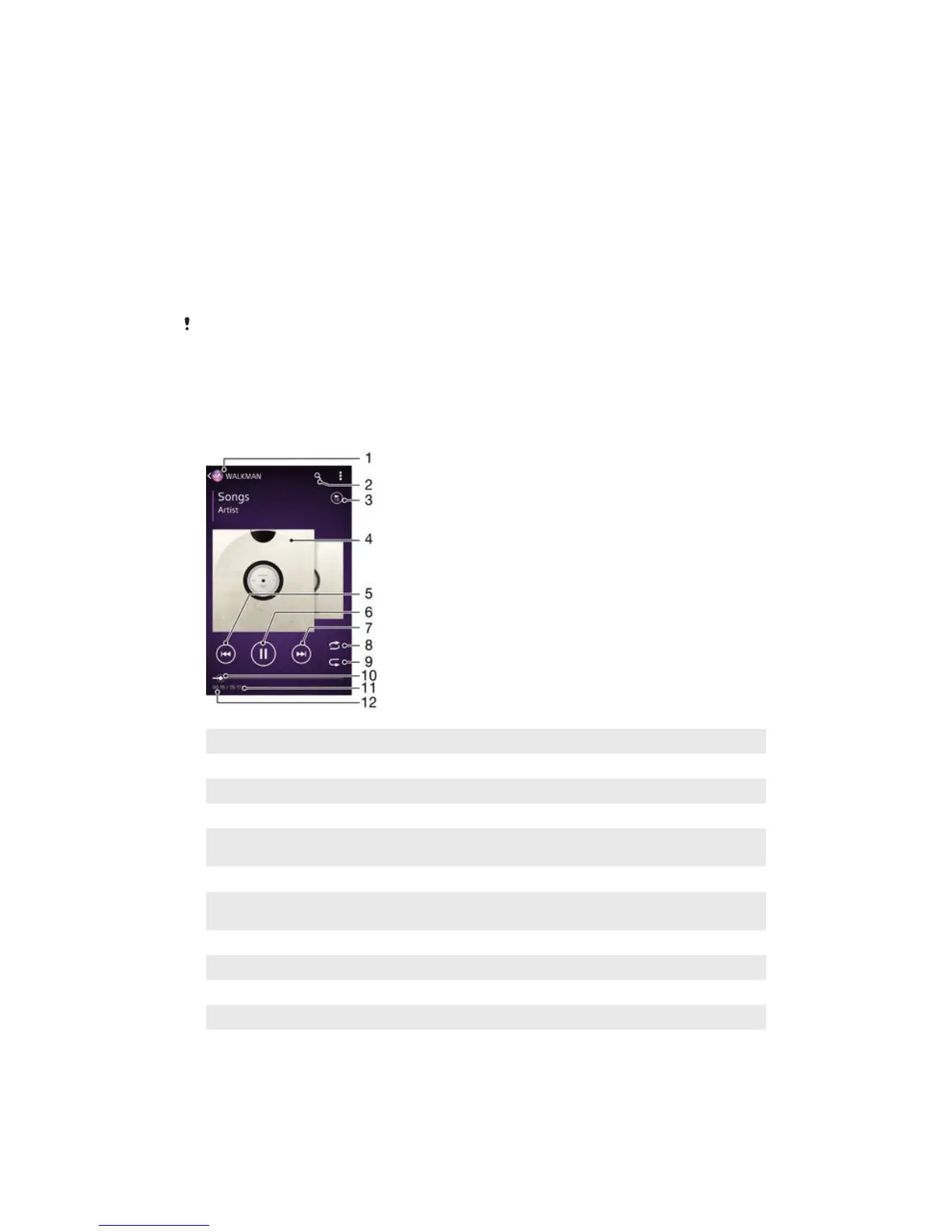
Use the "WALKMAN" application to listen to your favorite music and audio books.
1 Go to the “WALKMAN” homescreen
2 Search songs on Music Unlimited and all songs saved to your device
3 View the current play queue
4 Album art (if available)
5 Tap to go to the previous song in the play queue
Touch and hold to rewind within the current song
6 Play or pause a song
7 Tap to go to the next song in the play queue
Touch and hold to fast forward within the current song
8 Shuffle songs in the current play queue
9 Repeat all songs in the current play queue
10 Progress indicator – Drag the indicator or tap along the line to fast forward or rewind
11 Total length of current song
12 Elapsed time of current song
61
This is an Internet version of this publication. © Print only for private use.








 To Next Page