To import contacts using Bluetooth
®
technology
1
Make sure you have the Bluetooth
®
function turned on and that your device is set
to visible.
2
When you are notified of an incoming file to your device, drag the status bar
downward and tap the notification to accept the file transfer.
3
Tap Accept to start the file transfer.
4
Drag the status bar downward. When the transfer is complete, tap the notification.
5
Tap the received file.
To import contacts from a SIM card
You may lose information or get multiple contact entries if you transfer contacts using a SIM
card.
1
From your Homescreen, tap , then tap .
2
Tap , then tap Import contacts.
3
Select a SIM card.
4
Select where to store your contacts.
5
To import an individual contact, find and tap the contact. To import all contacts,
tap Import all.
Searching and viewing contacts
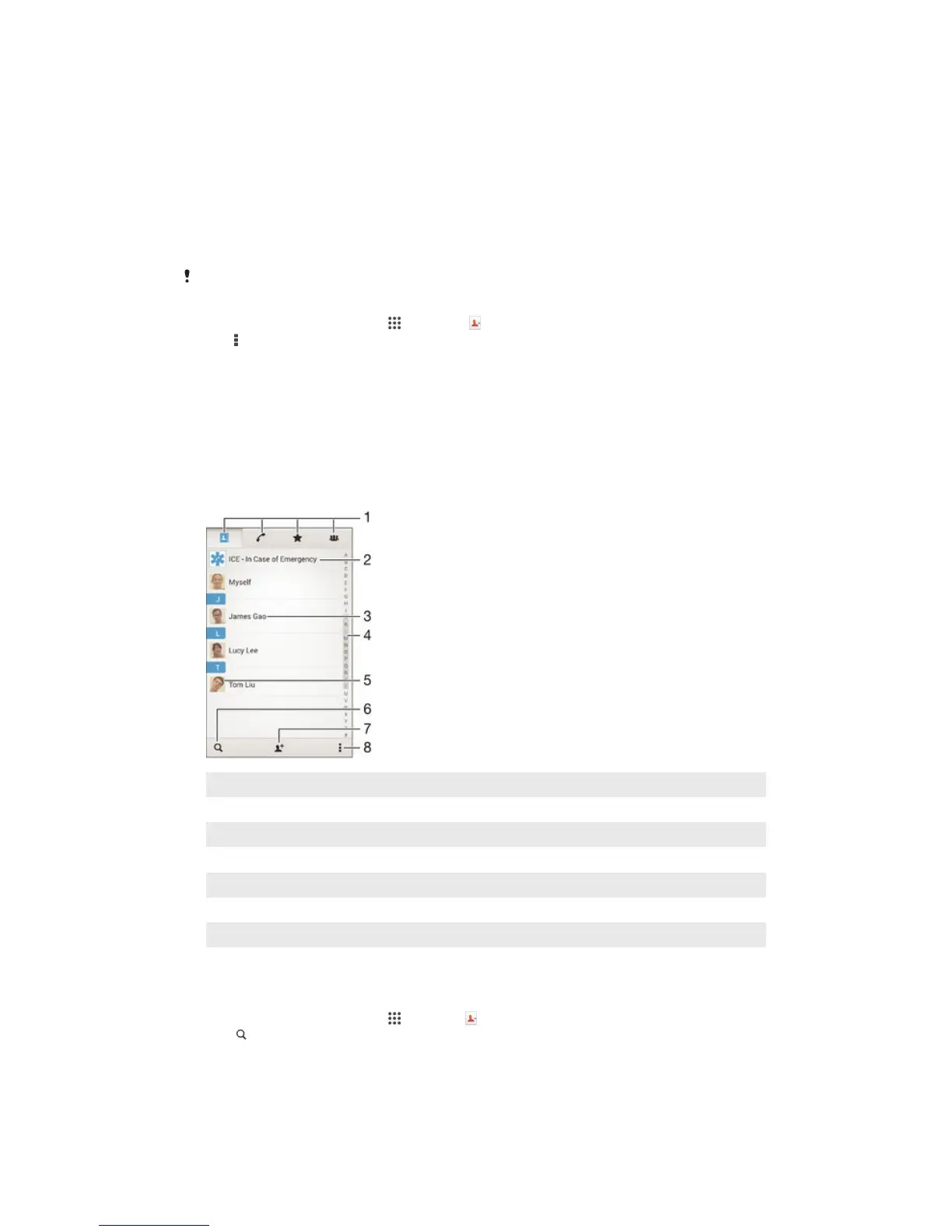
Contacts screen overview
1 Contacts, Calling, Favorites, and Groups tabs
2 Edit and view medical and emergency contact information
3 View contact details
4 Jump to contacts starting with the selected letter
5 Access communication options for the contact
6 Search for contacts
7 Add a contact
8 View more options
To search for a contact
1
From your Homescreen, tap , then tap .
2
Tap
and enter a phone number, name, or other information in the Search
contacts field. The result list is filtered as you enter each character.
47
This is an Internet version of this publication. © Print only for private use.








 To Next Page