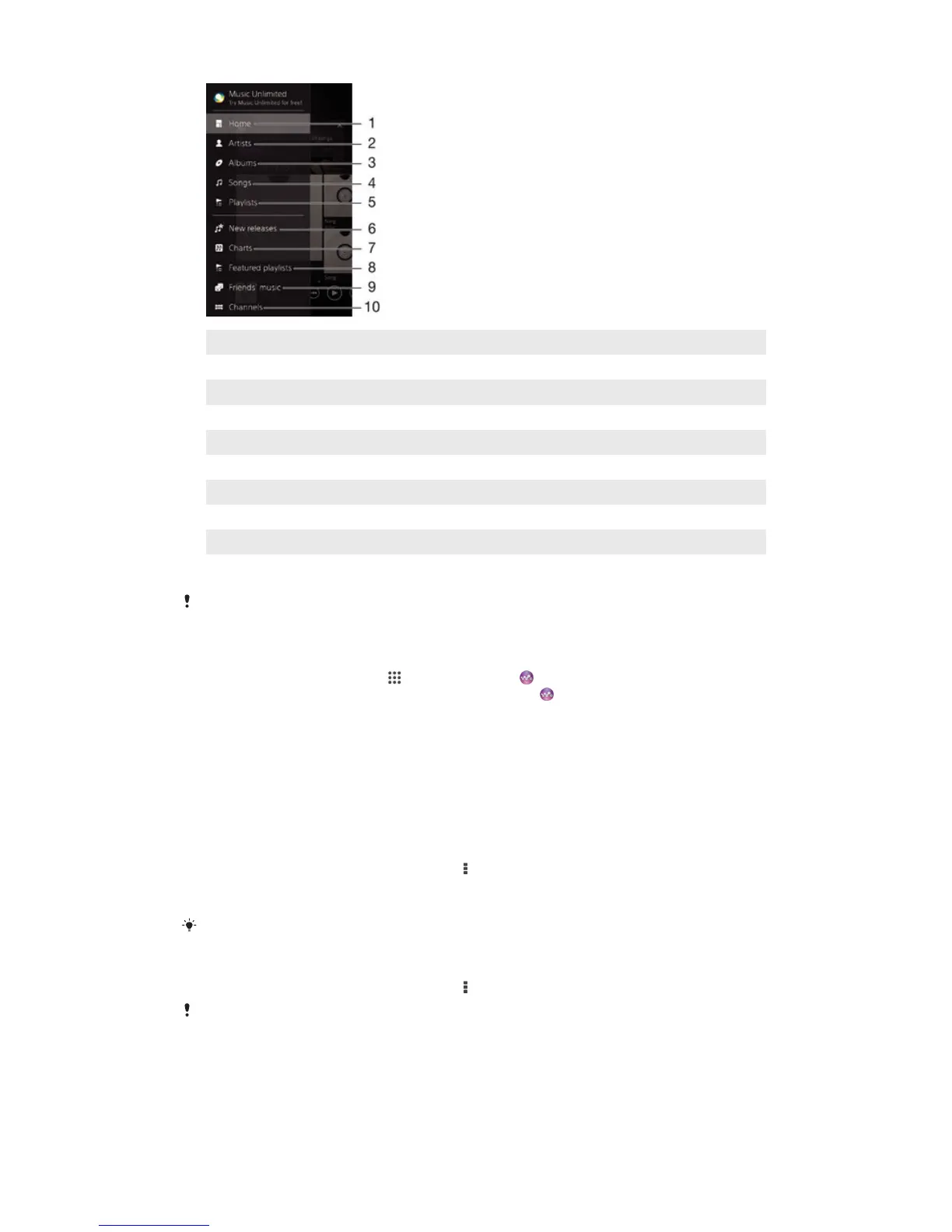
1 Return to the “WALKMAN” homescreen
2 Browse your music by artist
3 Browse your music by album
4 Browse your music by song
5 Browse all playlists
6 New releases (provided by Music Unlimited)
7 Charts (provided by Music Unlimited)
8 Featured playlists (provided by Music Unlimited)
9 Collect links to music and related content that you and friends have shared using online services
10 Manage and edit your music using Music Unlimited channels
Sony Entertainment Network with Video Unlimited and Music Unlimited is not available in every
market. Separate subscription required. Additional terms and conditions apply.
To open the “WALKMAN” homescreen menu
1
From your Homescreen, tap , then find and tap .
2
If the “WALKMAN” homescreen is not displayed, tap
, then drag the left edge of
the “WALKMAN” homescreen to the right. If the “WALKMAN” homescreen is
displayed, drag the left edge of the “WALKMAN” homescreen to the right.
To return to the “WALKMAN” homescreen
•
When the “WALKMAN” homescreen menu is open, tap
Home
.
•
When the “WALKMAN” homescreen menu is open, tap on the screen to the right
of the menu.
To update your music with the latest information
1
From the “WALKMAN” homescreen, tap
.
2
Tap Download music info > Start. Your device searches online and downloads
the latest available album art and song information for your music.
The SensMe™ channels application is activated when you download music information.
To enable the SensMe™ channels application
•
From the “WALKMAN” homescreen, tap , then tap Download music info > Start.
This application requires a cellular or Wi-Fi® network connection.
63
This is an Internet version of this publication. © Print only for private use.









 To Next Page