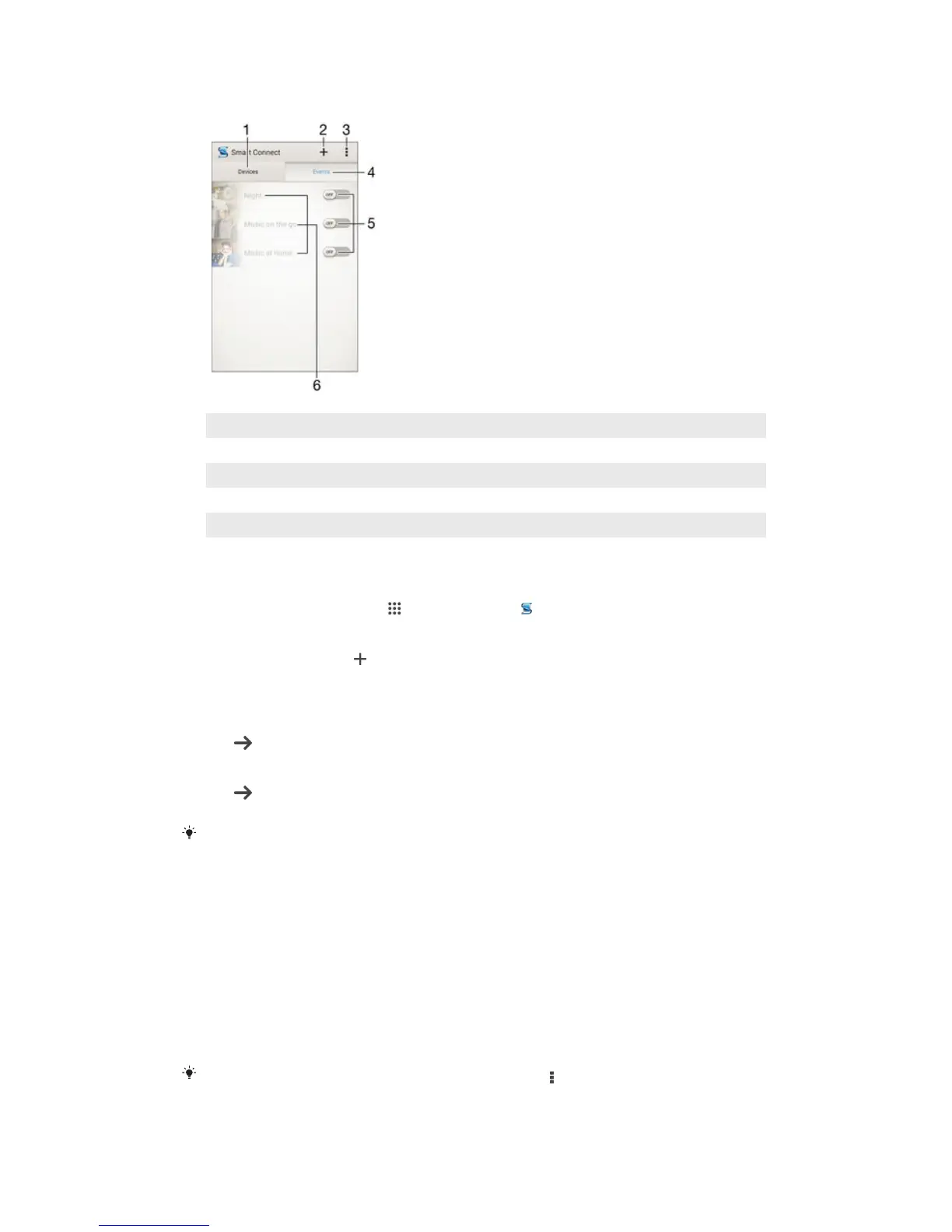
Overview of Smart Connect
1 Tap to display all added devices
2 Add a device or an event
3 View menu options
4 Tap to display all added events
5 Tap to activate an event
6 Tap to view details of an event
To create a Smart Connect event
1
From your Homescreen, tap , then find and tap .
2
If you are opening Smart Connect for the first time, tap
OK
to close the
introduction screen.
3
On the
Events
tab, tap
.
4
If you are creating an event for the first time, tap OK again to close the
introduction screen.
5
Add conditions you want to trigger the event under. A condition could be the
connection with an accessory, or a specific time interval, or both.
6
Tap
to continue.
7
Add what you want to happen when you connect an accessory, and set other
settings as desired.
8
Tap
to continue.
9
Set an event name, then tap Finish.
To add a Bluetooth® accessory, you have to first pair it with your device.
To edit a Smart Connect event
1
Start the Smart Connection application.
2
On the Events tab, tap an event.
3
If the event is switched off, drag the slider to the right to turn it on.
4
Tap Edit, then adjust the settings as desired.
To delete an event
1
Start the Smart Connection application.
2
On the Events tab, touch and hold the event you want to delete, then tap Delete
event.
3
Tap Delete to confirm.
You can also open the event you want to delete, then tap
> Delete event > Delete.
89
This is an Internet version of this publication. © Print only for private use.








 To Next Page