Help Guide
Smartphone
Xperia PRO XQ-AQ52/XQ-AQ62
Taking a photo using Photo Pro
Note
There is no shutter button on the Photo Pro standby screen. Use the camera key on your device.
Launch Photo Pro.
Find and tap
(Photo Pro icon).
Press the camera key fully down. While using the Camera app, tap
(Settings icon) > [Launch with camera
key] > [Launch Photography Pro] to enable this function.
While using the Camera app, tap [Mode] >
(Photo Pro icon).
1
Select a shooting mode.
AUTO (Auto mode): Settings values are determined appropriately by Photo Pro so that you can take photos of
any subject under any conditions with good results.
P (Program auto): You can take photos with an automatically adjusted combination of shutter speed and ISO
value.
S (Shutter speed priority): You can take photos of fast-moving subjects, etc. with a manually adjusted shutter
speed. (The ISO value is adjusted automatically.)
M (Manual exposure): You can take photos with the desired shutter speed and ISO value.
2
Adjust the settings.
3
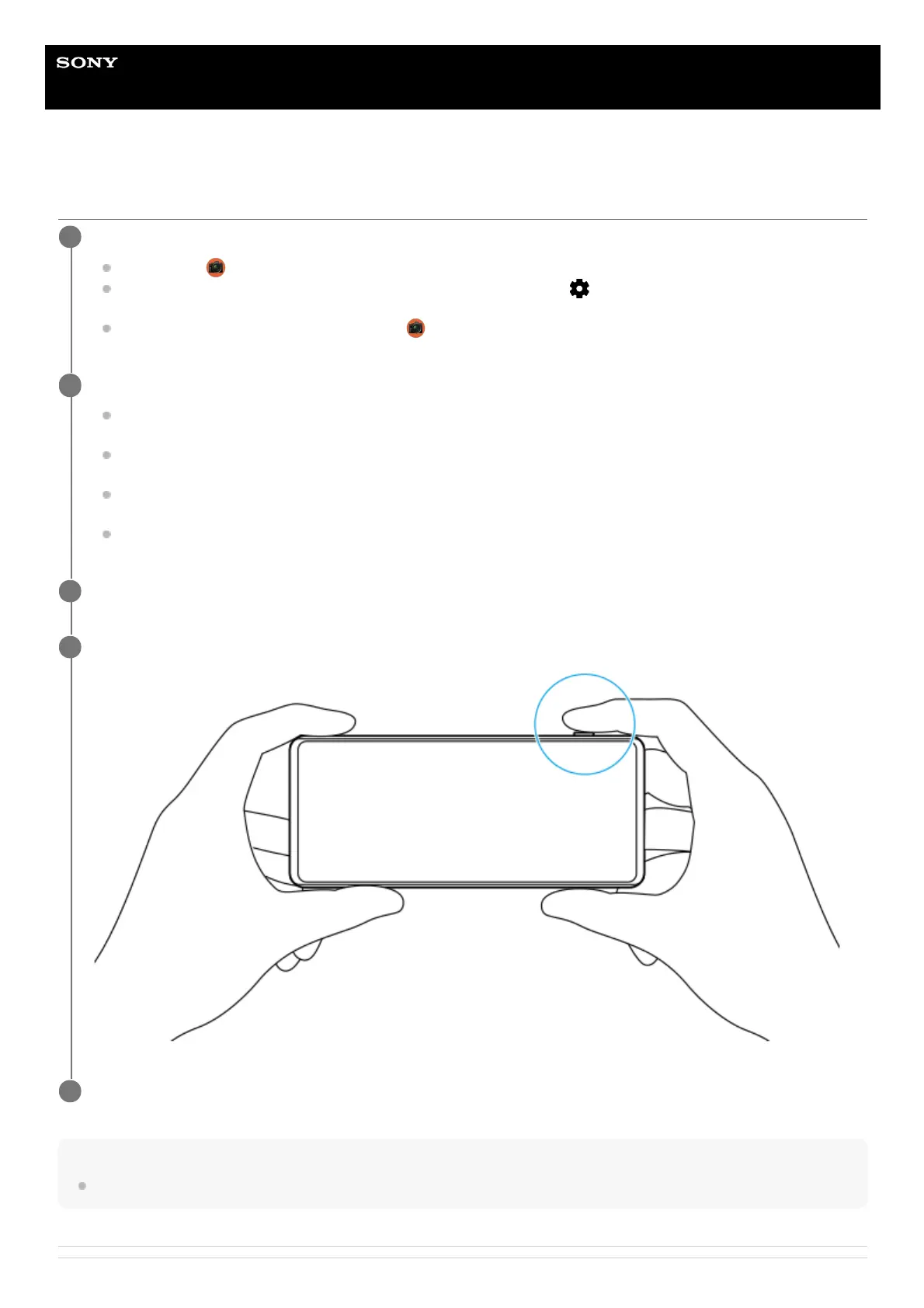
Press the camera key halfway down to focus.
4
Press the camera key fully down.
5



 To Next Page