Help Guide
Interchangeable Lens Digital Camera
ZV-E1
Shooting movies (Intelligent Auto)
This section describes how to record movies in the [Intelligent Auto] mode. In the [Intelligent Auto] mode, the camera
automatically focuses and automatically determines the exposure based on the recording conditions.
To shoot with the touch function icons
You can also start shooting by touching an icon on the screen instead of pressing the MOVIE (movie) button. Swipe the
monitor left or right to display the touch function icons, and then touch the
(start recording) icon. You can view the
captured image by touching the
(switch to playback screen) icon.
For details on how to display the touch function icons, see “Touch function icons.”
To adjust the image brightness, color tone, etc. (
My Image Style)
Swipe the monitor left or right to display the touch function icons on the shooting screen, and touch
(image
adjustment). You can set
(Background Defocus), (Brightness), (Color), and [ Creative Look] to your
preferences. Touch each icon at the bottom of the screen to set each item.
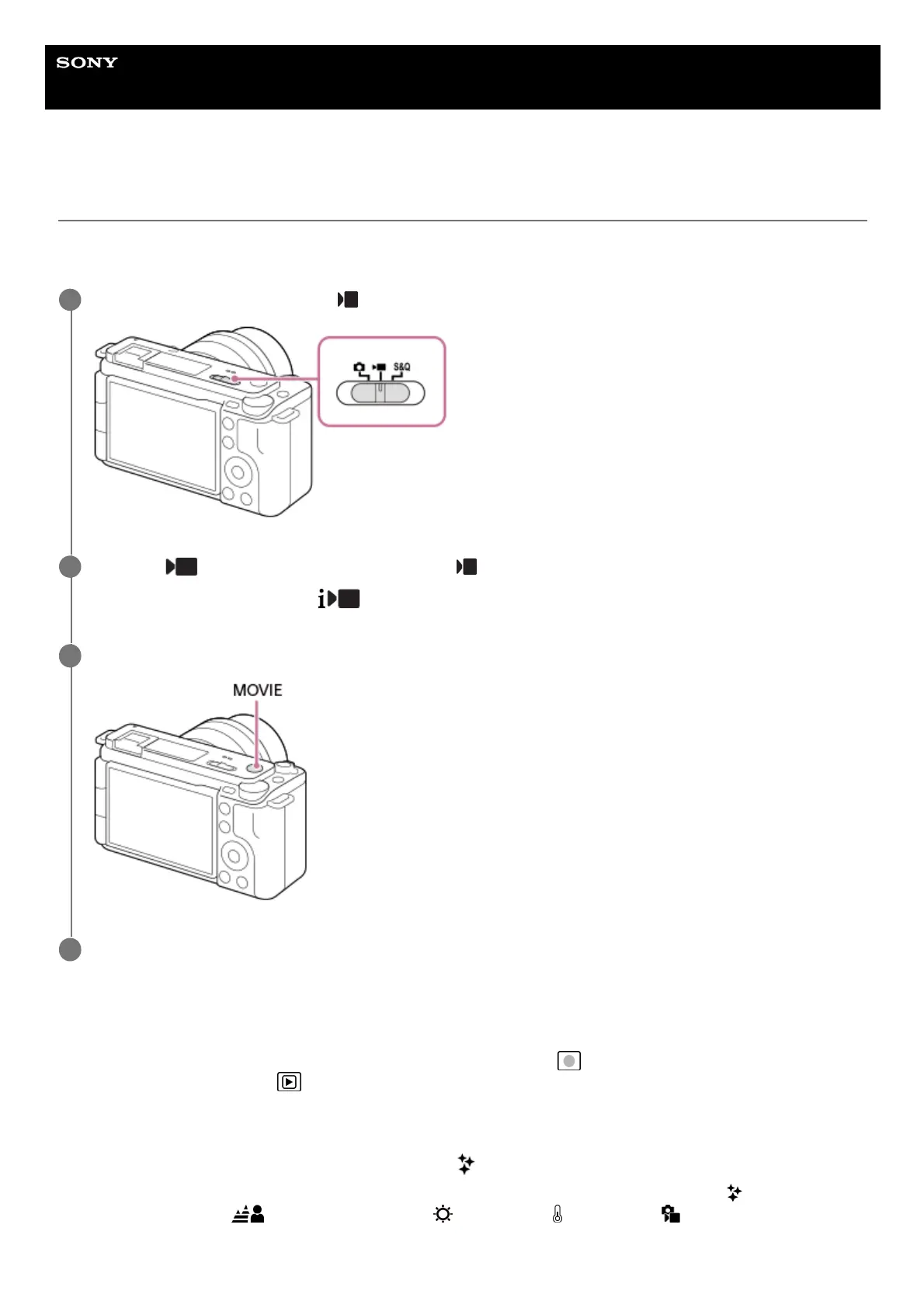
Set the Still/Movie/S&Q switch to
(Movie) to select the movie recording mode.
1
MENU →
(Shooting) → [Shooting Mode] → [ Shoot Mode] → [Intelligent Auto].
The shooting mode will be set to
(Intelligent Auto).
2
Press the MOVIE (Movie) button to start recording.
3
Press the MOVIE button again to stop recording.
4


 To Next Page