User Guide and
Technical Information
page 23SOUND DEVICES, LLC
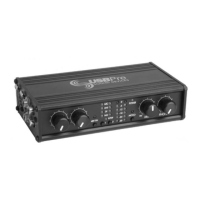
1. Why does the USBPre take long to power
up?
The USBPre is classified a “high power” USB
peripheral. Like all USB devices, it is required
to enumerate with the operating system ini-
tially in low power mode before it steps up to
high power mode. It takes roughly 15 seconds
for the USBPre to complete “checking-in” with
the operating system and be available for use.
2. When I plug the USBPre into the computer
why do some of the input LED’s flash?
The LED’s flash on enumeration with the
operating system (see above). Also, if one of
the buttons is being held down on power-up,
the USBPre goes into configuration mode.
This mode is used to reprogram the non-
volatile memory in the USBPre and should be
avoided except when changing configuration
files in Mac OS or upgrading the USBPre.
3. Why can’t I use Windows 95, Windows 98
(first release), or Windows NT 4.0 with the
USBPre?
Windows 95 OS2 was the first Windows OS
with USB support. Windows 98 (first release)
is essentially the same as Windows 95 OS2
and has an early implementation of USB
audio support. Both of these operating sys-
tems USB audio drivers are problematic with
the USBPre (and other USB audio products).
Upgrade to Windows 98SE (or Windows Me)
from Windows 95 and Windows 98. In addi-
tion, early implementations of USB hardware
may not be USB 1.1 compliant and even
with Windows 98SE, interconnection with the
USBPre may be problematic.
Windows NT 4.0 has very limited USB sup-
port. Upgrade to Windows 2000 from NT for
USB audio support.
4. Why is the unit connected, with the power
LED lit, but the input selection LED’s are
not lit and I can’t select the USBPre as a
playback device.
The software drivers and control panel soft-
ware have not been loaded on the computer.
Disconnect the USBPre and install the soft-
ware from the included CD-ROM. Also check
that you are running on a system that meets
the minimum requirements.
If the computer has successfully connected
to the USBPre in the past, disconnect the
hardware, wait several seconds, and recon-
nect. This will reconnect the USBPre with the
operating system.
5. I can’t get the USBPre to start up. It
doesn’t seem to be getting enough power.
Depending on your computer setup, you may
not be connecting the USBPre to a high-
powered USB port. The USBPre requires
a full 500 mA USB port like those provided
with an active hub directly on the computer.
Connecting the USBPre to a passive hub is
inadequate to power the hardware, since pas-
sive hubs typically provide 250 mA or less of
current to each USB port. With iMac comput-
ers, connect the USBPre directly to the com-
puter, not the keyboard, since the keyboard
acts as a passive hub.
6. Why is audio playback low or no audio
output?
The volume control in the Windows Mixer
and the Mac’s volume control adjusts the
output level of the PC Audio output and
the level to the headphones. The Windows
mixer is accessed by the icon in the sys-
tem tray that looks like a speaker (if it is
there). Alternatively, go to Start >Programs
>Entertainment >Volume Control to launch
the Windows Mixer. Raise both the “Volume
Control” and the “Wave” for more level. Verify
that the USBPre is the selected playback
hardware in the Multimedia settings in the
Control Panel. Raise the volume control in the
Mac for more level.
7. Why does the USBPre seem distorted
when recording even though the red over-
load LED’s have not illuminated?
The headphone amplifier is most likely dis-
torting. High monitoring levels can overdrive
the headphones when using high impedance
headphones. Play back recorded tracks at
lower monitoring levels to confirm that the
recorded audio signal is distortion-free.
FAQ (Frequently Asked Questions)


 To Next Page