Operation
VISUAL SETUP
MEDIA SETUP
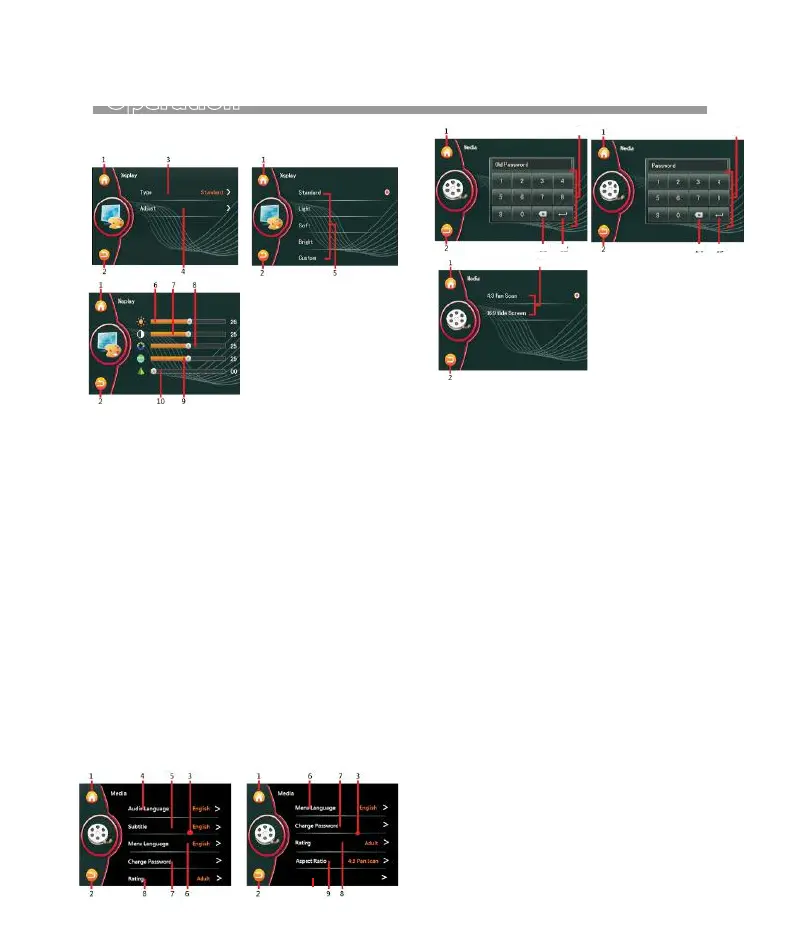
1. Touch to shift to MAIN MENU for operation
mode selection.
2. Touch to back to previous setting menu.
3. Touch Type to access to PRESET VISUAL MENU.
4. Touch Adjust to access to CUSTOM VISUAL
MENU for visual settings.
5. Touch to select desired preset vusual mode of
screen.
6. Hold and slide the cursor to set to desired bright
-ness level.
7. Hold and slide the cursor to set to desired
contrast level.
8. Hold and slide the cursor to set to desired
Hue level.
9. Hold and slide the cursor to set to desired
Saturation level.
10. Hold and slide the cursor to set to desired
Sharpness level.
1. Touch to shift to MAIN MENU for operation
mode selection.
2. Touch to back to previous setting menu.
3. Hold & slide to show hidden setting items.
4. Touch to select desired AUDIO LANGUAGE
for DVD playback provided the DVD recorded
with relative language.
5. Touch to select desired Subtitle LANGUAGE
for DVD playback provided the DVD recorded
with relative language.
6. Touch to select desired MENU LANGUAGE
for DVD playback provided the DVD recorded
with relative language.
7. Touch to activate PASSWORD MEMU for changing.
8. Touch to select desired Rating level of video
playback.
9. Touch to activate ASPECT Ratio Menu
to select aspect ratio of screen for viewing.
10. Touch to select DVD REGION.
11. Input the old passward, then allow to set
new password.
12. Touch to erase the digit that input be error.
13. Touch to confirm the input number.
14. Touch to input the desired number.
15. Touch to erase the digit that input be error.
16. Touch to confirm the input number.
17. Touch to select aspect ratio of screen for viewing.
Area Region 0
10
17
11
12 13
14
15 16
12


 To Next Page