21
8.9. SYSTEM SETUP & CUSTOMIZING PAGES ON THE DISPLAY
The MasterMind TCD-w has customizable screens that show options such as Speed,
odometer, battery charge level, mode, heart rate, and more.
To fully customize the setup of the MasterMind TCD-w, pair your bicycle to Mission Control
and adjust your preferred settings in the app.
2
SEC
8.11
Fig. 8.11
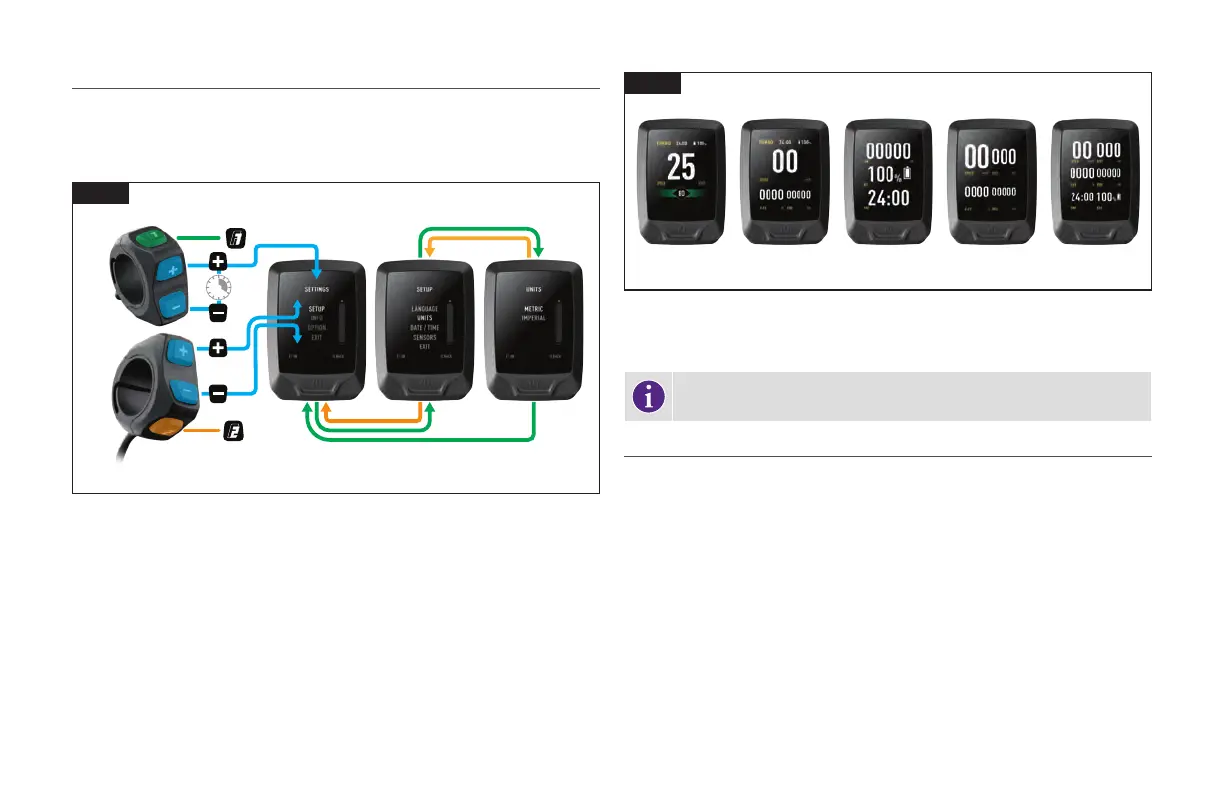
To set up units, date and time, view legal information, and pair sensors on the MasterMind
TCD-w display, press and hold the (+) and (-) buttons on the remote for two seconds to
open the settings menu.
To navigate the settings, use the remote (+)(-) buttons to scroll. Use F1 for OK and F2 for
BACK.
8.12
Fig. 8.12
The layout and pages on the MasterMind TCD-w can be customized and set up according to
your preference, layouts, and pages are only customizable in Mission Control.
INFO: For more information on connecting to and using Mission Control, see
section 9 of this manual.
8.10. CONNECTIVITY OPTIONS
The Turbo Technology System provides a high degree of interface flexibility through Bluetooth
and/or ANT+ connectivity.
BLUETOOTH LOW ENERGY (BLE)
BLE is used for connecting to the bike to the Mission Control app.
ANT+
ANT+ can be used to connect to the sensors for Speed, Rider Power, and Cadence. The
sensor data can be received via the ANT+ module built into the MasterMind TCD-w.
In your ANT+ device, search for those sensors and connect to them.
Some bicycle-specific ANT+ devices feature so-called “LEV” data fields you can use to see all
available e-bike data.



 To Next Page