TL H.264 DVR User’s Manual
21
3.4 System Date / Time Setting
Users can set the current date, time and other OSD parameters in Date/Time
menu (under System Setup menu). The login account should have authority
to access the System Setup menu. In OSD setup menu, select <System
Setup> and press ENTER, then select <Date/Time> to access the Date/Time
menu; the menu displays as follows.
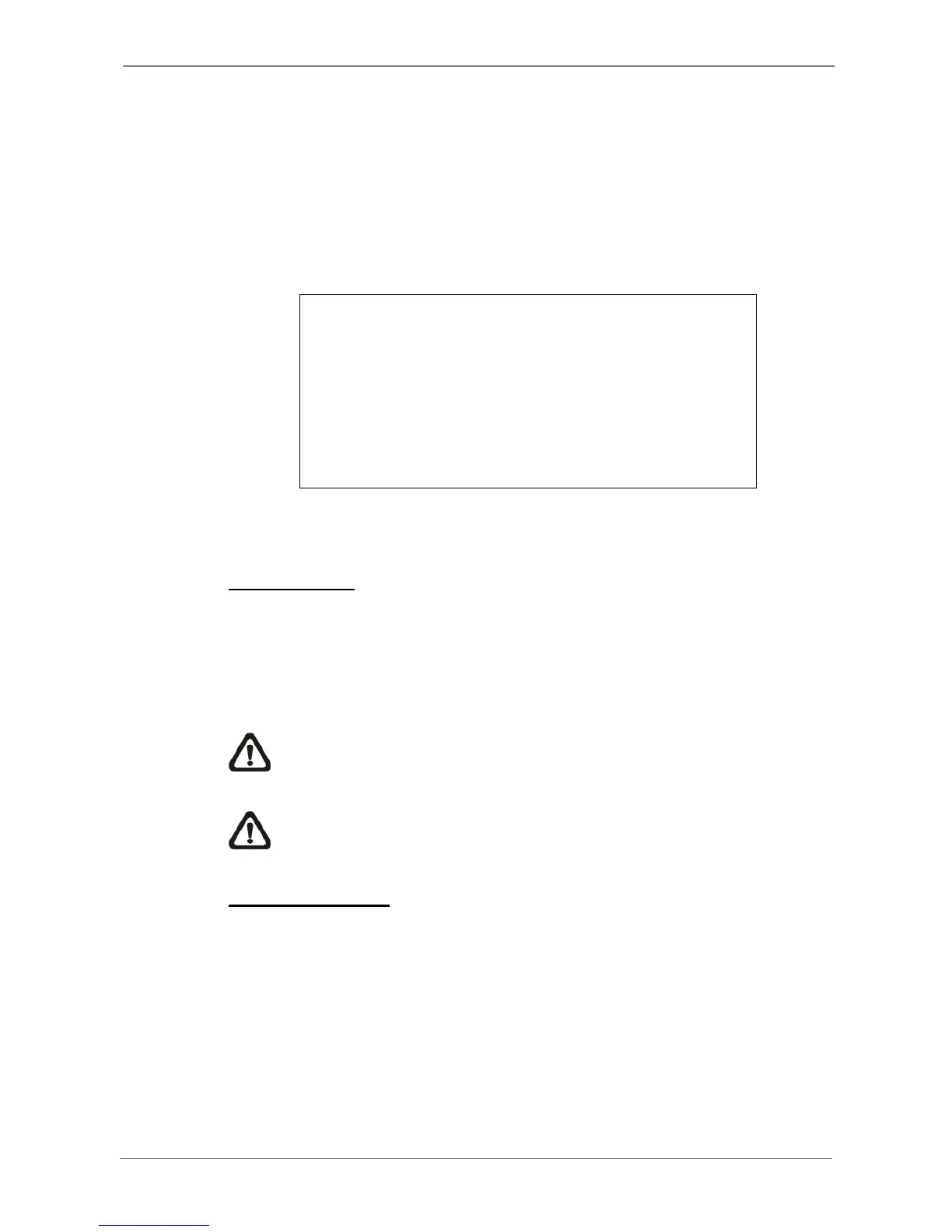
Date/Time
1. Date
2. Time
3. Time Zone
4. Date/Time Display
5. Date Display Mode
6. Time Display Mode
7. Date/Time Order
8. Daylight Saving Time Setup
9. Network Time Protocol Setup
2010/02/21
PM10:39:26
OFF
1 Row
Y/M/D
12 HR
Date First
3.4.1 Set Date / Time
Set Date / Time
Select <Date> / <Time> and press ENTER to adjust the settings. LEFT /
RIGHT keys are used to move the cursor to previous or next field, ENTER is
for selecting, and UP / DOWN are used to change the value in the selected
field.
NOTE: The new date / time setting applies to record new video. The
date and time of previously recorded video will not be changed.
NOTE: If time settings have to be changed in any case, it is strongly
recommended to format the HDDs to avoid database corruption.
Date / Time Display
Users are allowed to set the time OSD displays in 1 or 2 rows. Use the UP /
DOWN keys to change the setting.


 To Next Page