Speco HS Rev 1.0 Copyright I-View Now, LLC 2014 7
Changing the Default DVR Login
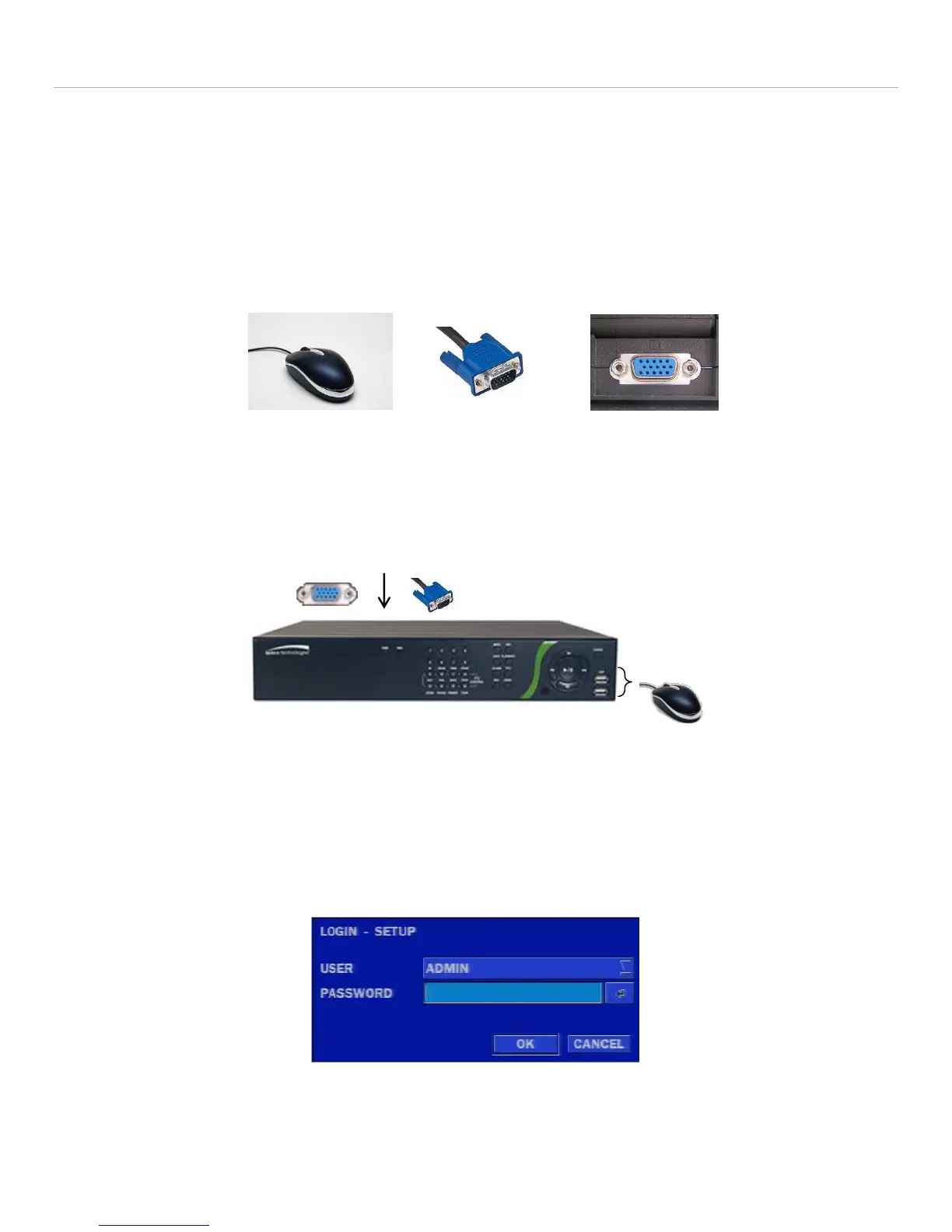
To start using the Speco HS first plug a monitor into the VGA output on the DVR and ensure power is provided to both.
Take note that a customer ‘brick’ transformer power supply is used to step down from commercial 120 AC that is
provided along with the Speco HS. An incorrect ‘brick’ that doesn’t match the requisite Voltage or Amps can harm the
unit.
Also, plug the mouse provided with the DVR into the front side USB port of the DVR unit. The default password is
“1111”. If this doesn’t work simply verify the correct login and password from the manual. Be aware that the Menu’s
presented in this manual can vary slightly depending on the exact model and firmware version.
User Name: admin
Password: 1111
After plugging in the power supply on the back of the unit and attaching a VGA monitor and a mouse on the right side as
shown below, press the power button. The unit’s PWR and Hard Drive (HDD) LEDs should light and/or flash. The basic
unit and its connections are shown below:
Figure 3
Once the system initializes, it will show a grid of rectangles with numbers. Some may contain moving video if a camera is
attached. However, the first step in starting to configure the system is to right click on “SETUP” which will then display a
screen as shown below prompting you for a login and password.
Figure 4



 To Next Page