29
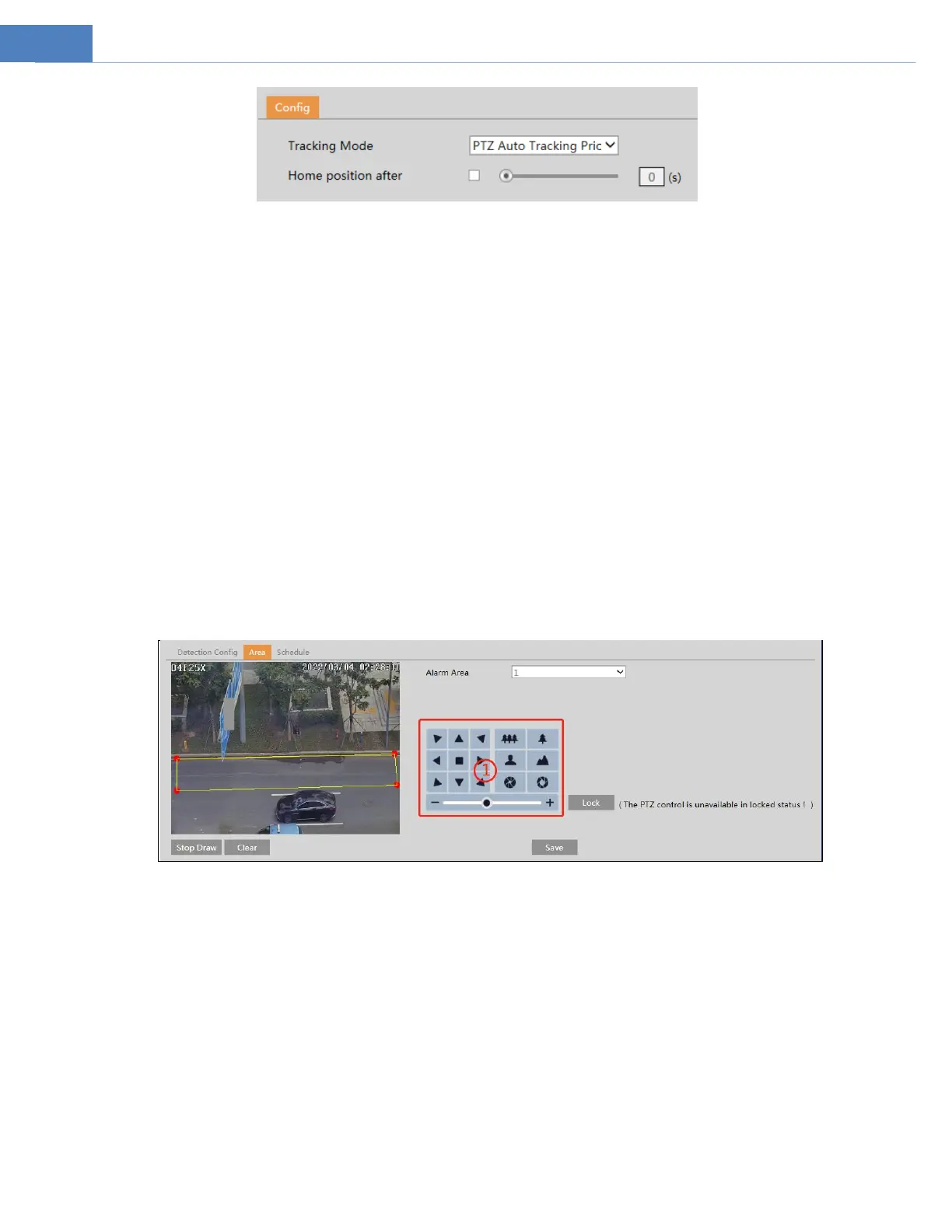
Tracking Mode: PTZ Auto Tracking Priority or Manual PTZ Control Priority can be optional.
PTZ Tracking Priority: if this mode is selected, in smart tracking mode, you cannot control PTZ by clicking the buttons on the PTZ
control panel in the live view interface.
Manual PTZ Control Priority: if this mode is selected, in smart tracking mode, you can control PTZ by clicking the buttons on the PTZ
control panel in the live view interface and then the camera will immediately stop the tracking action. After you finish controlling
PTZ for 5 seconds, the PTZ camera will return to the start tracking position and wait for the object to appear.
Home Position after…: If it is enabled and the time is set, when the target stops or hides behind an obstacle, or the target tracking is
complete and there is no target appearing in the detection area during the set time, the PTZ camera will return to the tracking start
position. Of course, during this time, if there are targets moving, the PTZ will continue tracking. If it is not enabled, when the target
stops or there is no target appearing in the detection area for 5 seconds, the PTZ camera will return to the start tracking position.
For example: in the crossroad, if a car is waiting for the red light for 30 seconds, and the time is set as 20 seconds, then the tracking
will stop following; but if the time is set as 40 seconds, after the red light start to change into green light, then the car re-start to
move, and the PTZ will keep on tracking this car.
How to set smart tracking:
1. Click ConfigAlarmSmart Tracking to go to the smart tracking interface. Select the tracking mode and set the “home position
after.. .” as needed.
2. Click ConfigEvent. Select the event as needed. For example intrusion, enable the intrusion detection, select detection target
and then check “Trigger Track”. After that click “Save” to save the settings.
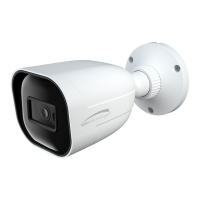
3. Set the alarm area and lock the PTZ.
Using the PTZ control buttons (area①) sets appropriate field of view and then draw the detection area and save the setting.
After that, click the “Lock” button to save the current PTZ position as the start tracking position). Now, the “Lock” button
changes its function to “Unlock”.
Note: Clicking the “Unlock” button suspends object tracking until you click the “Lock” button. If you want to change the start
tracking position, you can click “Unlock” button to enable PTZ control. After that, please remember to lock the PTZ, or object
tracking will not take effect.
4. Go back to the live view interface to view smart tracking.



 To Next Page