42
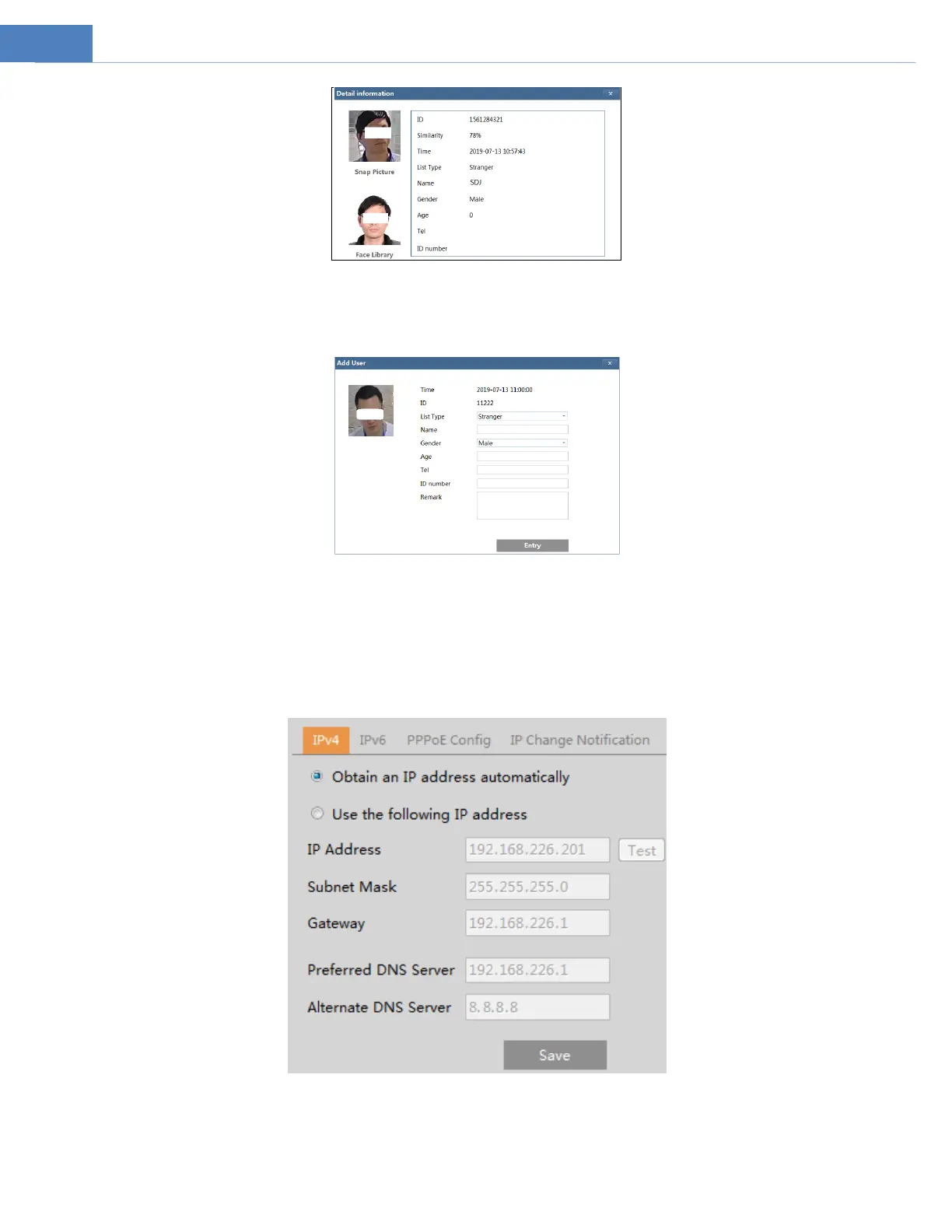
Add captured face pictures to the face database
Click a captured picture in area ①. This will bring a face picture adding box.
Fill out the relevant information and click “Entry” to add this face picture.
5.6 Network Configuration
5.6.1 TCP/IP
Go to Network SetupTCP/IP interface as shown below. There are two ways for network connection.
Use IP address (take IPv4 for example)-obtain a local IP address automatically through DHCP. A typical router has a DHCP server
built in, and therefore is able to assign an IP address to the camera.
Use PPPoE-Click the “PPPoEConfig” tab to go to the interface as shown below. Enable PPPoE and then enter the user name and



 To Next Page