41
Alarm List: Select an alarm list. For example, if “Stranger” is selected, the system will automatically search the matched face picture
from “Stranger” list/group when detecting a face and both face pictures will appear on the left in the face comparison interface.
Alarm Trigger Mode: Face only mode. When the captured face picture is matched successfully, alarms will be triggered.
Alarm Output: if enabled, this will trigger alarm output when the captured face is matched successfully.
6. Set the schedule of the face detection and comparison. The setup steps of the schedule are the same as schedule recording
setup (See Schedule Recording).
7. Advanced configuration.
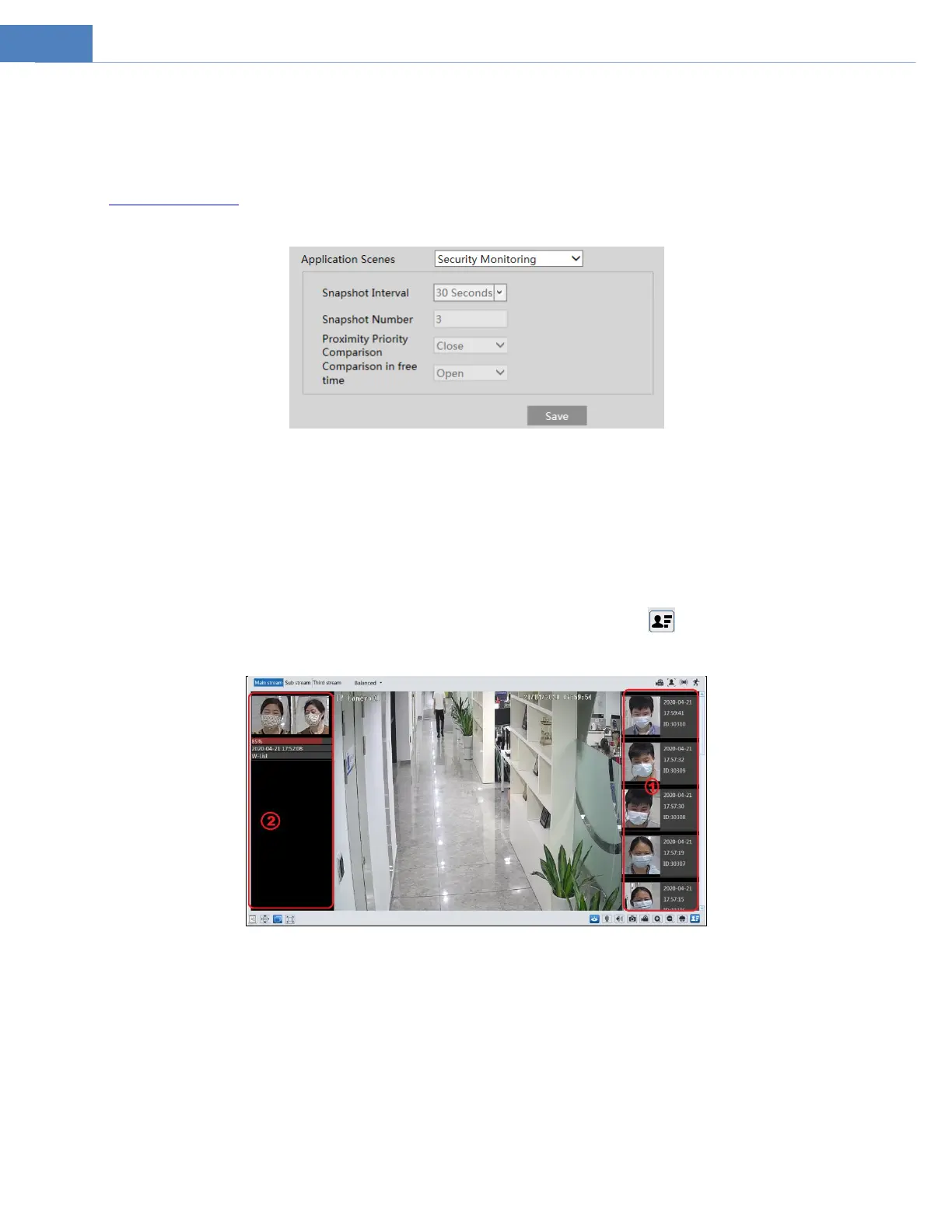
Application Scenes: “Access control”, “security monitoring” or “customize” can be selected.
Snapshot Interval: If 5 seconds is selected, the camera will capture the same target once every 5 seconds during its continuous
tracking period.
Snapshot Number: If the snapshot number is enabled and set (eg. 3), the camera will capture the same target once every 5 seconds
and it will capture this target 3 times at most during its continuous tracking period. If the snapshot number is disabled, the camera
will capture the same target once every 5 seconds until the target disappears in the detected area.
Face Match View
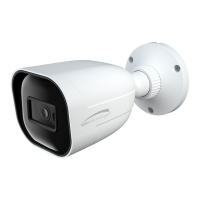
After all face comparison settings are set successfully, enter the live view interface. Click to view the captured face pictures
and face comparison information.
Area ①: captured face pictures; area ②: face comparison area
View the comparison details
In area ②, click the compared face picture to bring up the following window. In this interface, you can view the detailed comparison
information.



 To Next Page