EasyManua.ls Logo

Spectral CTA2-V2 - Loudspeaker Menu Details; Managing Speaker Presets; Level Trim Adjustment; Speaker Distance Calibration

Spectral CTA2-V2
Print Icon
To Next Page IconTo Next Page
To Previous Page IconTo Previous Page
Loading...
54
Loudspeaker Menu
In the Loudspeaker Menu the following parameters can be set to adjust the sound system to the room:
preset:
To save all settings set in the loudspeaker menu up to 6 memory cells (<preset>).
Procedure:
First adjust the values in the loudspeaker menu (Description of the parameters: see the following points). Select <preset>
(without leaving the menu) => <current value>, then select a default preset and overwrite the values. In the list your preset
is shown as „manual“.
This procedure is repeatable up to 6 times.
Use the functional keys <preset> to select your personal settings in the main menu.
IR Learn
main key
blu ray
dvd
dvd rec
sat
tv1
Select Device
bra1
dvd sat tv light
stand by
no
connection
input config
in opt1 not active
in opt2 not active
in coax1 not active
in coax2 not active
in line1 not active
in line2 not active
input config
no configuration done
all inputs not active
to configure press ok
input config
in opt1 dvd
in opt2 not active
in coax1 not active
in coax2 not active
in line1 not active
in line2 not active
dvd sat tv
tv
tuner
p6
Analog stereo
<
preset
>
mode
40
dvd sat tv tuner
p6
Analog stereo
<
preset
>
modus
m
/
st
89.30
01
0
40
dvd sat tv tuner
p6
Analog wide
<
preset
>
modus
m
/
st
89.30
01
0
40
dvd sat tv tuner
p6
PLII surround 1
<
preset
>
modus
m
/
st
89.30
01
0
40
virtuell
dvd sat tv tuner
p6
PLII surround 2
<
preset
>
modus
m
/
st
89.30
01
0
40
virtuell
dvd
bra1
play
skip
skip
pause
stop
sat
red
epg
yello blue
info text
green
tv
/
r
tv
red
media
yello blue
tools info
green
sourc
lighting
power
rgb
Learn Menu
IR Learn
RF Learn
IR Learn
Learn
Clear
IR Learn
prog -
prog +
vol -
vol +
mute
IR Learn
main key
blu ray
dvd
dvd rec
sat
tv1
IR Learn
Learn
Clear
Name
IR Learn
power
ok
menu(m)
exit
left
right
IR Learn
press remote button
IR Learn
Programming successful
IR Learn
Programming failed
RF Learn
spectral bra1
new device
RF Learn
Plug in RF Device
press OK
RF Learn
Installation successful
RF Learn
Select Device
cla1
cta1
cta2
bra1
RF Learn
Installation failed
lighting
power
rgb
lan
g
ua
g
e
deutsch
english
contrast
75
input config
in opt1 dvd
in opt2 bd pl
in coax1 sat
in coax2 cd
in line1 tv
in line2 vcr
input config
in opt1 dvd
in opt2 not active
in coax1 not active
in coax2 not active
in line1 not active
in line2 not active
speaker set
preset
level trim
speaker distance
tone control
bass expand bypass
room comp
preset save
current value
default value
exit without save
preset
preset p1 default
preset p2 default
preset p3 default
preset p4 default
preset p5 default
preset p6 default
setup
speaker setup
system setup
system set
output config
sub lineout disabled
input config
ir learn
lip sync 0 ms
dynamic full
dvd sat tv tuner
p6
Analog stereo
<
preset
>
modus
m
/
st
SEEK
>
01
0
40
dvd sat tv tuner
p6
Analog stereo
<
preset
>
modus
m
/
st
89.30
01
00
40
IR Learn
yes
Clear Device
Are you sure ?
no
IR Learn
amp
apple tv
audio rec
beamer
blue ray
cd
IR Learn
Learn
Clear
Name
level trim:
To adjust the volume level of the individual channels (front left and right, subwoofer, …).
Select <test tone> to adjust the volume of the sound system components among one another. Setting range: from -6dB to +6dB in 1dB steps.
The testtone is not available for the virtual loudspeakers. This means, in the 2.1 mode you can adjust the subwoofer, front left and front right.
Warning! Set the volume of the system to a moderate value (40-50) in the main menu before activating the test tone.
The volume is adjustable for every loudspeaker, also for the virtual speakers.
Example: If the voices are too quiet you can increase the volume with „virtual center.
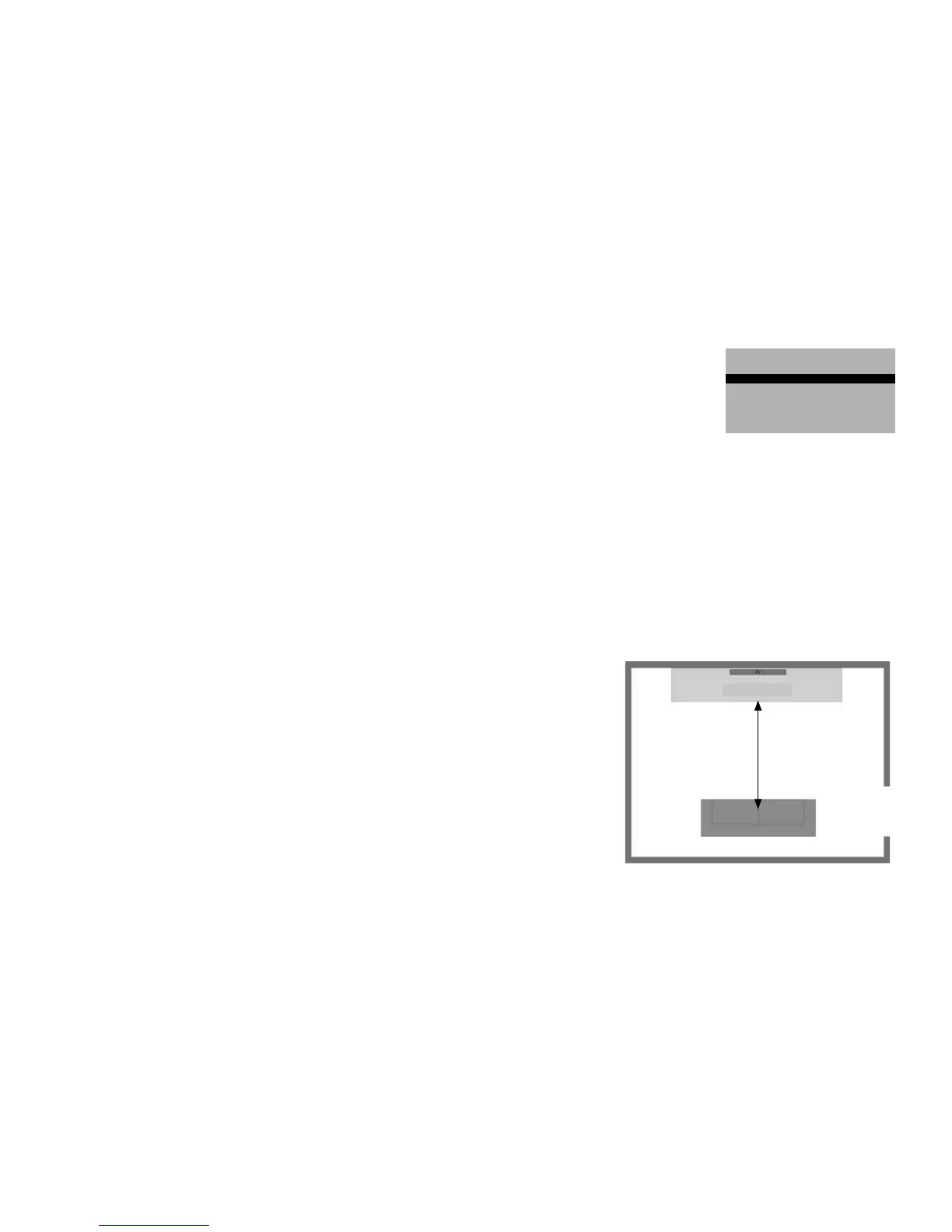
speaker distance:
To balance out dierent distances between the loudspeakers and the listening spot.
Select the loudspeaker to be adjusted. First measure the the distance between the sound system
and your preferred listening position.
Enter this value in the menu at/to the corresponding speaker (subwoofer, front left and front right)
under speaker distance’. The distance is not adjustable for the virtual speakers.
This means, in the 2.1 mode you can adjust the subwoofer, front left and front right.
Example: If wireless loudspeakers (Rear left and right) are connected and the 4.1 mode is selected
these speakers are also adjustable.
Sound System
Distance

Related product manuals