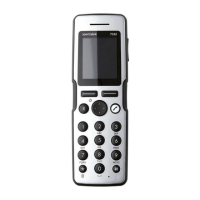
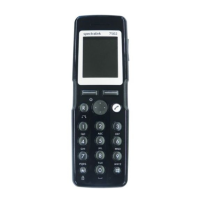
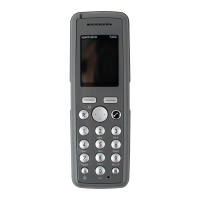
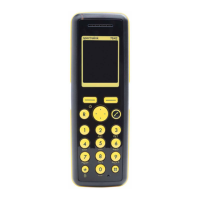
Spectralink 7520 and 7540 User Guide
14158600 Version 10.0
March, 2014 42
12 When the message has been sent, the envelope icon will appear. Press OK to accept.
Clearing Text Fields
Use the clear text function, when you are writing a new message and want to start all over.
1 Press Options.
2 Scroll to Clear text and press Select.
Saving a New Message in Outbox
You can write a message and then save it in outbox for later handling.
1 Press Menu to enter main menu.
2 Scroll to Messages and press Select.
3 Scroll to New message and press Select.
4 Write a message and press Options.
5 Scroll to Save message and press Select.
6 Scroll to Outbox and press Select.
Edit a Message that Has not Been Sent
1 Press Menu to enter main menu.
2 Scroll to Messages and press Select.
3 Scroll to Outbox and press Select.
4 Scroll to the message you want to edit, and press Select.
5 Press Options and press Select.
6 Scroll to Resend and press Select.
7 Edit text.
8 Press Options and press Send.
Using Templates
You can create up to 10 templates in relation to the kind of message you often need to send.
When using a template in a message you have two options:
• Use a template from the very beginning of the process (see below)
• Insert a template in a message when you are in the process of writing a message.
Inserting a Template in a Message
1 While in a message, press Options.


 To Next Page