14226900-IG, Edition 10.0
July 2017, Original document
45
4. To find a name you can:
l Scroll until you reach the desired name. To scroll through the names quickly press the nav-
igation key continuously.
l Use quick search by pressing the first letter(s) (max. 5 letters) of the desired name.
Adding a New Contact to Phone Book
Use the Add name/number function when you want to add a new contact to phone book.
It is possible to add up to four numbers (2 numbers containing digits and 2 SIP URIs) to a contact.
1. Press Menu to enter main menu.
2. Scroll to Phone Book and press Select.
3. Scroll to Add name/number and press Select.
4. Type the name of the contact using the keys 0-9.
5. Scroll to number and enter the number of the contact (max 24 digits). Before entering a
SIPURI press and hold # until SIP: is shown.
6. Press Save to store name and number.
If the display shows Memory full, it is necessary to delete one or more contacts from phone book.
Tip:
If you have just dialed a number from the company phone book, this number can be eas-
ily added to your local phone book:
l After ending the call, press the left side of the navigation key to enter the call
list.
l Press Details.
l Press Options. The option Add to phone book is automatically selected.
l Press Select.
l Press Save.
For more information about making calls from the company phone book, see "Company
Phone Book Calls (System Dependant)" on page28.
Editing Name/Number
You can edit name and number of a contact in phone book at any time.
1. Press Menu to enter main menu.
2. Scroll to Phone Book and press Select.
3. Scroll to Find name and press Select.
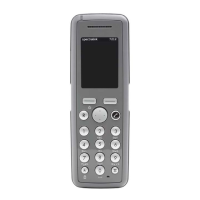
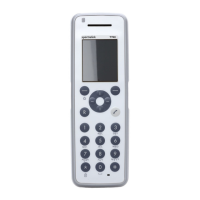
Spectralink 7522/7532 Handset User Guide


 To Next Page